
Transforming your PowerPoint presentations into great-looking videos is always a good idea when it comes to teaching, pitching, or content marketing. CapCut Desktop allows you to turn static slides into a narrated video with its AI Voice Generator and smooth editor. Using this technique, time is saved, the content is accessed more easily, and visually attractive materials ready to be used on YouTube, webinars, social media, or internal communication are obtained.
We can talk about how CapCut can make your presentations look like professional videos, even when you have never edited any videos before.
Why Convert PowerPoint to Video?
Old-fashioned PowerPoint presentations are usually non-engaging. However, when you put together narration, transitions, and motion graphics, your message is even easier to remember and understand. In printing PowerPoint into a video format, it defines:
- Sharing ability via video platforms such as YouTube or TikTok
- Voiceover and animation enhance storytelling better.
- Better consumption and retention of either learning information or business documents
- Uniformity in presentation in a presentation absent of a live presenter
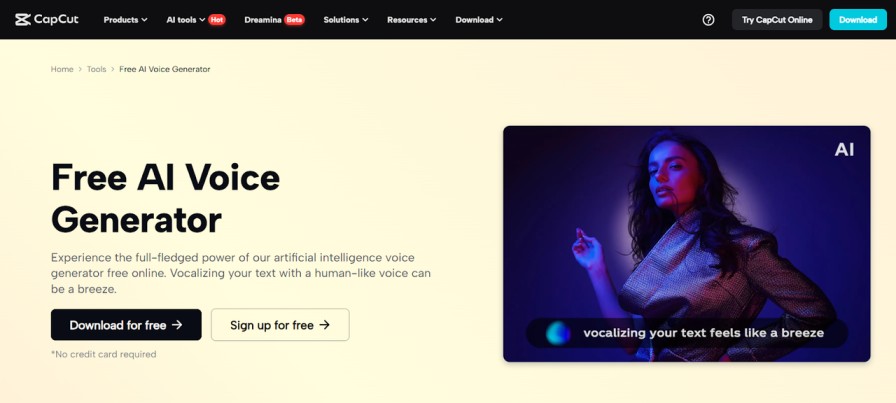
You do not even require recording your voice to narrate the text; thanks to CapCut AI Voice Generator, you type in the script, and CapCut will do the voice.
Key Features of CapCut Desktop for Slide-Based Videos
The desktop version of CapCut has tools that are specially useful in converting PowerPoint to video:
Text to Speech: Create effortless-looking presentations by converting your slide notes into natural natural-sounding voice-over in an instant
Smooth Transition: Add fade-ins, zoom effects, as well as swipe transitions so that they flow smoothly
Keyframe Animations: Use on-screen elements, animate them to attract attention
Timeline Editing: Lays down slides, voice-overs, music, and effects to the right rhythm
AI Video Upscaler: Clean up old slide designs or blurry screenshots to be professional and sharp
So, how to create a video of your PowerPoint using CapCut? Let us get through the operations.
Step-by-Step Guide: PowerPoint to AI-Narrated Video in CapCut
Step 1: Launch CapCut and Start a New Project
Go to CapCut Desktop and tap on the option “New Project”. This takes you to the timeline interface, where you will now start putting your video together. Here you can import your exported PowerPoint slides (as JPEG or PNG) by clicking the button called “Import” at the top-left media panel.
You may also drag and drop your presentation to the media bin if it was exported as a video file.
Step 2: Arrange Your Slides on the Timeline
Drag your imported slides to the timeline in a sequence. It is also possible to change the length of every slide via the timeline; simply drag its borders. You can edit the slides with ease because CapCut provides an option to trim, copy, or rearrange them to fit your narration pace.
Place transition tabs between every slide by tapping the “Transitions” tab at the top and taking your choice of transition, such as Fade, Zoom, or Push. This prevents unexpected leaps and provides professional flow in the visuals.
Step 3: Generate Voiceover Using Text to Speech
So it is time to add your narration CapCut Text to Speech feature. Select the tab labeled in the menu bar, “Text”, then the option labeled “Text to speech”. A pop-over window opens and allows one to write or paste his or her slide script. Choose the voice that is offered in the list and press the button “Generate speech”.
The voice clip will show on your timeline in audio form, which you can sync with your slides. This AI will provide you with text to speech, so you do not have to go through the inconvenience of manually recording and synchronizing, and in a few minutes, you will sound professional with an air of seriousness.
Step 4: Enhance Visuals with Effects and Music
You can make your video look more alluring by using CapCut’s tabs on those effects, filters, and text. Use moving lettering to highlight important items or provide overlays such as arrows and pictograms to direct the attention of the viewers.
Advise as well adding background music that is in the library of CapCut. You just drag the song to your timeline and mix up its volume so that it does not overpower the narration. Working on old slides or screenshots, you can use CapCut AI Video Upscaler through the option of “Enhance quality” to tweak them to be sharper and better in resolution.
Step 5: Export Your Final Video
After settling everything, you need to click the “Export” in the upper right corner. Select the resolution (1080p or 4k unless you want professional quality) and file format. Open your file as a new one, then press “Export”. CapCut will render video, your slides, AIizen narration, transitions, and effects as a single file, which is ready to post or share.
You have also managed to transform your dull PowerPoint presentation into an interactive presentation that includes narration without using a camera or microphone.
Tips to Improve Your Slide-Based Videos in CapCut
Here are a few bonus tips to make your PowerPoint videos even more impactful:
- Use Bold Visuals: Don’t rely only on bullet points. Include images, icons, and infographics for more engaging visuals.
- Keep Text Minimal: The voiceover will do the explaining—don’t crowd the screen with long paragraphs.
- Use Consistent Style: Maintain font, color, and animation consistency throughout.
- Test Different Voices: Try a few voices in CapCut’s AI voice generator to see which best suits your content type (e.g., formal for corporate training, friendly for tutorials).
- Make It Accessible: Add subtitles using the “Auto Captions” feature under Text > Auto Captions to ensure your video is accessible to everyone.
Final Thoughts
CapCut Desktop enables creating mesmerising videos on PowerPoint as voiceovers, transitions, and professional finishing are extremely simple. As a teacher, marketer, or writer, the ability to blend text to speech AI, timeline editing, and enhancement options aids you in conveying your story effectively and explicitly.
With an AI video upscaler in CapCut, you will maintain the standards of your content, matching the one of your narration, so it suits any viewer, whether on TV, on the bus, or on the beach.
Then what is the point of sticking to slides when you can convey it in video form with a solid impact? Why not convert the next round of your PowerPoint to a true video via CapCut? You will be impressed with the outcome.
Media Details:
Name: Support Team
Email: capcut.support@bytedance.com
Organization: CapCut
Website: https://www.capcut.com/