
One of the most popular programs in both personal and business settings these days is Microsoft Excel. Excel is frequently used for data management, from managing intricate financial models to monitoring daily budgets. Even though Excel is widely used, many users are only beginning to explore its full potential. Excel provides shortcuts and tricks that may significantly cut down on the amount of time spent dealing with data, whether you are a student managing your schoolwork, a business professional monitoring performance, or someone managing family finances.
Excel’s adaptability is what makes it so beautiful. It appears to be a straightforward spreadsheet application at first glance. But if you look more closely, you see that it can be used as a database, chart maker, reporting tool, calculator, and automation aid. Because they are unaware of Excel’s hidden features, people frequently find themselves wasting hours on monotonous chores. You can change your workflow and do more with fewer clicks if you know a handful of these tricks.
The focus of this blog is to work smarter, not harder. We will discuss the most frequent problems that Excel users encounter and offer straightforward, detailed fixes. Everything from how to create a drop-down list in Excel to how to remove duplicates in Excel to how to password protect an Excel file” for safe use will be covered. We’ll also discuss some real-world examples along the route to help you see how these features actually save time.
Regardless of your level of experience, you will have a clear understanding of how to use Excel efficiently by the end of this article. These tricks will enable you to realize Excel’s full potential, regardless of your level of experience.
How to Get Rid of Excel Duplicates
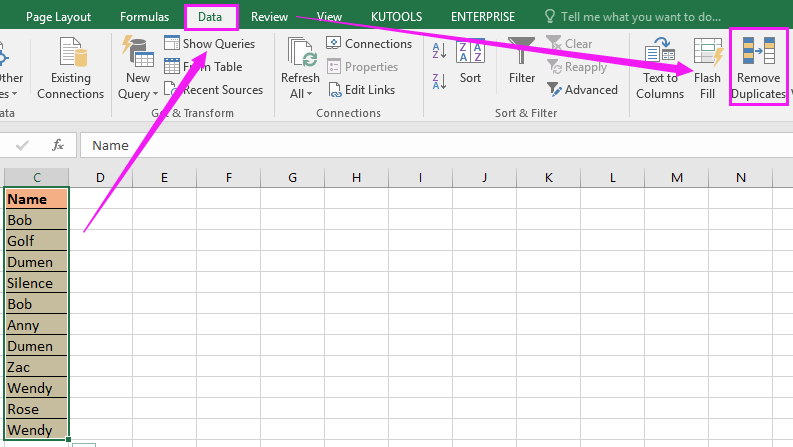
Duplication is among the most frequent problems users have when working with big data sets. Multiple entries have the potential to skew analysis and produce inaccurate findings. Gaining knowledge about how to remove duplicates in Excel is crucial.
Just choose your data range, pick the “Data” tab, and then click “Remove Duplicates.” Only unique items will remain after Excel automatically scans and removes duplicate values. This is particularly helpful for organizing goods inventory, financial information, and mailing lists.
How Excel Cells Can Be Merged
Frequently, formatting is just as crucial as the actual material. The answer to the question how to merge cells in Excel is quite simple. Click the “Merge & Center” option under the “Home” menu after selecting the cells you wish to combine. When generating headers or titles that span several columns, this functionality is useful.
Be careful, though, because merging cells only retains the top-left value and merges it into one. Make sure nothing is lost if you’re dealing with crucial data.
How to Use Excel to Freeze a Row
It can be annoying to lose sight of column headings while scrolling through huge spreadsheets. Understanding how to freeze a row inExcel is crucial in this situation. Under the “View” menu, click “Freeze Panes,” then “Freeze Top Row.”
Data navigation is now smoother because the headers remain visible no matter how deep you scroll down.
How to Utilize Excel
Fundamentally, how to use Excel is based on your requirements. It may be used to do sophisticated analytics, organize data, and perform simple computations. Entering data into cells, using formulae for mathematical operations, formatting for easier reading, and using charts to visualize patterns are some of the primary features.
Learning basic functions like SUM, AVERAGE, and IF should be the first step for beginners. You may become more productive and efficient over time by experimenting with tools like charts, conditional formatting, and pivot tables.
How to Make Every Row Visible in Excel
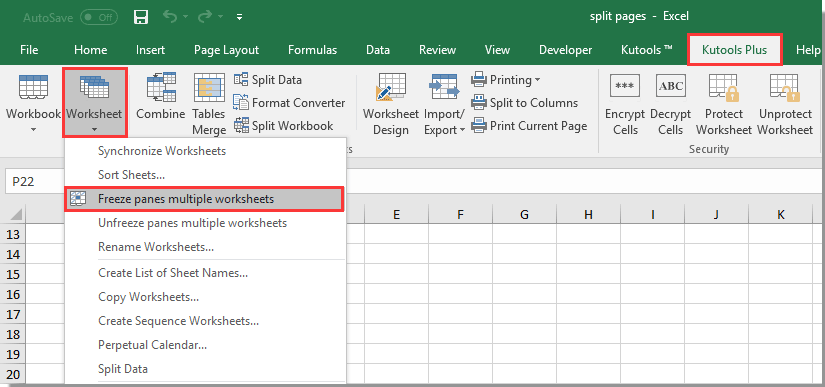
Rows might inadvertently become concealed, leaving you perplexed by missing data. Understanding how to unhide all rows in Excel is essential to resolving the issue. Right-click on the region surrounding the concealed rows, then choose “Unhide.” Or, use “Ctrl + A” to select every cell, then right-click and select “Unhide.”
You will never lose sight of information hidden in your document thanks to this method.
How to Secure Excel Cells
When sharing spreadsheets, you might wish to make sure that some data cannot be changed by others. You should be aware of how to lock cells in Excel at that point. Right-click on the cells you wish to lock, then select “Format Cells.” Click on the “Protection” tab and choose “Locked.” Lastly, choose the “Review” option and turn on worksheet protection.
This guarantees that crucial equations or references are preserved.
How to Secure an Excel File with a Password
Security is essential, particularly when handling private data. It’s crucial to understand how to password-protect an Excel file“. Select “Info,” then “File,” and finally “Protect Workbook.” Next, select “Encrypt with Password” and provide a secure password.
It is perfect for sensitive information like financial reports since, once applied, no one can open the file without the password.
How to Use Excel to Identify Duplicates
Sometimes all you need to do is identify duplicates before eliminating them. Understanding how to find duplicates in Excel is helpful for this. Go to “Conditional Formatting,” pick your data range, and then select “Highlight Cells Rules → Duplicate Values.”
Duplicate values are immediately highlighted in Excel, making them simple to find and handle.
How to Make an Excel Drop-Down List
Understanding how to create a drop-down list in Excel might help you speed up data entry. Navigate to the “Data” tab, click “Data Validation,” and then under “Allow,” pick “List.” Enter the desired values in your drop-down menu.
For guaranteeing uniformity in surveys, order forms, or project tracking sheets, this function is ideal.
How to Use Excel to Subtract
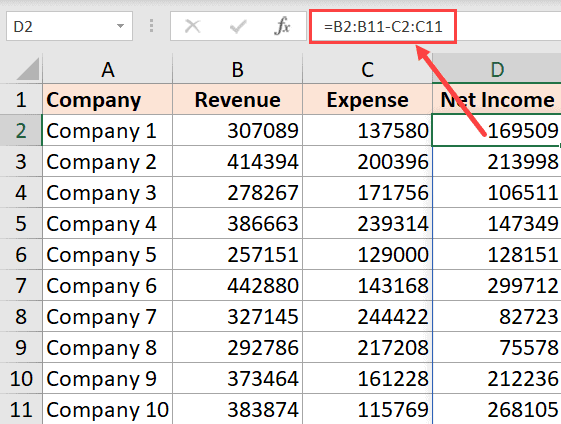
Spreadsheets are all about calculations. Type a formula such as =A1-B1 to execute subtraction. This provides a speedy solution to the how to subtract in Excel query.
You may avoid repeatedly doing the same computation by dragging formulae across many cells in bigger datasets.
How to Make Excel Macros Active
For security concerns, macros that automate repeated processes are by default deactivated. To find out how to enable macros in Excel, click on “File → Options → Trust Center → Trust Center Settings.” Go to “Macro Settings,” and choose “Enable All Macros.”
Once enabled, macros may be recorded and executed to automate complicated processes like data formatting and report preparation.
How to Make Excel Columns Visible Again
Columns can also be concealed, just like rows. If you’re not sure how to unhide columns in Excel,” pick “Unhide” with a right-click after highlighting the surrounding columns. This immediately makes the missing info visible.
How to Use Excel to Wrap Text
Text doesn’t always fit neatly in a cell. Understanding how to wrap text in Excel is beneficial. Select the “Home” tab, highlight the cells, and then select “Wrap Text.”
All of the material is now visible inside the cell, neatly packed over several lines. It’s particularly useful for lengthy notes or labels.
How to Merge Two Excel Columns
Learning how to combine two columns in Excel is the answer if you need to combine data without actually combining cells. Apply the equation =A1&” “&B1.
This preserves the original information while combining the data from two columns into one. When generating complete names from first and last name columns, it’s very helpful.
How Excel Multiplies
In Excel, multiplying is as easy as typing =A1*B1. How to multiply in Excel is covered for simple operations. Drag the formula across many rows or columns for bigger ranges.
The PRODUCT function, which multiplies a range of cells in a single step, is another feature that Excel provides.
How to Create an Excel Graph
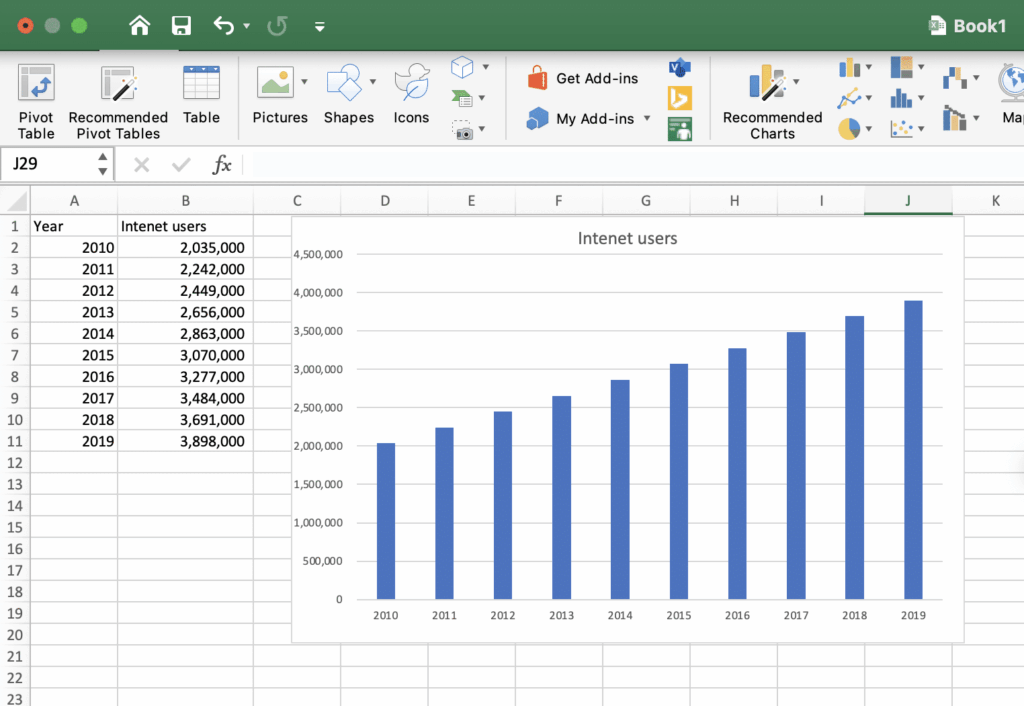
One of the best things about Excel is its visualization capabilities. Pick your data, pick the “Insert” tab, and then select a chart type (such as bar, line, or pie) to learn how to make a graph in Excel.”
Reports and presentations may be made more interesting and comprehensible by using graphs to better convey data insights.
In conclusion
Microsoft Excel is a productivity tool that is much more than simply a spreadsheet. You may save hours of labor and optimize your productivity by learning basic tricks like how to make a graph in Excel,” how to create a drop-down list in Excel,” and how to remove duplicates in Excel.” Each of these abilities advances you toward being an Excel expert, whether it’s using passwords to safeguard sensitive data, macros to automate operations, or formatting tips to keep spreadsheets organized. Let Excel do the heavy lifting and work smarter rather than harder.