
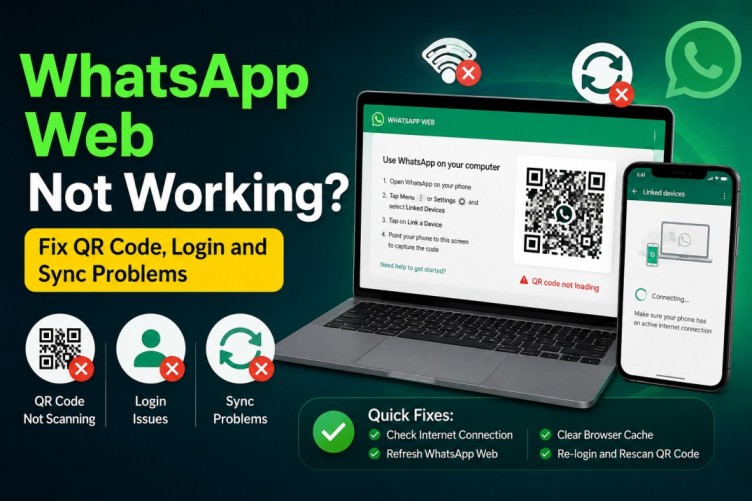
WhatsApp Web makes it easy to send messages, share files, and manage conversations from a computer without constantly switching between your phone and keyboard. However, problems can occur when the QR code refuses to scan, the login process gets stuck, messages stop syncing, or the browser repeatedly disconnects. These issues can interrupt personal conversations as well as everyday office work.
If WhatsApp Web not working is the problem you are facing, the right solution depends on the symptom. A QR code that does not scan requires a different fix from a page that fails to load or messages that remain outdated. In most cases, checking your internet connection, refreshing the page, updating your browser, or reconnecting the linked device can help resolve the issue.
This guide explains how to troubleshoot WhatsApp Web step by step, including WhatsApp Web QR code not scanning, login failures, connection problems, syncing delays, and unexpected logouts. It also explains when to clear browser data, when to try another network, and how to protect your account while fixing the problem.
1. WhatsApp Web Not Working: Start With These Quick Fixes
Before changing browser settings or relinking your account, try a few basic troubleshooting steps. These checks address common problems without requiring you to delete data or change your device configuration.
Step 1: Check Your Internet Connection
Open another website on your computer to confirm that the internet is working. Then open WhatsApp on your phone and check whether you can send and receive messages.
If other websites also fail to load, the issue may be your internet connection rather than WhatsApp Web. Restart your router if appropriate, reconnect to Wi-Fi, or try another network.
Step 2: Refresh WhatsApp Web
Open the official website at https://web.whatsapp.com and refresh the page.
A temporary loading problem or interrupted browser session may prevent WhatsApp Web from displaying correctly. Refreshing the page is a simple first step, although you may need to sign in again if the session has expired.
Step 3: Update Your Browser
Use a current version of a supported browser, such as Google Chrome, Microsoft Edge, Mozilla Firefox, Safari, or Opera. An outdated browser may have compatibility or security issues that interfere with WhatsApp Web.
Open your browser’s settings and check for updates. Restart the browser after installing any available update.
Step 4: Restart Your Devices
Restart your computer and, if necessary, your phone. This can resolve temporary network, application, or device issues.
Step 5: Check Linked Devices
Open WhatsApp on your phone and navigate to Linked Devices. Check whether your computer appears in the list and whether the session is still active.
If the computer is no longer linked, you may need to connect it again.
If these steps do not work, identify the exact symptom before proceeding. The following troubleshooting sections explain the appropriate fix for each problem.
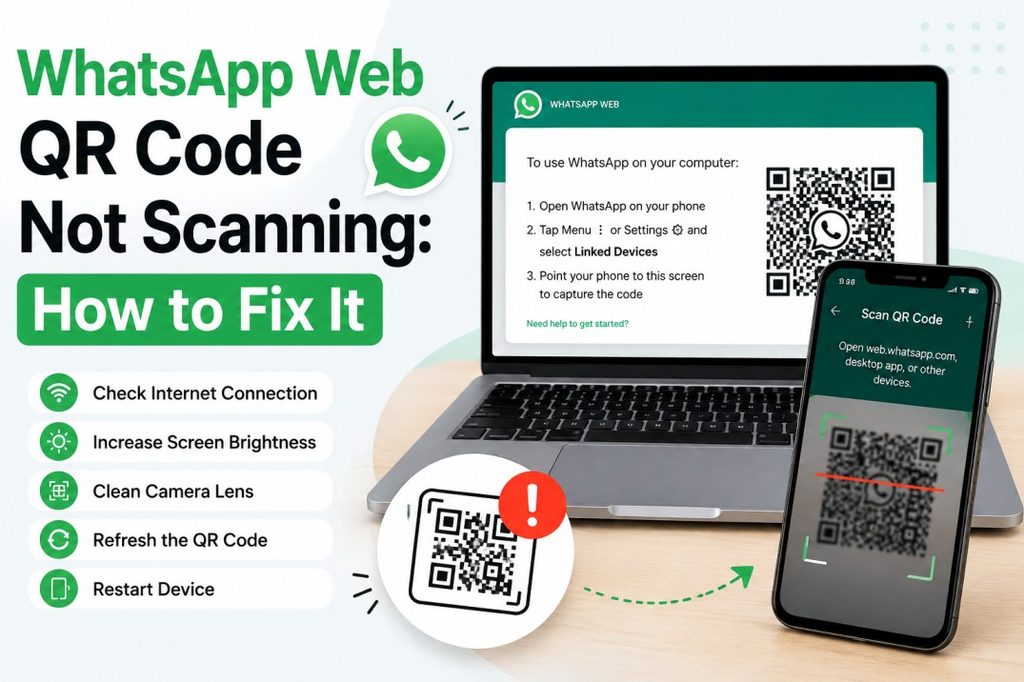
2. WhatsApp Web QR Code Not Scanning: How to Fix It
The QR code is one of the most common reasons users experience login difficulties. Sometimes the code does not appear, the phone camera cannot recognise it, or scanning succeeds without completing the login.
Fix 1: Open the Official WhatsApp Web Website
First, confirm that you are visiting the official website:
Wait for the QR code to appear fully before attempting to scan it. If the page displays a blank area or keeps loading, refresh it and check your internet connection.
Avoid scanning QR codes from unfamiliar websites that claim to provide WhatsApp login services. Linking an account to an untrusted service can expose your account to security risks.
Fix 2: Use the Scanner Inside WhatsApp
Do not rely on your phone’s regular camera app to complete the linking process. Use WhatsApp’s built-in device-linking feature.
On Android:
- Open WhatsApp on your phone.
- Tap the three-dot menu.
- Select Linked Devices.
- Tap Link a Device.
- Unlock your phone if prompted.
- Point the scanner at the QR code displayed on your computer.
On iPhone:
- Open WhatsApp.
- Open Settings.
- Select Linked Devices.
- Tap Link a Device.
- Authenticate if prompted.
- Scan the QR code displayed on your computer.
Menu labels can vary slightly between versions. Follow the instructions displayed in your current WhatsApp app if they differ.
Fix 3: Improve QR Code Visibility
If the WhatsApp Web QR code is not scanning, check the display and camera conditions.
Increase your computer’s screen brightness and clean your phone’s camera lens. Make sure the QR code is fully visible and that the entire code fits within the scanner’s frame.
Avoid excessive zooming or tilting the phone. If the code appears blurry or distorted, refresh the page to generate a new one.
Fix 4: Refresh an Expired QR Code
A QR code may stop working if you leave the login page open for too long or the session becomes invalid.
Refresh the WhatsApp Web page and wait for a new code. Then scan it promptly using the linked-device scanner on your phone.
Fix 5: Check Camera Permissions and Display Issues
The built-in WhatsApp scanner needs access to your phone’s camera. If the scanner itself cannot open or use the camera, check the WhatsApp camera permission in your phone’s settings.
If the QR code is missing on your computer, temporarily disable browser extensions that might interfere with page scripts, and try a private or incognito window. If the code appears there, a browser extension or stored site data may be responsible.
3. WhatsApp Web Not Loading: Fix a Blank Screen or Endless Loading
Sometimes the website opens, but the login screen never appears. In other cases, the page remains white, displays an incomplete interface, or keeps showing a loading indicator.
These symptoms may result from browser cache problems, extensions, network restrictions, or outdated software.
Clear Your Browser Cache
Browsers store temporary files to load websites more quickly. Occasionally, cached data can become outdated or interfere with a website’s normal behaviour.
To troubleshoot this issue:
- Open your browser’s settings.
- Find the privacy or browsing-data section.
- Choose the option to clear cached images and files.
- Clear the relevant data.
- Reopen https://web.whatsapp.com.
You do not necessarily need to delete all your browsing history. Start by clearing cached files and test the page again.
If the problem continues, consider clearing cookies and site data for WhatsApp Web. Be aware that removing site data may sign you out and require you to link the device again.
Disable Problematic Browser Extensions
Privacy extensions, script blockers, ad blockers, and certain security extensions can sometimes interfere with website functionality.
Open WhatsApp Web in a private or incognito window, where extensions are often disabled by default, depending on your browser settings.
If the website works in that window, disable extensions one at a time in your normal browser to identify the cause. Re-enable any extension that is not responsible for the issue.
Check VPN and Proxy Settings
A VPN, proxy, or corporate network filter can sometimes interfere with connections to WhatsApp’s services.
If you use a VPN, temporarily disconnect it if doing so is permitted and safe. Then reload the page.
On a company-managed computer, do not bypass organisational security controls. Ask your IT administrator whether WhatsApp Web is permitted on the network.
Try Another Browser
Open WhatsApp Web in another supported, up-to-date browser.
For example, if the page fails in Chrome but loads correctly in Edge, the problem may relate to the original browser’s settings, extensions, or stored data.
This comparison can help you identify the source of the issue without making unnecessary changes to your computer.
4. WhatsApp Web Login Problem: QR Code Works but Login Fails
A QR code may scan successfully without allowing you to enter your chats. The browser might continue loading, return to the QR screen, or display a message indicating that the device could not be linked.
Check Your Linked-Device Limit
WhatsApp supports linking up to four additional devices to a primary account under its standard linked-device arrangement. If you have already reached the limit, review the Linked Devices section on your phone.
Remove an old or unrecognised device if you no longer need it. Then attempt to link the computer again.
Do not remove devices you still use unless you understand the consequences. Logging out a device ends that linked session and may require a new pairing process.
Update WhatsApp on Your Phone
An outdated version of WhatsApp can sometimes cause compatibility problems or prevent you from accessing newer features.
Open the Google Play Store or Apple App Store, find WhatsApp, and install an available update. Once the update is complete, reopen WhatsApp and try linking the computer again.
Also make sure your computer’s browser is current.
Use the Phone-Number Linking Option
If the QR code consistently fails, WhatsApp Web may offer an alternative linking method using your phone number.
To use it:
- Open https://web.whatsapp.com.
- Select the option to link using your phone number, if displayed.
- Enter your WhatsApp account’s phone number and follow the instructions.
- Note the code displayed on your computer.
- Open WhatsApp on your primary phone.
- Follow the device-linking instructions and enter the code when prompted.
- Confirm the linking request if the device details are correct.
Availability and menu labels may vary. Use only the code generated by the official WhatsApp website and approve a request only when you initiated it.
Check Whether WhatsApp Is Experiencing a Service Issue
If login fails across different browsers and networks, the issue may not be limited to your device.
Check WhatsApp’s official announcements and support resources for relevant service information. If there is a widespread disruption, repeated attempts to clear browser data or reinstall applications may not help.
Wait for the service to recover and try again.
5. WhatsApp Web Not Connecting: Fix Network and Connection Problems
You may be able to open WhatsApp Web but still see a connection warning or find that messages cannot be sent. This usually requires checking the network path between your browser and WhatsApp.
Test Another Network
Connect your computer to another trusted Wi-Fi network or a mobile hotspot, if available.
If WhatsApp Web works on the alternative network, the original network may be blocking or disrupting the connection. This can happen on office, university, hotel, or public Wi-Fi networks.
If the network is managed by an organisation, ask its administrator to investigate rather than attempting to bypass restrictions.
Check Whether Your Phone Has Internet Access
Linked devices can continue operating independently of the primary phone’s internet connection after they have been linked. However, you still need the primary phone to register your account and link new devices.
If you are linking a new computer, make sure WhatsApp is working on your phone and that you can complete the authentication process.
If an existing linked computer stops connecting, check the computer’s internet access first, then investigate the browser and session.
Refresh and Reconnect
If the network is working but WhatsApp Web remains disconnected:
- Refresh the browser tab.
- Check whether other websites load.
- Restart the browser.
- Sign out of WhatsApp Web and link the device again if necessary.
- Restart your router or computer if the issue persists.
WhatsApp’s official connection guidance also recommends refreshing the page, clearing browser cache and cookies, restarting devices, and testing another network when connection problems continue.
Check Firewall or Security Software
Some firewalls, proxy servers, and security products restrict connections to specific domains or services.
If you are on a personal computer, review recent security-software changes and consult the software’s documentation. On a work device, ask your IT administrator to verify that the required WhatsApp services are accessible.
Do not disable your firewall or antivirus permanently just to make WhatsApp Web work.
6. WhatsApp Web Messages Not Syncing: Fix Missing or Delayed Chats
Another common issue occurs when WhatsApp Web opens successfully but the messages shown on the computer do not match the conversations on the phone.
You may notice that new messages arrive late, a recent conversation is missing, or the browser continues displaying an older chat history.
Step 1: Check the Connection on Both Devices
Make sure your computer has a stable internet connection and that WhatsApp is functioning on your primary phone.
Try sending a message from the computer and check whether it appears on the phone. Then send a message from the phone and see whether it appears on the computer.
This simple test helps establish whether the problem affects sending, receiving, or displaying messages.
Step 2: Refresh WhatsApp Web
Refresh the page and wait for the conversations to load.
If messages appear after refreshing, the issue may have been a temporary display or connection problem.
Avoid repeatedly refreshing the page if it is already processing a large amount of data. Give it time to complete the initial load.
Step 3: Check Whether the Conversation Is Actually Missing
Search for the contact or group using WhatsApp Web’s search feature. Check archived chats and confirm that you are signed in to the correct account.
A conversation that does not appear in the main chat list may be archived or associated with a different account than expected.
Step 4: Update WhatsApp
Update WhatsApp on your phone and keep the linked device’s software current. Updates may include compatibility improvements and fixes for known issues.
If only older messages are missing, the problem may relate to the history available on that linked device rather than a general connection failure.
WhatsApp’s help documentation acknowledges that some linked devices may not display the full history of older chats. The primary device may still contain the relevant conversation history.
Step 5: Relink the Device if Necessary
If messages remain out of date after the preceding checks, sign out of the affected linked device and link it again through the official WhatsApp process.
Before doing so, confirm that you can access your account on your primary phone and that you know how to authenticate the new link.
Relinking can resolve certain session problems, but it is not a guarantee that every older message will appear on the computer.
Important: Do not delete your WhatsApp account or clear your phone’s app data as an initial troubleshooting step. These actions are more disruptive and may affect access to your account or local data.
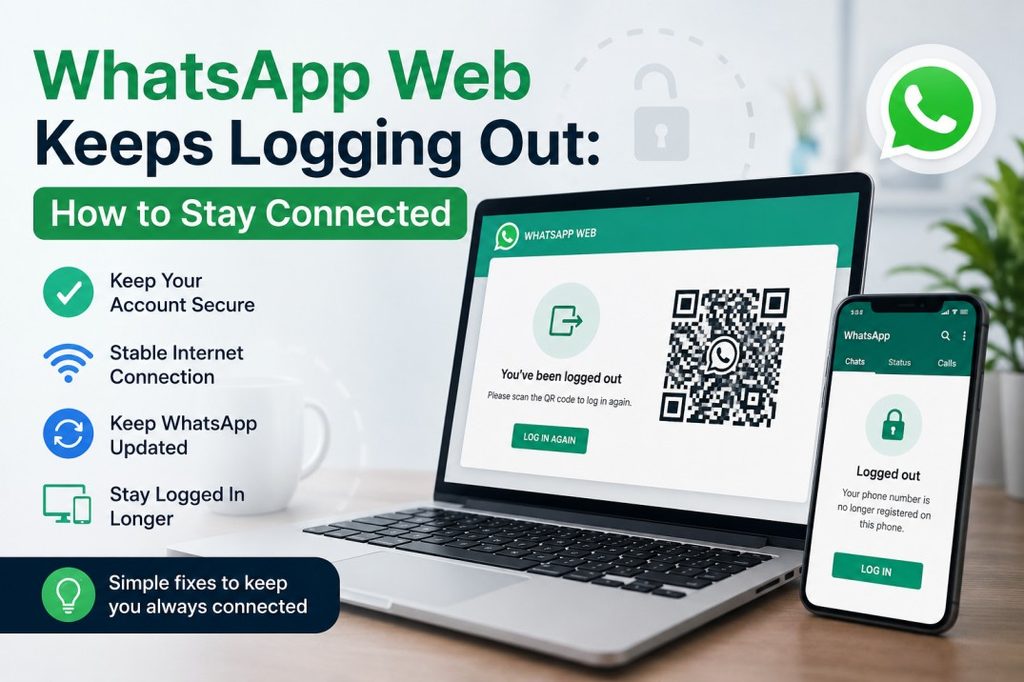
7. WhatsApp Web Keeps Logging Out: How to Stay Connected
If WhatsApp Web repeatedly returns to the QR-code screen, you may be experiencing session expiry, browser data deletion, or a linked-device issue.
Check Whether Browser Cookies Are Being Deleted
Some browsers delete cookies and site data automatically when they close. Privacy tools and extensions may also remove website data.
If this happens to WhatsApp Web, you may need to link the device again after reopening the browser.
Review your browser’s settings and allow the required site data to persist if that is appropriate for your device and security requirements.
Check Your Linked Devices Regularly
Open WhatsApp on your phone and review the linked devices list.
If the computer appears in the list but is not working, try opening WhatsApp Web again. If the session is no longer active, link it again.
WhatsApp can automatically disconnect linked devices after periods of inactivity. Its current linked-device guidance also states that you need to use the primary phone to log in at least once every 14 days to keep linked devices connected.
Avoid Repeatedly Clearing Browser Data
Clearing cookies and site data can help with a corrupted session, but repeating the process unnecessarily may force you to log in again and again.
Once the problem is fixed, avoid clearing WhatsApp Web’s site data unless you have a specific reason to do so.
Check Whether You Are Using a Shared Computer
If you use a public or shared computer, automatic logout may be a security feature rather than a fault.
On a personal computer, keeping a session active can be convenient. On a shared computer, logging out when you finish is safer.
Do not prioritise convenience over account security when other people can access the device.
8. WhatsApp Web Not Working in Chrome, Edge, Firefox, or Safari
Sometimes the problem occurs only in one browser. In such cases, the best approach is to compare browsers and change only the settings that appear responsible.
Google Chrome
If WhatsApp Web fails in Chrome, update the browser, refresh the page, and test it in an incognito window.
If it works in incognito mode, review your extensions and stored site data. Disable suspected extensions one at a time to identify the cause.
Microsoft Edge
Update Edge and test WhatsApp Web in an InPrivate window. If the website works there, investigate extensions, tracking-prevention settings, and stored site data.
Do not lower browser security settings broadly just to troubleshoot one website.
Mozilla Firefox
Update Firefox and test the website in a private window. If it works there, investigate extensions and privacy settings that may be affecting the page.
You can also clear the relevant site data if the problem appears to be caused by stored information.
Safari
If WhatsApp Web does not load in Safari, check for macOS and Safari updates. Review content blockers and relevant website privacy settings, then reload the page.
If the problem persists, test another supported browser to determine whether the issue is specific to Safari.
WhatsApp Web Versus the Desktop App
WhatsApp Web runs in a browser, while WhatsApp’s desktop application is installed on the computer.
If the browser version is not working, testing the official desktop app may help you determine whether the issue is browser-specific. Conversely, if the desktop app fails while WhatsApp Web works, the problem may be limited to the installed application.
Both methods require a secure, official installation or website. Neither method should be replaced with an unofficial application that asks you to expose your account credentials.
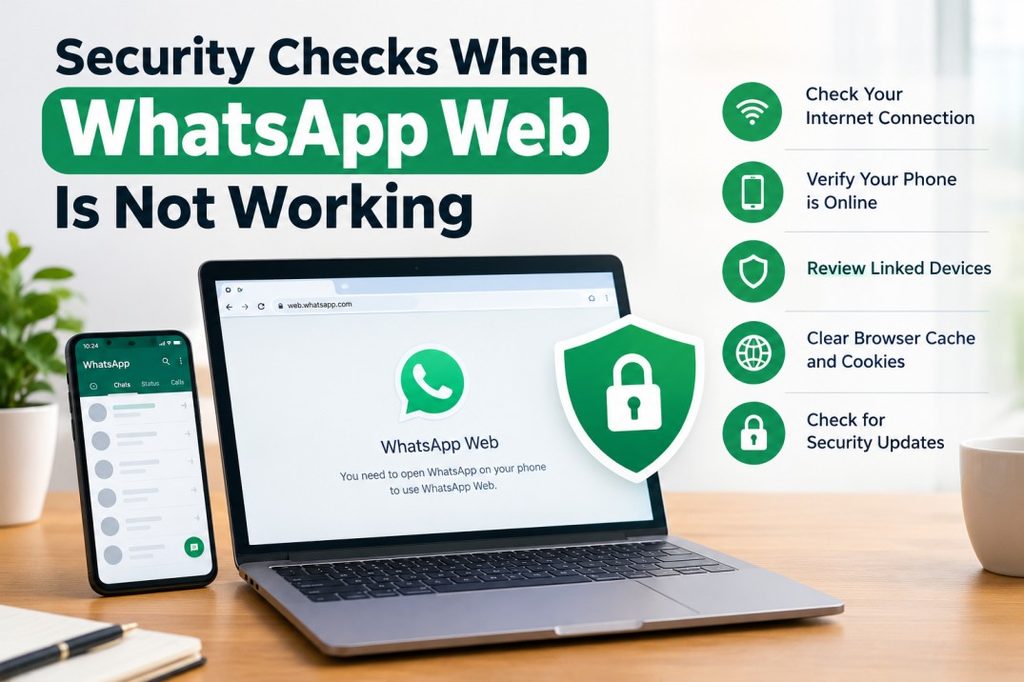
9. Security Checks When WhatsApp Web Is Not Working
Troubleshooting should not put your account at risk. Some fake login pages and fraudulent support messages imitate WhatsApp to trick users into linking their accounts to an attacker’s device.
Verify the Website Before Scanning
Always check the address bar before scanning a QR code. Use the official WhatsApp Web website and avoid unfamiliar pages that promise special features or claim they can repair your account automatically.
Review Linked Devices
Open WhatsApp on your phone and inspect the list of linked devices. If you find an unfamiliar computer or session, select it and log it out.
WhatsApp’s official help resources explain how to review linked devices and remove devices you do not recognise.
Never Approve an Unfamiliar Linking Request
If you receive a device-linking request that you did not initiate, do not approve it. Someone may be attempting to connect their device to your account.
Only enter a linking code when you initiated the process on the official WhatsApp website or application and can verify the device details.
Enable Two-Step Verification
Two-step verification adds another layer of protection to your WhatsApp account. Enable it through the account settings in your phone app and keep any associated PIN and recovery information secure.
Remember that two-step verification does not replace checking linked devices or protecting your phone.
Log Out From Shared Computers
When using a public or shared computer, log out of WhatsApp Web when you finish. You can also remove a linked device from your phone.
Avoid saving sensitive information on shared machines, and never leave an active messaging session accessible to other users.
10. WhatsApp Web Troubleshooting Decision Tree
Use this quick decision guide to identify the next step based on what you see.
| Problem | First action | If the problem continues |
| QR code does not appear | Refresh the official website | Test another browser or network |
| QR code will not scan | Use WhatsApp’s built-in scanner | Refresh the code and check camera access |
| QR code scans but login fails | Update WhatsApp and check linked devices | Try phone-number linking if available |
| Website stays blank | Clear cached files and test a private window | Check extensions, network restrictions, and browser updates |
| Messages do not send | Check the computer’s connection | Test another network and refresh the page |
| Messages are missing | Search chats and refresh | Update WhatsApp and investigate linked-device history |
| WhatsApp Web repeatedly logs out | Check cookie and site-data settings | Relink the device and review session security |
| Problem occurs only in one browser | Test another supported browser | Review the affected browser’s extensions and settings |
| Unknown device appears | Log out the unfamiliar device | Secure your account and review its security settings |
The key is to fix the problem that matches your symptom rather than applying every troubleshooting step at once. This approach reduces unnecessary changes and makes it easier to identify the actual cause.
11. Frequently Asked Questions
Why is WhatsApp Web not working today?
WhatsApp Web may fail because of an internet connection problem, browser issue, expired session, temporary service disruption, or linked-device error. Start by checking whether other websites load, refreshing WhatsApp Web, and testing the account on your phone. If the issue continues across browsers and networks, check official WhatsApp support resources for service-related information.
Why is my WhatsApp Web QR code not scanning?
The QR code may be expired, blurry, partially hidden, or difficult for your phone camera to recognise. Refresh the website, increase screen brightness, clean your camera lens, and scan the code using WhatsApp’s built-in Linked Devices feature.
How do I fix a WhatsApp Web login problem?
Update WhatsApp and your browser, confirm that you have not reached the linked-device limit, and retry the official linking process. If the QR code does not work and the option is available, use phone-number linking instead.
Why is WhatsApp Web not connecting even though my internet works?
Your network may restrict access to WhatsApp, or a VPN, proxy, firewall, or browser extension may interfere with the connection. Test another trusted network or browser. If you are using a managed office network, contact your IT administrator.
Why are my WhatsApp Web messages not syncing?
A connection interruption, outdated application, or incomplete chat-history availability on a linked device may explain the issue. Refresh the page, update WhatsApp, and search for the conversation. Some linked devices may not display the full history of older chats.
Why does WhatsApp Web keep logging out?
Your browser may automatically delete site data, the linked session may have expired, or the device may have been disconnected. Review browser cookie settings, inspect Linked Devices on your phone, and link the computer again if needed.
Can I use WhatsApp Web if my phone is switched off?
WhatsApp’s linked-device system allows you to use a previously linked computer without keeping your primary phone connected to the internet. However, you still need your primary phone to register your account and link new devices. Linked devices can also disconnect after extended inactivity.
Should I clear cookies to fix WhatsApp Web?
Clearing cookies or site data can resolve certain browser-session problems, but it may also sign you out and require you to link the device again. Start by refreshing the page, updating the browser, and clearing cached files. Clear the relevant site data only if necessary.
Is WhatsApp Web safe to use on a public computer?
It is safer to avoid accessing personal messages on a public computer when possible. If you must use one, access only the official website, never approve unfamiliar linking requests, and log out completely when you finish. Review your linked devices afterward to confirm that the session has been disconnected.
Is WhatsApp Web different from the WhatsApp desktop app?
Yes. WhatsApp Web runs in a browser, while the desktop application is installed on your computer. Testing both can help determine whether a problem is browser-specific or affects access to WhatsApp more generally.
Conclusion
When WhatsApp Web not working interrupts your daily tasks, start by checking your internet connection, refreshing the website, and confirming that your browser and WhatsApp application are up to date. If the QR code does not scan, use the built-in linking scanner and refresh the code. If the page will not load, test another browser and investigate cached data or extensions. If messages fail to sync or the session repeatedly disconnects, review your linked devices and reconnect only when necessary.
Most importantly, choose the troubleshooting steps that match your particular problem. Avoid deleting important data or disabling security protections without a clear reason, and always use the official WhatsApp website when linking a device.
With a systematic approach, you can narrow down the cause, restore access when the problem is within your control, and keep your account more secure while troubleshooting.