
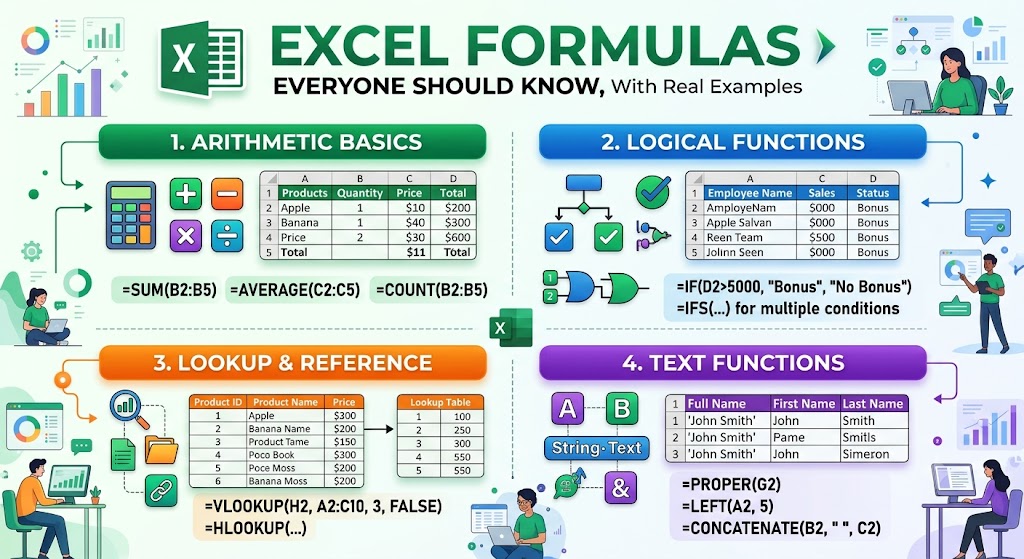
Excel is one of the most useful tools for managing data, preparing reports, tracking expenses, and completing everyday office tasks. However, working with large spreadsheets manually can take hours, especially when you need to calculate totals, compare records, identify duplicates, or prepare summaries. Learning a few essential Excel formulas can make these tasks significantly easier.
If you are looking for Excel formulas with examples, this guide explains the most useful functions step by step. You will learn how to calculate totals, apply conditions, search for information, count records, compare columns, and handle common spreadsheet errors. Each formula includes a practical example so you can understand where to use it in real work.
Whether you are a student, office employee, accountant, business owner, analyst, or beginner, these formulas will help you work more efficiently with spreadsheets.
1. What Are Excel Formulas?
Excel formulas are instructions that perform calculations or process information stored in worksheet cells. A formula can add numbers, compare values, search for matching records, calculate percentages, or return a result based on a condition.
Every Excel formula begins with an equal sign (=). For example, if cell A2 contains 100 and cell B2 contains 200, entering =A2+B2 in cell C2 returns 300.
The advantage of using formulas instead of manually entering results is that Excel can recalculate them when the underlying values change. This makes formulas particularly useful for budgets, sales reports, employee records, inventory lists, and financial calculations.
Excel includes hundreds of built-in functions, but you do not need to learn all of them at once. Start with the functions that solve everyday problems and gradually move towards more advanced calculations.
2. Basic Excel Formulas for Beginners
Before learning advanced functions, understand the basic formulas used for everyday calculations. These are among the easiest Excel formulas for beginners to learn because they work with familiar mathematical operations.
Addition Formula
The addition formula combines two or more values.
Formula:
=A2+B2
Example:
Suppose cell A2 contains 500 and cell B2 contains 300. Enter the formula in C2 to calculate the total.
Result: 800.
You can also add several cells together using =A2+B2+C2. However, when adding a larger range of cells, the SUM function is usually more convenient.
Subtraction Formula
Subtraction helps calculate differences, remaining balances, and outstanding amounts.
Formula:
=A2-B2
Example:
If your monthly budget is ₹20,000 and your expenses are ₹13,500, the formula returns ₹6,500.
This calculation is useful for expense tracking, inventory management, and comparing planned spending with actual spending.
Multiplication Formula
Use the multiplication operator (*) to calculate totals based on quantities and prices.
Formula:
=A2*B2
Example:
Suppose you purchase 12 notebooks at ₹45 each. Enter 12 in A2 and 45 in B2.
The formula returns ₹540.
This formula is useful for calculating product costs, employee working hours multiplied by hourly rates, and sales revenue.
Division Formula
The division operator (/) calculates how one value is distributed across another.
Formula:
=A2/B2
Example:
If a company earns ₹60,000 from selling 120 products, dividing revenue by quantity gives an average selling price of ₹500 per product.
Remember that division by zero produces a #DIV/0! error. Make sure the denominator contains a valid, non-zero number.
Percentage Formula
Percentage calculations are useful for discounts, sales growth, commissions, and performance reports.
Formula:
=B2/A2
Suppose A2 contains a target of 200 units and B2 contains actual sales of 150 units. The formula returns 75% when the result cell is formatted as a percentage.
To calculate a 15% discount on a product priced at ₹2,000, use:
=2000*15%
Result: ₹300.
To calculate the discounted price, use:
=2000*(1-15%)
Result: ₹1,700.
3. SUM Formula: Add Numbers Quickly
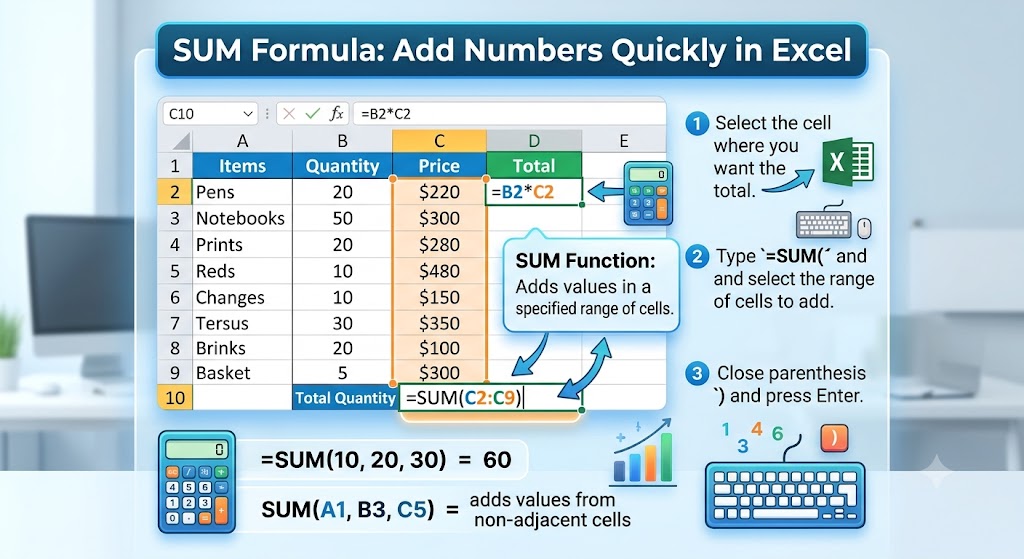
The SUM function is one of the most frequently used Excel functions. It adds values from individual cells or a complete range, eliminating the need to enter long addition formulas.
Syntax:
=SUM(number1, [number2], …)
Example:
Imagine you have recorded daily sales in cells B2 through B31. Instead of adding every value manually, enter:
=SUM(B2:B31)
Excel calculates the total sales for the entire period.
You can also add separate ranges. For example:
=SUM(B2:B10,D2:D10)
This formula adds values from both specified ranges.
When to use SUM:
- Calculate monthly expenses.
- Add daily sales figures.
- Total invoice amounts.
- Calculate inventory value.
- Summarize employee working hours.
Common mistake: Check that the intended cells contain numeric values. Numbers stored as text may not be included as expected.
4. AVERAGE Formula: Calculate the Mean
The AVERAGE function calculates the arithmetic mean of a group of numeric values. It is useful for understanding typical sales, average marks, employee performance, or monthly spending.
Syntax:
=AVERAGE(number1, [number2], …)
Example:
Suppose a student receives 75, 80, 90, 85, and 70 marks in five subjects. If the marks are stored in cells B2, use:
=AVERAGE(B2:B6)
Result: 80.
Excel ignores blank cells and text entries in a referenced range, but zero values are included in the calculation.
Practical office example: A sales manager can calculate the average daily revenue for a month using =AVERAGE(C2:C31). This helps compare performance across different periods.
Remember that an average does not always describe the full picture. If a few unusually high or low values exist, consider reviewing the individual records alongside the average.
5. IF Formula: Make Decisions Automatically
The IF function checks whether a condition is true or false and returns a different result for each outcome. It is particularly useful for creating automated status columns in spreadsheets.
Syntax:
=IF(logical_test, value_if_true, value_if_false)
Excel IF Formula Examples
Suppose employee performance scores are listed in column B. Your company considers a score of 70 or higher a passing result.
Enter the following formula in C2:
=IF(B2>=70,”Pass”,”Fail”)
If B2 contains 85, Excel displays Pass. If B2 contains 55, it displays Fail.
The formula checks the condition B2>=70. When the condition is true, Excel returns the first result. Otherwise, it returns the second.
Example: Calculate Employee Incentives
Suppose an employee receives a sales incentive when monthly sales reach ₹100,000.
=IF(B2>=100000,5000,0)
The formula returns ₹5,000 if sales meet or exceed the target and zero otherwise.
Example: Identify Overdue Payments
Suppose column B contains payment due dates and column C contains payment status. You want to flag unpaid invoices whose due dates have passed.
=IF(AND(B2<TODAY(),C2<>”Paid”),”Overdue”,”On Track”)
This formula combines IF with AND and TODAY. It checks whether the due date is earlier than today’s date and the payment status is not Paid.
Important limitation: TODAY updates with the current date when Excel recalculates. If your organisation uses a fixed reporting date, use a cell containing that date instead.
The IF function can also be combined with other functions to create more sophisticated rules. However, when a formula contains many nested conditions, consider using IFS, lookup tables, or other clearer alternatives where supported.
6. SUMIF Formula: Add Values Based on a Condition
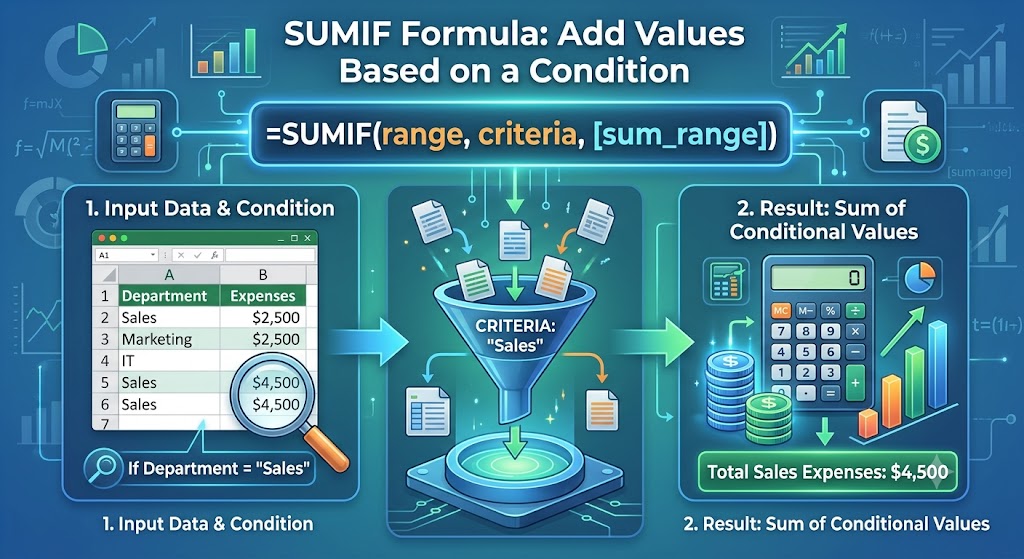
The SUMIF function adds numbers only when corresponding cells meet a specified condition. It is particularly helpful when you need totals for a particular employee, product, department, or expense category.
Syntax:
=SUMIF(range, criteria, [sum_range])
Here, range identifies the cells to evaluate, criteria defines the condition, and sum_range identifies the numbers to add.
Excel SUMIF Formula Example
Consider the following sales data:
| Product | Sales |
| Laptop | ₹50,000 |
| Mouse | ₹1,000 |
| Laptop | ₹60,000 |
| Keyboard | ₹2,000 |
| Mouse | ₹1,500 |
Assume product names are stored in A2 and sales values are in B2.
To calculate total sales for laptops, use:
=SUMIF(A2:A6,”Laptop”,B2:B6)
Result: ₹110,000.
Excel checks the product names in column A and adds the corresponding sales figures from column B whenever it finds Laptop.
Example: Add Expenses Above ₹1,000
If expense amounts are recorded in B2, use:
=SUMIF(B2:B20,”>1000″)
This adds only the values greater than ₹1,000.
When to Use SUMIF
Use this function to calculate sales by product, expenses by category, revenue by salesperson, or payments associated with a particular customer.
If you need to apply two or more conditions simultaneously, use SUMIFS instead. For example, you might calculate sales for a particular product in a specific region.
7. COUNT and COUNTIF: Count Records Automatically
Excel offers several counting functions. COUNT counts numeric cells, COUNTA counts non-empty cells, and COUNTIF counts cells that meet a particular condition.
Understanding the difference helps prevent errors when preparing reports.
COUNT Formula
Formula:
=COUNT(B2:B100)
This formula counts the cells containing numeric values in the specified range.
It is useful when you want to count recorded sales figures, examination marks, or numeric transaction amounts.
COUNTA Formula
Formula:
=COUNTA(A2:A100)
COUNTA counts non-empty cells, including cells containing text. It is useful for counting entries in an employee list or customer database.
Excel COUNTIF Examples
The COUNTIF function counts cells that meet one condition.
Syntax:
=COUNTIF(range, criteria)
Suppose employee departments are listed in column A, from A2 to A100. To count employees in the Marketing department, use:
=COUNTIF(A2:A100,”Marketing”)
If 15 employees belong to Marketing, the result is 15.
To count sales transactions greater than ₹10,000, use:
=COUNTIF(B2:B100,”>10000″)
To count cells containing the word Pending, use:
=COUNTIF(C2:C100,”Pending”)
COUNTIFS: Count Using Multiple Conditions
If you need to count records that satisfy more than one condition, use COUNTIFS.
For example, suppose column A contains departments and column B contains employee status. To count active employees in the Marketing department, use:
=COUNTIFS(A2:A100,”Marketing”,B2:B100,”Active”)
This formula counts only rows where both conditions are satisfied.
Common mistake: Text criteria should generally be enclosed in double quotation marks. For conditions involving comparison operators, such as greater than or less than, include the operator inside the quoted criteria.
8. VLOOKUP Formula: Find Information in a Table
VLOOKUP searches for a value in the first column of a table and returns corresponding information from another column in the same row.
It is commonly used to retrieve employee details, product prices, customer information, and inventory records.
Syntax:
=VLOOKUP(lookup_value, table_array, col_index_num, [range_lookup])
The arguments specify what to search for, where to search, which column to return, and whether to use an exact or approximate match.
Excel VLOOKUP Example
Suppose your product table contains the following information:
| Product ID | Product | Price |
| P101 | Keyboard | ₹1,200 |
| P102 | Mouse | ₹600 |
| P103 | Monitor | ₹12,000 |
| P104 | Webcam | ₹2,500 |
The table occupies cells A2. You enter a product ID in E2 and want Excel to retrieve its price.
Use:
=VLOOKUP(E2,A2:C5,3,FALSE)
If E2 contains P103, the result is ₹12,000.
The formula searches for P103 in the first column of the specified table and returns the value from the third column. FALSE requests an exact match.
Common VLOOKUP Limitations
VLOOKUP searches the leftmost column of the selected table. It cannot directly return a value from a column to the left of the lookup column.
The column index is also a number. If you insert or rearrange columns, you may need to review the formula to ensure it still returns the correct information.
For most exact-match lookups, use FALSE as the final argument. Approximate matching requires more care and is generally appropriate for properly organised lookup tables.
9. XLOOKUP Formula: A Modern Alternative to VLOOKUP
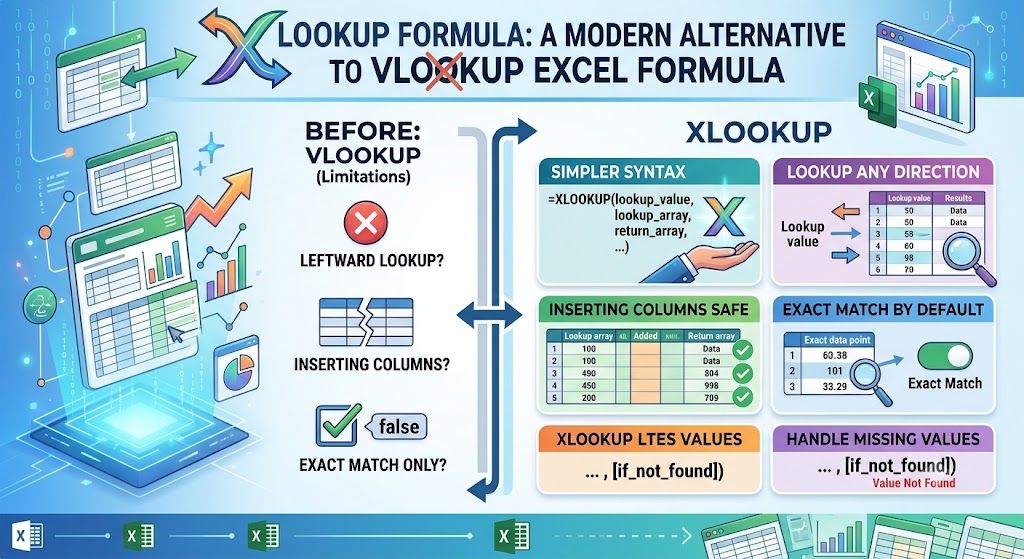
XLOOKUP is a lookup function available in newer Excel versions, including Microsoft 365 and Excel 2021 or later. It offers more flexibility than VLOOKUP because the lookup and return ranges can be separate, and the return range can be on either side of the lookup range.
Syntax:
=XLOOKUP(lookup_value, lookup_array, return_array, [if_not_found])
Using the product table from the previous example, you can retrieve a product’s price with:
=XLOOKUP(E2,A2:A5,C2:C5,”Product not found”)
If E2 contains P103, Excel returns ₹12,000. If the product ID is absent, the formula displays Product not found.
Why Use XLOOKUP?
- It supports exact matches by default.
- It can return information from columns to the left or right.
- It allows a custom result when no match is found.
- It does not require a numeric column index.
XLOOKUP is often the better choice when working in a compatible version of Excel. However, if a workbook must be shared with people using older Excel versions that do not support XLOOKUP, VLOOKUP or INDEX and MATCH may be more compatible.
10. Excel Formula to Compare Two Columns
Comparing two columns is a common spreadsheet task. You may need to find matching customer IDs, identify missing invoice numbers, check inventory records, or determine whether two lists contain the same information.
The right formula depends on whether you want to compare corresponding cells or search for matches anywhere in another column.
Method 1: Compare Two Cells in the Same Row
Suppose column A contains the expected values and column B contains the actual values.
In C2, enter:
=IF(A2=B2,”Match”,”Different”)
If A2 and B2 contain the same value, Excel returns Match. Otherwise, it returns Different.
Copy the formula down to compare the remaining rows.
This method is useful for checking whether two reports contain matching values in corresponding positions.
Method 2: Find Values in One Column That Are Missing From Another
Suppose column A contains your complete customer list and column B contains customers who have placed an order.
To check whether the customer in A2 appears anywhere in column B, use:
=IF(COUNTIF(2:
100,A2)>0,”Found”,”Missing”)
Copy the formula down column C.
Excel searches the specified range in column B for the value in A2. If it finds at least one match, the result is Found. Otherwise, it returns Missing.
The dollar signs keep the search range fixed when you copy the formula down.
Method 3: Highlight Duplicate Values
You can also identify duplicates using Excel’s Conditional Formatting feature.
Select the relevant column, open Conditional Formatting, choose Highlight Cells Rules, and select Duplicate Values. Excel can then highlight repeated entries according to the selected formatting.
This method is useful when you want to inspect duplicate records visually instead of adding another formula column.
Important: Decide whether you need an exact row-by-row comparison or a match anywhere in another list. These are different tasks and can produce different results.
11. CONCAT and TEXTJOIN: Combine Text From Multiple Cells
Combining names, addresses, product codes, and other text fields is a frequent office requirement. Excel provides functions that join text from different cells.
CONCAT Formula
CONCAT combines text from multiple cells or ranges.
Formula:
=CONCAT(A2,” “,B2)
If A2 contains Rahul and B2 contains Sharma, the result is Rahul Sharma.
The space inside quotation marks separates the first and last names.
You can use CONCAT to combine city and state names, create product labels, or build reference codes from separate fields.
TEXTJOIN Formula
TEXTJOIN combines text values using a delimiter, such as a space, comma, or hyphen. It can also ignore empty cells.
Formula:
=TEXTJOIN(“, “,TRUE,A2:C2)
If A2 contains Jaipur, B2 is blank, and C2 contains Rajasthan, the result is Jaipur, Rajasthan.
The first argument specifies the separator. TRUE tells Excel to ignore empty cells.
TEXTJOIN is particularly useful for assembling addresses, consolidating lists of categories, and combining multiple fields into a readable sentence.
12. LEFT, RIGHT, and MID: Extract Text From Cells
Sometimes spreadsheet data contains information that needs to be separated. For example, a product code might contain a category prefix, or an invoice number might include a fixed sequence of characters.
LEFT, RIGHT, and MID help extract specific portions of text.
LEFT Formula
=LEFT(A2,3)
This returns the first three characters from the value in A2.
If A2 contains INV202610, the result is INV.
RIGHT Formula
=RIGHT(A2,4)
This returns the last four characters.
If A2 contains INV202610, the result is 2610.
MID Formula
=MID(A2,4,6)
This returns six characters starting at the fourth character.
For INV202610, the result is 202610.
These formulas can help separate codes, extract reference numbers, and process consistently formatted text.
However, they rely on character positions. If the source data uses inconsistent formats, a position-based formula may return the wrong portion of the text. Inspect the data before applying the formula to an entire column.
13. IFERROR Formula: Handle Formula Errors
A spreadsheet can produce errors when a formula encounters missing information, invalid calculations, or unavailable lookup values. IFERROR allows you to return a more useful result when a formula produces an error.
Syntax:
=IFERROR(value, value_if_error)
Example: Handle Missing Lookup Results
Suppose you use VLOOKUP to retrieve a product price:
=VLOOKUP(E2,A2:C100,3,FALSE)
If the product ID does not exist, Excel may return #N/A.
You can use IFERROR to display a clearer message:
=IFERROR(VLOOKUP(E2,A2:C100,3,FALSE),”Product not found”)
Instead of showing the error, Excel displays Product not found.
Example: Avoid Division Errors
Suppose A2 contains total revenue and B2 contains units sold. You want to calculate the average revenue per unit.
=IFERROR(A2/B2,0)
If B2 is zero, the formula returns zero instead of an error.
However, replacing every error with zero can hide problems in the underlying data. Use a message such as “Check input” when you need to investigate invalid values rather than treat them as genuine zero results.
14. ROUND Formula: Control Decimal Places
ROUND adjusts a number to a specified number of decimal places. It is useful for financial reports, percentages, measurements, and calculations that require consistent presentation.
Syntax:
=ROUND(number, num_digits)
Example: Round a Calculation to Two Decimal Places
If A2 contains 123.4567, enter:
=ROUND(A2,2)
Result: 123.46.
To round to the nearest whole number, use:
=ROUND(A2,0)
Result: 123.
To round to the nearest ten, use:
=ROUND(A2,-1)
Result: 120.
Remember that rounding changes the calculated value, while changing a cell’s number format usually changes only how the value is displayed. For financial reporting, decide whether you need actual rounding or simply fewer displayed decimal places.

15. TODAY and NOW: Work With Dates and Times
Excel includes functions for working with dates and times. These functions are useful for tracking deadlines, preparing reports, calculating durations, and identifying overdue tasks.
TODAY Formula
=TODAY()
This returns the current date according to Excel’s calculation environment.
You can use TODAY to calculate the number of days remaining until a deadline. If B2 contains a future due date, enter:
=B2-TODAY()
The result is the number of days between today and the due date, assuming B2 contains a valid Excel date.
NOW Formula
=NOW()
This returns the current date and time.
NOW is useful when a spreadsheet needs to display a current timestamp, although it is a volatile function and can update whenever Excel recalculates.
Calculate the Number of Days Between Two Dates
If A2 contains a start date and B2 contains an end date, use:
=B2-A2
For example, if a project starts on 1 October and finishes on 11 October of the same year, the difference is 10 days.
For business-day calculations that exclude weekends, use NETWORKDAYS:
=NETWORKDAYS(A2,B2)
You can also supply a range of holiday dates as an optional third argument.
Check the intended date-counting convention before using these formulas in contracts, payroll, project reports, or other situations where the exact number of days matters.
16. Absolute and Relative Cell References
Understanding cell references is essential when copying formulas across rows or columns. Excel uses relative, absolute, and mixed references to control how cell addresses change when a formula is copied.
A relative reference such as A2 changes when the formula is copied to another position. An absolute reference such as 2 remains fixed. A mixed reference such as
2 fixes the row.
Example: Calculate Tax Using a Fixed Rate
Suppose product prices are listed in B2 and a tax rate of 18% is stored in E1.
In C2, enter:
=B2*1
Copy the formula down column C.
The reference B2 changes to B3, B4, and so on, while 1 remains fixed.
Without the dollar signs, Excel would shift the tax-rate reference as the formula moved down, potentially producing incorrect calculations.
You can usually press F4 while editing a cell reference in a formula to cycle through reference types in desktop Excel for Windows. Keyboard behaviour may differ by platform or device.
17. Which Excel Formula Should You Use?
Different formulas solve different problems. Choosing the appropriate function makes spreadsheets easier to maintain and reduces the chance of errors.
| Task | Recommended formula |
| Add numbers | SUM |
| Calculate an average | AVERAGE |
| Return a result based on a condition | IF |
| Add values meeting one condition | SUMIF |
| Add values meeting multiple conditions | SUMIFS |
| Count numeric cells | COUNT |
| Count non-empty cells | COUNTA |
| Count records meeting one condition | COUNTIF |
| Count records meeting multiple conditions | COUNTIFS |
| Find information in a table | XLOOKUP or VLOOKUP |
| Compare two cells | IF |
| Check whether a value exists in another list | COUNTIF or MATCH |
| Combine text | CONCAT or TEXTJOIN |
| Extract part of a text value | LEFT, RIGHT, or MID |
| Replace formula errors with a message | IFERROR |
| Round a number | ROUND |
| Calculate the current date | TODAY |
| Calculate working days | NETWORKDAYS |
For a new workbook, consider using XLOOKUP when your version supports it. For compatibility with older Excel versions, VLOOKUP and other established functions may be more suitable. Microsoft maintains a function reference that explains availability across Excel versions.
18. Common Excel Formula Errors and How to Fix Them
Even a correctly written formula can return an unexpected result when cell references, data types, or input values are incorrect. Learning to identify common errors can save time when reviewing spreadsheets.
#DIV/0!
This error appears when a formula divides a number by zero or by a blank cell treated as zero.
Solution: Check the denominator and decide how the formula should behave when the value is zero. IFERROR can help, but do not hide a genuine data problem unnecessarily.
#N/A
This error commonly appears when a lookup function cannot find the requested value.
Solution: Check whether the lookup value exists, whether the data types match, and whether the source contains extra spaces or inconsistent identifiers. Use an appropriate not-found result if missing records are expected.
#VALUE!
This error often indicates that a formula has received an unexpected data type or an invalid argument.
Solution: Check whether a calculation is attempting to use text where a number is expected. Confirm that the formula arguments are correct.
#REF!
This error indicates an invalid cell reference, which can happen when a referenced cell or range is deleted.
Solution: Edit the formula to point to the correct range. If the error follows a structural change to the workbook, review other formulas that may depend on the affected cells.
Formula Displays as Text
Sometimes Excel displays =SUM(A1:A10) instead of calculating the result.
Solution: Check whether the cell is formatted as Text. Change the format to General if appropriate, then edit the formula and press Enter. Also check whether Show Formulas is enabled.
Incorrect Results After Copying a Formula
A formula may return unexpected results because cell references shift when copied.
Solution: Use absolute references, such as 1, for values that must remain fixed. Check whether the formula’s ranges cover the intended rows.
Numbers Are Stored as Text
Values imported from another application may look like numbers but behave like text.
Solution: Check the cell format and underlying values. Depending on the data, you may need to convert text to numbers, remove unwanted spaces, or correct the import settings.
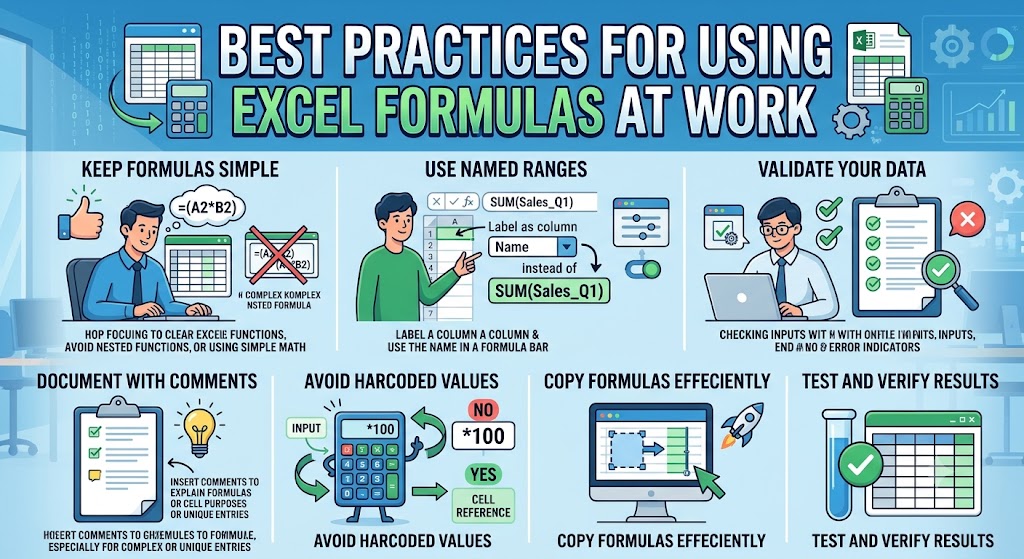
19. Best Practices for Using Excel Formulas at Work
Learning formulas is only one part of building reliable spreadsheets. How you organise data and maintain formulas also affects accuracy, performance, and readability.
Use clear column headings. Labels such as Employee ID, Invoice Date, Department, and Amount make it easier to understand what each range represents.
Keep raw data separate from calculations. Whenever possible, maintain a source-data sheet and perform calculations in a separate reporting area. This reduces accidental changes to original records.
Use Excel Tables for structured data. Converting a data range into a table makes it easier to filter records, maintain consistent formatting, and use structured references. Tables can also expand as new records are added.
Avoid hardcoding values unnecessarily. If a tax rate, commission percentage, or sales target may change, store it in a dedicated cell and reference that cell in formulas. This makes future updates easier.
Check formulas before copying them across large datasets. Test the formula on a few rows, verify the results, and then fill the formula down.
Protect sensitive information. A workbook may contain personal, payroll, financial, or customer data. Follow your organisation’s access controls and sharing policies. Do not assume that hiding a worksheet or protecting cells is equivalent to encrypting a file or restricting access to its contents.
Keep compatibility in mind. Functions available in newer Excel releases may not work in older versions. If you share files with colleagues, confirm that their software supports the functions used in the workbook.
Validate important results. For financial reports and operational decisions, compare calculated totals against source records or an independent calculation. A formula can work exactly as written and still produce a misleading result if the input data is incomplete or the logic is wrong.
20. Frequently Asked Questions About Excel Formulas
1. What are the most important Excel formulas to learn first?
Start with SUM, AVERAGE, IF, COUNTIF, SUMIF, VLOOKUP, XLOOKUP, IFERROR, and basic arithmetic formulas. These functions cover many everyday tasks, including calculating totals, analysing data, applying conditions, and finding information in tables.
2. Which Excel formulas are most useful for office work?
SUM, IF, SUMIF, COUNTIF, XLOOKUP, and IFERROR are especially useful for routine office tasks. They can help prepare expense reports, summarise sales, track attendance, retrieve employee details, and identify missing records.
The best combination depends on your responsibilities and the type of information you manage.
3. What is the difference between SUMIF and COUNTIF?
SUMIF adds numeric values when a condition is met. COUNTIF counts the cells that meet a condition.
For example, SUMIF can calculate total sales for a particular product, while COUNTIF can count how many times that product appears in a list.
4. Is XLOOKUP better than VLOOKUP?
XLOOKUP is generally more flexible because it supports lookups in either direction, uses exact matching by default, and allows a custom result when no match is found.
However, it is not supported in every older version of Excel. VLOOKUP may be more appropriate when compatibility with legacy workbooks is important.
5. How do I apply an Excel formula to an entire column?
Enter the formula in the first relevant row, then use the fill handle to copy it down. You can also double-click the fill handle when adjacent data helps Excel determine how far the formula should extend.
For data stored in an Excel Table, formulas in calculated columns can automatically extend to additional rows.
6. Can Excel formulas compare two columns?
Yes. Use =IF(A2=B2,”Match”,”Different”) to compare values in the same row. To check whether a value from one column exists anywhere in another column, use a formula such as =IF(COUNTIF(2:
100,A2)>0,”Found”,”Missing”).
Choose the method based on whether you need a row-by-row comparison or a list-wide search.
7. Why is my Excel formula not calculating?
Common reasons include formatting the cell as Text, entering an incorrect formula, enabling Show Formulas, or setting calculation mode to Manual. Check the formula syntax and workbook calculation settings before rebuilding the formula.
8. Do Excel formulas work in Google Sheets?
Many commonly used functions, including SUM, IF, COUNTIF, and SUMIF, are supported by both Excel and Google Sheets. However, some functions, features, and formula behaviours differ. Check compatibility before moving a complex workbook between the two applications.
9. Can I learn Excel formulas without prior experience?
Yes. Begin with addition, subtraction, multiplication, division, SUM, and AVERAGE. Then practise IF, COUNTIF, SUMIF, and lookup functions using a small sample dataset.
Working through realistic examples is often more effective than memorising formulas without understanding their purpose.
10. Where can I find official Excel formula examples?
Microsoft’s official Excel Support website provides function explanations, syntax, worked examples, and compatibility information. It is a useful reference when learning a new function or checking how a formula behaves.
You can start with the official Excel formula overview and explore the Excel functions reference.
Conclusion
Excel formulas can transform a spreadsheet from a collection of manually maintained numbers into a practical tool for calculations, reporting, and data analysis. Starting with basic arithmetic, SUM, AVERAGE, and IF gives you the foundation to solve everyday problems. Functions such as SUMIF, COUNTIF, VLOOKUP, XLOOKUP, and IFERROR help you work with larger datasets and automate repetitive tasks.
The most effective way to learn is to practise each formula using realistic examples. Create a small expense tracker, sales report, or employee database, and test how the results change when you update the underlying values. As your confidence grows, combine functions to solve more complex problems.
You do not need to memorise every Excel function to become productive. Focus on understanding what each formula does, when to use it, and how to verify its result. With consistent practice, you can reduce manual work, improve accuracy, and handle common spreadsheet tasks more confidently.