
Coding used to start with a small ritual. Install a compiler. Download an IDE. Fix a “path not found” error. Restart. Realize you downloaded the wrong version. Repeat. It wasn’t hard, exactly… just annoying, like setting up furniture before you’re even allowed to sit down.
That’s why tools like Replit caught attention so quickly. You open a browser, create a project, and your code runs. No setup marathon. No, “it works on my laptop but not yours.” Just… start typing. It feels almost suspiciously easy, the first time.
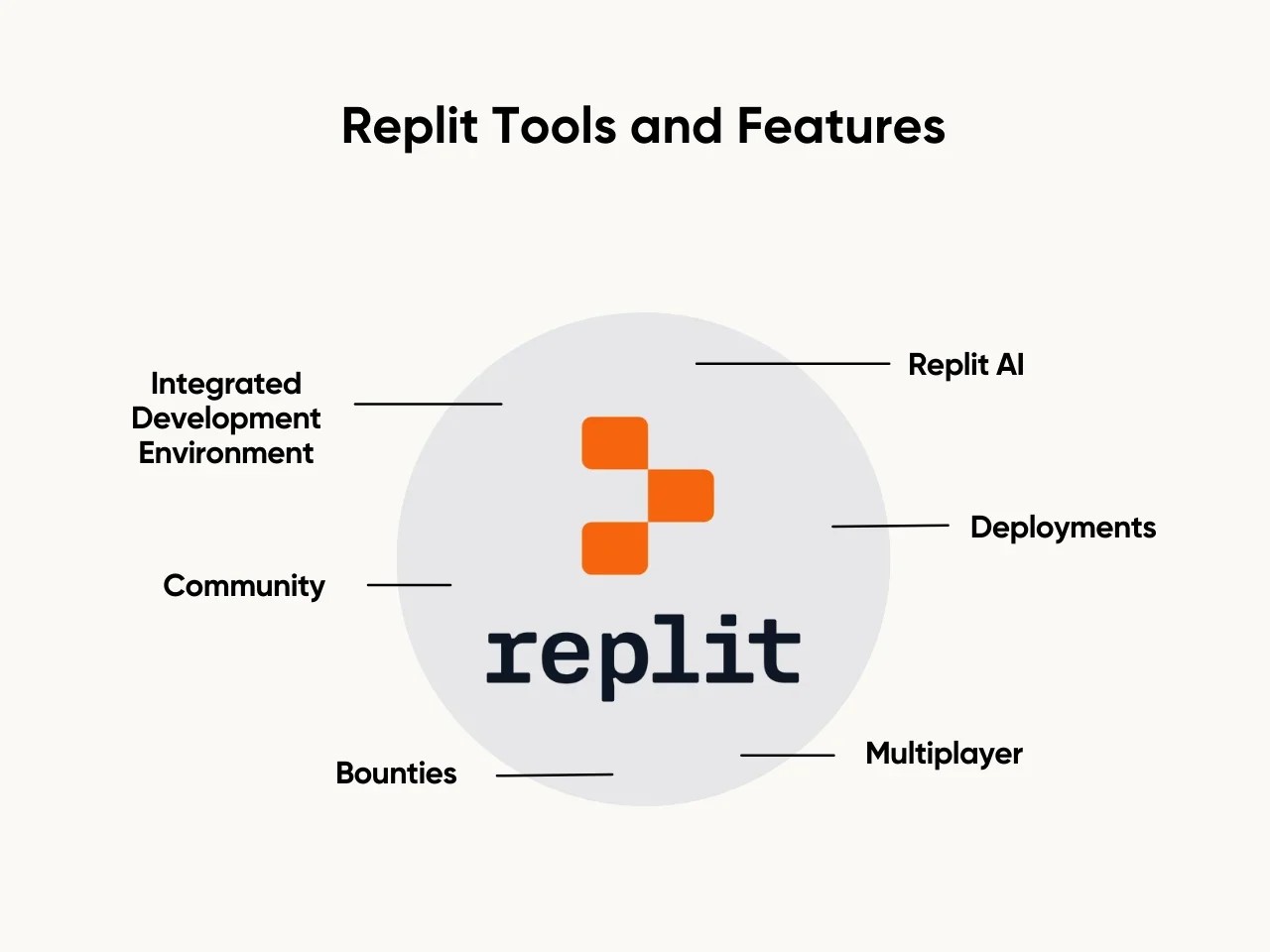
So, what is Replit in simple words? It’s a browser-based coding platform where you can write, run, and share code directly online. It acts like an online IDE (Integrated Development Environment), but without the local installation hassle. You get an editor, a console, file management, project templates, and usually some way to host or preview what you’re building. All from the same tab. That’s the charm.
Now, Replit is used by different kinds of people. A student learning Python. A hobbyist making a small Discord bot. A freelance developer quickly tests an API request. A startup team is trying to validate a prototype before they commit to a full development sprint. Same platform, different motivations.
But here’s what most beginners don’t realize: Replit isn’t just “a place to run code.” It’s a workspace with its own style of workflow. It pushes you toward fast iteration. It makes collaboration feel casual. It also introduces new questions you might not expect, like project privacy, storage limits, build performance, and even those search phrases you see everywhere, such as Replit login or school-related queries about browser access.
In this guide, we’ll walk through what Replit does, how to use it without getting lost, what the pricing usually means in real terms, and what options exist if you want similar tools. Let’s keep it practical, but still deep enough that the blog actually teaches something.
What Replit Actually Is And Why People Use It
Replit is often described as an “online code editor,” but that’s only half the story. The editor part is obvious. The real value is what sits behind it: a ready-to-run environment that handles the boring stuff automatically.
When someone creates a new project in Replit, they’re not just creating a blank file. They’re usually spinning up a small container-like workspace that can install packages, run servers, store files, and keep everything together. For many languages, it’s almost instant. That speed makes it addictive.
There’s also a certain comfort in working in the browser. You can use Replit on a laptop that’s not yours, on a low-storage device, or even while you’re traveling. No local clutter. No messy “Downloads” folder filled with old zip files.
Another reason people use Replit is shareability. It’s common to send a Replit link to a friend or teammate and say, “Try this code.” The other person opens it, runs it, edits it, and things move forward quickly. That kind of collaboration is harder with local-only setups.
It also quietly removes the fear beginners have. With local development, you worry you’ll break your PC or mess up your system. On Replit, experimentation feels safer. You can delete a file, restart, and recover without that anxiety.
So yes, Replit is convenient. But it also shapes behavior. People write smaller projects. They test quickly. They learn faster. Sometimes they take shortcuts, too, but that’s another discussion.
The First Things You Notice Inside A Replit Workspace
When you open a Replit project, the layout feels familiar if you’ve used any IDE. You’ll see an editor area, a file panel, and an output console. But Replit has its own personality.
The file panel is where your project structure lives. Files, folders, and configuration. It’s surprisingly easy to forget that you’re working in a browser, because it looks like a desktop development environment. That’s intentional.
You’ll also notice that most Replit templates create a working starter project for you. A Python project might start with main.py. A Node project might start with index.js and package.json. A web project might start with HTML/CSS/JS files. It depends on the template, but the point stays the same: Replit tries to get you running quickly.
The run button becomes your best friend. It’s not just “execute code.” It usually triggers a workflow: install dependencies, start the program, show output, and display previews. It’s like a mini DevOps pipeline, but hidden behind one button. That’s why it’s popular with beginners.
Another thing people love is the preview panel for web apps. If you’re building something like a small frontend page, you can see it live next to your code. You adjust a style, refresh happens, and the feedback loop is quick. Those tiny wins matter.
And if you’re in a collaborative setting, you might also see real-time cursor movements, comments, or changes coming in. It feels like Google Docs, but for code.

How To Use Replit For Your First Working Project
Many users search for how to use Replit because they want a basic roadmap. Not the marketing version. The “tell me what to click” version. So here it is, in normal language.
Start by creating a new project using a template. This matters because a template sets up the runtime properly. If you pick the wrong environment, you’ll waste time later trying to fix something that isn’t broken, it’s just misconfigured.
After creating the project, read the file structure. Don’t rush. Even if it’s small, look at what exists. If there’s a README, skim it. If there’s a config file, don’t touch it yet. Beginners love touching the config first. Bad habit.
Then write the simplest possible code and hit Run. For Python, print something. For JavaScript, log something. For the web, write an <h1>. The goal isn’t brilliance. The goal is to prove the pipeline works.
Once the project runs, start expanding slowly. Add another file. Import it. Add a function. Test. Keep the feedback loop tight. That’s the natural Replit rhythm.
And don’t ignore the console logs. The console is where you learn. Errors feel annoying, but they’re basically instructions written in a rude tone. Replit makes error output very visible, which is good because it forces you to face the real issue.
A small micro-story here: a beginner usually writes 40 lines, hits run, sees a big error block, and panics. But the fix is often in line 3. Or even in a missing quote. That’s coding. Replit just makes the moment happen faster.
Replit Login Explained In A Simple, Non-Confusing Way
People often treat Replit login like it’s a technical hurdle. It’s not, but it can be confusing if you’re new to online development tools.
Replit typically allows you to browse some public projects without logging in. But to create your own projects, save code, manage files, or access certain features, you’ll need an account. Logging in ensures your work gets stored in your personal workspace.
Once logged in, you get a dashboard where your projects appear. Think of it like your coding home screen. From there, you can create new repls, reopen old ones, or organize work.
The login also matters for collaboration. If someone invites you into a shared project, your account identity helps track who changed what. It’s not just about access. It’s about accountability inside teamwork.
Another thing login helps with is syncing settings. Your editor preferences, your workspace theme, your installed templates, and your history. Those become tied to your account.
The smart way to use Replit is to stay logged in on your main device and treat your dashboard like a personal coding library. You’ll be surprised how quickly you collect small experiments. A regex test. A Python loop. A quick API call. These tiny projects become references later.
Not big achievements. But useful.
Replit Unblocked Browser Searches And What Users Usually Mean
This keyword, replit unblocked browser, is something you see a lot, and it usually comes from students or users on restricted networks. In many schools, offices, or managed environments, certain sites are blocked or filtered. Replit sometimes ends up in those filters, not always for a clear reason, but often because it allows code execution and project hosting.
When people search “unblocked,” what they usually want is access to the same coding tools without getting stuck behind network restrictions. Sometimes they’re just trying to learn. Sometimes they’re trying to run harmless practice code. The intention varies, but the search phrase stays the same.
From a purely practical angle, if someone can’t access Replit in a restricted environment, it’s often better to use an allowed network or an approved tool that the institution supports. Some schools allow coding platforms but block general-purpose hosting tools. It’s inconsistent.
Also, sometimes it’s not an actual block. It can be a browser issue, a DNS issue, or a login failing because cookies are disabled. People assume it’s a block when it’s just settings.
So if you’re trying to use Replit and it won’t load, the first thing is simple: try a different browser, disable heavy extensions, check if the site works on mobile data, and confirm whether it’s a network policy issue. That alone solves a surprising number of cases.
And if you’re working under strict policies, it’s worth using tools that are officially permitted. There are plenty of learning-friendly alternatives, which brings us to the next part.
Replit Pricing In Real Terms: What You’re Paying For
People look up Replit pricing because they want to know one thing: is it worth it, or should I stick with free?
The free experience is enough for casual coding and learning. But paid plans typically unlock more performance, private projects, more storage, higher usage limits, and sometimes faster builds or enhanced hosting options.
What you’re really paying for is convenience at scale.
When you start building larger projects, free limitations can feel like friction. Slower runtime. Restricted background processes. Less control over resources. Maybe fewer options for deployments. Again, not a disaster, just a ceiling you eventually bump into.
For students, free is usually fine. For freelancers using Replit as a “quick sandbox,” free is fine. For teams building something semi-serious, or for people who treat Replit like their primary development environment, a paid plan starts making sense.
But it’s smart to decide based on your workflow, not the feature list. If you only code for 30 minutes a day and mostly do practice projects, paid work may not add real value. If you’re building apps with dependencies, hosting previews, and sharing with clients or teammates, paid can save time.
And time, in tech, is basically money, even when nobody wants to admit it.
Replit Alternatives That Feel Similar (But Solve Different Problems)
Many developers love Replit, but they still search for Replit alternatives because every platform has trade-offs. Sometimes you want better performance. Sometimes you want deeper customization. Sometimes you want a smoother classroom experience. Or you want something that feels more “production-grade.”
One common alternative style is cloud IDEs that integrate heavily with Git repositories. These tools often feel closer to a professional workflow. You can pull code, run complex apps, manage environments, and work more like you would locally.
Another style is simple online compilers. These are lighter than Replit. They run code, show output, and that’s it. Great for testing snippets. Not great for full apps.
Then there are full local setups, which are the classic alternative. VS Code + terminal + Git. It’s still the most flexible, but the setup cost is higher. Replit wins for speed. Local wins for control.
There are also mobile-first coding apps and education-focused platforms that simplify everything for learners. They remove confusion, but they also limit you. Good for beginners, not always good for real-world scaling.
So when choosing an alternative, the question isn’t “what is best?” It’s “what matches my use-case?” For learning: simple is better. For shipping, control is better. For collaboration, the cloud is often better.
Replit sits in the middle. That’s why it’s popular.
When Replit Feels Perfect And When It Feels Limiting
Replit shines in early stages. When you’re exploring an idea, testing a concept, or learning a new language, it feels like the fastest path from curiosity to results. You write code, you run it, you see output. Done.
But some projects grow up. They start needing more structure. Multiple environments. CI/CD pipelines. Specific versions. Security constraints. Advanced debugging. In those situations, Replit may feel slightly “too convenient,” meaning it hides things you eventually need to control.
Also, not every project type feels equally smooth on Replit. Some heavy backend applications or complex builds can feel slower than local setups, depending on the resources available. You might start noticing delays that didn’t exist in your early beginner phase.
Another limitation can be mindset-based. Replit makes it easy to stay inside small projects. But real-world development often needs skills like folder organization, testing workflows, environment variables, and code reviews. You can learn those in Replit, too, but you have to intentionally practice them.
Still, it’s not a question of Replit being “good” or “bad.” It’s about what stage you’re in. Replit is amazing for starting. And for a lot of people, “starting” is the hardest part.
How To Use Replit For Real Learning (Not Just Running Code)
A lot of users run code in Replit and assume they’re learning. Sometimes they are. Sometimes they’re just copying.
To learn properly, Replit can become a kind of interactive notebook for your brain. But you have to use it with intention.
One method is to build small projects with a purpose: a calculator, a small to-do list, a text-based game, a mini API fetcher. Not huge, but complete. Completion teaches you structure.
Another method is to clone your own project and improve it. Make version two cleaner. Add error handling. Improve readability. These things matter more than writing “advanced code.”
You can also use Replit to practice debugging. Try breaking your own code on purpose. Remove a bracket. Rename a variable incorrectly. Then fix it. It sounds silly, but debugging is a skill, and Replit lets you practice it quickly.
Also, use the console output seriously. Don’t just stare at errors. Read them. Most errors tell you exactly where the problem is. The trick is learning how to interpret the message without getting emotionally annoyed by it.
Because yes, code errors are strangely personal. Even when they’re not.
Using Replit For Collaboration Without Messing Up The Flow
Replit can work really well in group projects, but collaboration is where beginners accidentally create chaos. Someone edits the same file. Someone runs outdated code. Someone changes dependencies and doesn’t tell anyone. Suddenly, the project feels unstable.
The best way to collaborate on Replit is to decide roles or rules early. Who edits what? Which file is the main entry point? How updates are communicated. Even simple habits like “comment before changing core logic” can keep teamwork smooth.
Also, naming matters. Give files logical names. Use folders properly. Don’t keep everything in one file forever. It works for the first day, then becomes a nightmare.
Another underrated habit is writing small notes inside the code. Not essays. Just helpful comments like “this function handles login validation” or “API base URL goes here.” These small notes reduce back-and-forth questions.
Collaboration isn’t just coding together. It’s removing friction from the next person’s brain.
And if you’re working with someone who is learning, be patient. Replit makes collaboration easy, but learning speed still varies. One person might finish fast, another might take longer. The platform can’t fix that. But it can make the process less stressful.
Conclusion
Replit is one of those platforms that feels simple on the surface, then quietly reveals deeper value the more you use it. From quick coding practice to browser-based collaboration, it removes setup friction and helps ideas move faster. Once you understand the basics of login, workspace structure, and how projects run, it becomes easier to build confidently. And when you outgrow it, knowing the right alternatives gives you options without losing momentum.