
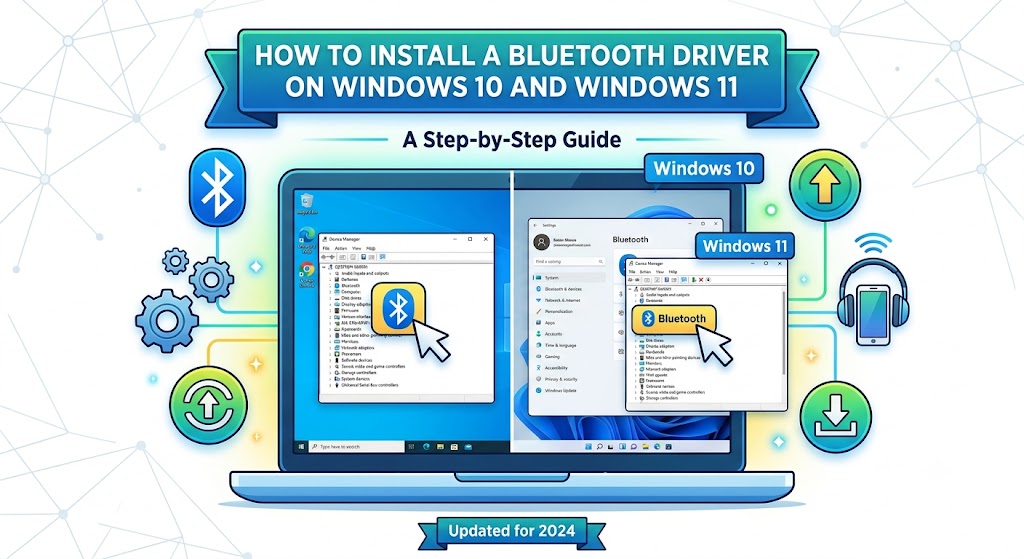
Bluetooth makes it possible to connect wireless headphones, keyboards, mice, speakers, controllers and other accessories to a computer without a physical cable. When Bluetooth stops working, however, the problem is not always with the accessory. Your computer may have a missing driver, an incompatible driver, a disabled Bluetooth adapter or a temporary Windows issue.
The good news is that you can often restore Bluetooth functionality without replacing hardware or installing complicated software. Windows provides built-in tools for checking and updating drivers, while your laptop or adapter manufacturer’s support website can provide a driver designed for your specific device.
This guide explains how to install a Bluetooth driver on Windows 10 and Windows 11, update an existing driver, reinstall a faulty one and troubleshoot common problems. Start by checking whether your PC has Bluetooth hardware, then try Windows’ built-in update options. If those methods do not work, download the appropriate driver from the official manufacturer’s website.
What Is a Bluetooth Driver?
A Bluetooth driver is software that allows Windows to communicate with a computer’s Bluetooth hardware. The hardware sends and receives wireless signals, while the driver helps the operating system control the adapter and use its capabilities.
For example, when you connect Bluetooth headphones to a laptop, Windows needs to communicate with the Bluetooth adapter, discover the headphones, establish a connection and manage the supported functions. A compatible driver helps these operations work correctly.
How Bluetooth drivers help Windows communicate with hardware
A Bluetooth adapter can be built into a laptop, integrated into a motherboard or provided through an external USB Bluetooth dongle. Windows relies on appropriate driver software to recognise the adapter and make its functionality available to applications and system settings.
Many Windows installations can obtain a suitable driver automatically. In other cases, Windows may use a basic compatible driver, while the computer manufacturer provides a more specific package with additional fixes or support for particular hardware configurations.
Drivers can also become outdated or incompatible after a Windows upgrade, driver update or hardware change. Installing the correct version may resolve connection failures, missing Bluetooth controls or errors shown in Device Manager.
Bluetooth drivers versus Bluetooth settings
Bluetooth settings and Bluetooth drivers serve different purposes. Settings allow you to turn Bluetooth on or off, make the computer discoverable where supported and manage paired devices. The driver enables Windows to communicate with the underlying Bluetooth adapter.
If Bluetooth is installed and working but switched off, you usually do not need to install another driver. You simply need to enable Bluetooth in Settings and pair your accessory.
However, if the Bluetooth toggle has disappeared, the adapter is missing from Device Manager or Windows reports a device error, the issue may involve the driver, hardware detection, firmware or another system component.
Signs that a driver is missing or outdated
Several symptoms may indicate a Bluetooth driver problem:
- Bluetooth is missing from Windows Settings or Quick Settings.
- Device Manager lists an unknown device or a Bluetooth adapter with a warning symbol.
- Bluetooth disappeared after a Windows update or operating system upgrade.
- Your computer recognises the Bluetooth adapter but cannot use it properly.
- A previously working Bluetooth mouse, keyboard or headset no longer connects.
- Windows displays a driver error or fails to install the downloaded package.
These symptoms do not prove that the driver is responsible. Bluetooth hardware can also be disabled, absent or faulty, while pairing problems can originate from the accessory itself.
Before Installing a Bluetooth Driver
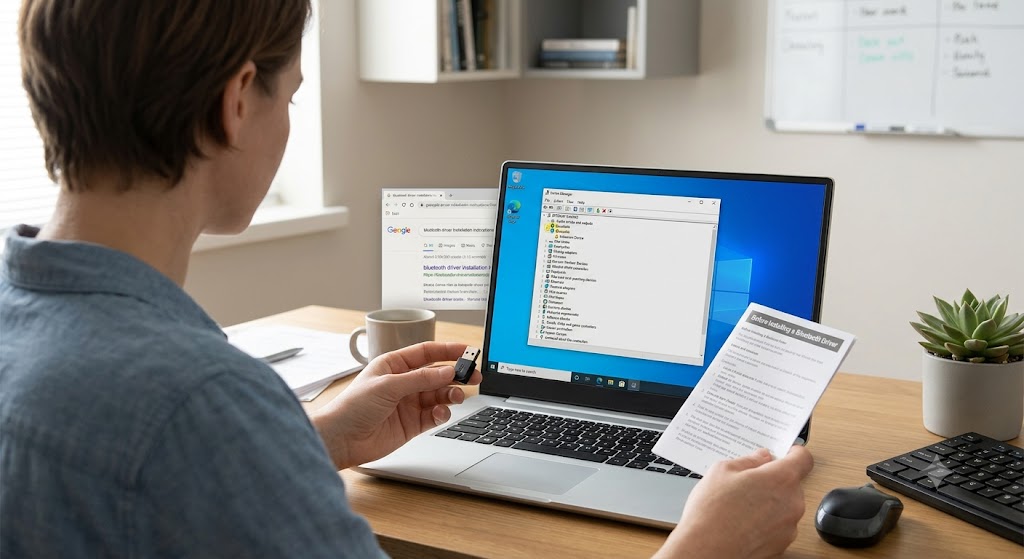
Before downloading anything, check whether your computer supports Bluetooth and identify the hardware you are using. This prevents you from installing an incompatible driver or wasting time trying to fix a feature your computer does not have.
Check whether your PC supports Bluetooth
Open Device Manager by right-clicking the Start button and selecting Device Manager. Look for a category named Bluetooth.
If the category appears, expand it and check whether a Bluetooth adapter is listed. Its name may include a manufacturer’s name, a chipset family or the word Bluetooth or Radio.
If Bluetooth is missing, look under Other devices, Network adapters or other relevant categories for an unknown device. You can also select View > Show hidden devices in Device Manager. A greyed-out entry may represent a device that is not currently connected or detected, so it is not definitive proof that the hardware is present and working.
Check the computer’s specifications or manufacturer documentation if you are unsure. Some desktop computers do not include Bluetooth, even when they support Wi-Fi. If your PC has no Bluetooth hardware, you may need a compatible USB Bluetooth adapter or a supported internal wireless card.
Find your laptop or motherboard model
The exact model matters because different computers from the same manufacturer may use different Bluetooth chipsets.
To identify a Windows computer’s model:
- Press Windows + R to open the Run dialog.
- Type msinfo32 and press Enter.
- Find System Manufacturer and System Model in System Information.
- Note the model information and close the window when finished.
On a desktop PC assembled from separate components, you may need the motherboard model or the exact model of your installed wireless adapter. For a USB Bluetooth dongle, check the manufacturer’s label, packaging or official product documentation.
Check Device Manager for a Bluetooth adapter
Device Manager helps you determine whether Windows can detect the hardware. Expand the Bluetooth category and look for warning symbols beside the adapter. If a yellow warning symbol appears, right-click the device, choose Properties and review the Device status message on the General tab.
An error code can provide clues about why the device is not working. Record the code before changing the driver, especially if Bluetooth stopped working after a recent update.
If Bluetooth is not listed, do not immediately assume that reinstalling a driver will solve the problem. Check for unknown devices, verify that the PC actually has Bluetooth and restart the computer. A hardware detection issue may need a different solution.
Download drivers only from trusted sources
Use Windows Update, the computer manufacturer’s official support website or the official website of the Bluetooth adapter manufacturer. Avoid unfamiliar driver-download websites that provide unclear installers, bundled utilities or promises to update every driver automatically.
Before installing a package, confirm that it matches your exact PC or adapter model and your Windows version. If the manufacturer’s website offers several Bluetooth packages, follow its model-specific instructions rather than choosing one based only on a similar product name.
How to Install a Bluetooth Driver Using Device Manager
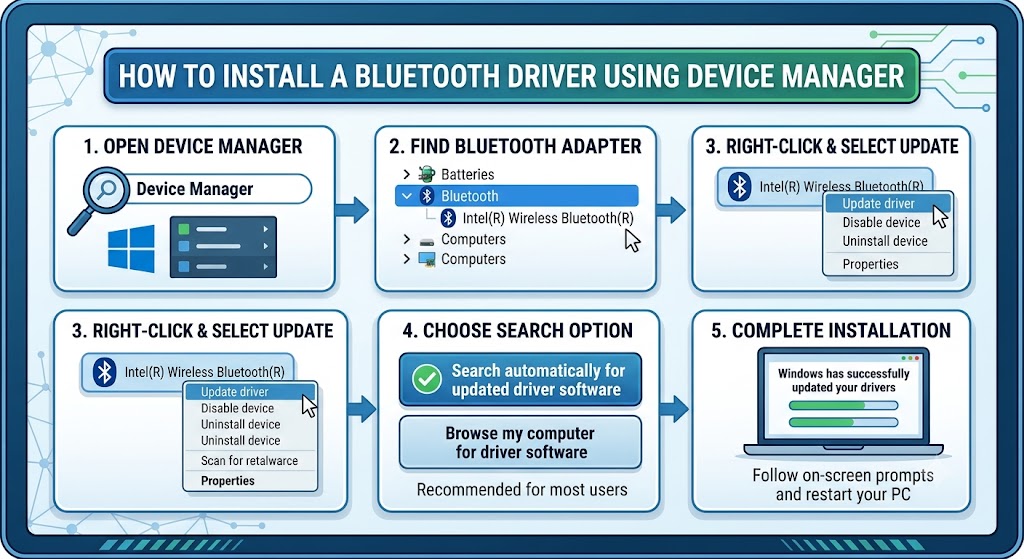
Device Manager is a useful first option because it allows you to update a detected Bluetooth adapter without searching for its model manually. Windows can search for compatible drivers that are available through its driver search process.
Step 1: Open Device Manager
Press Windows + X and select Device Manager from the menu. You can also open Start, type Device Manager and select the matching result.
Wait for the device list to load. If Bluetooth appears as a category, expand it to view the available adapters and related entries.
Step 2: Find the Bluetooth adapter
Look for the actual Bluetooth adapter, not a connected mouse, keyboard or headphone entry. The adapter name may identify the manufacturer or chipset.
If several entries appear, select the one that represents the Bluetooth radio or adapter. If you are uncertain, open Properties and review the device details before changing anything.
If Bluetooth is not listed, check Other devices for an unknown device and look for any relevant hardware information. You may need to use the manufacturer’s support website if Windows cannot identify the adapter.
Step 3: Select Update driver
Right-click the Bluetooth adapter and select Update driver. Windows will open a driver update window with options for searching automatically or browsing your computer for a driver.
Choose the automatic search option first if you have an internet connection. If you have already downloaded the correct driver package, you can use the browse option instead.
Step 4: Search automatically for available drivers
Select Search automatically for drivers and follow the on-screen instructions. Windows will check for a suitable driver through its available search process and report whether it finds one.
If a compatible update is available, allow the installation to finish. Restart the computer if Windows requests it, then open Bluetooth settings and test a device.
If Windows reports that the best driver is already installed, that does not necessarily mean the manufacturer’s website has no newer version. Windows may not offer every driver package through this search. Check Windows Update and the official support page for your computer or adapter next.
Step 5: Restart the PC if needed
Restarting allows Windows to reload the driver and initialise the Bluetooth hardware. After restarting, open Device Manager again and confirm that the adapter appears without a warning symbol.
Then open Bluetooth settings and try connecting a known-compatible accessory. If Bluetooth still does not work, continue with Windows Update or the manufacturer’s driver package instead of repeatedly running the same automatic search.
If Device Manager does not show Bluetooth: Verify that your computer supports Bluetooth, check for unknown devices, restart Windows and consult the manufacturer’s documentation. A missing adapter may indicate a disabled or undetected device rather than a driver that can be updated through Device Manager.
How to Install a Bluetooth Driver Through Windows Update
Windows Update can distribute compatible hardware drivers alongside operating system updates. It is worth checking before manually downloading a driver, especially if Bluetooth stopped working after a Windows update or the operating system was recently installed.
Step 1: Open Windows Update
On Windows 11, open Start > Settings > Windows Update.
On Windows 10, open Start > Settings > Update & Security > Windows Update.
The layout differs between the two versions, but both provide a way to check for available updates.
Step 2: Check for available updates
Select Check for updates and allow Windows to complete its search. Install relevant available updates, following any prompts to restart the computer.
A Bluetooth driver may not appear as a separate item during every update check. Windows Update only offers packages that are applicable and available for the device and Windows configuration.
Step 3: Review optional driver updates
On Windows 11, look under Settings > Windows Update > Advanced options > Optional updates. If a Driver updates section is available, expand it and review the listed packages.
On Windows 10, optional updates may appear through the Windows Update interface, depending on the version and configuration.
Select a Bluetooth-related driver only when it matches the relevant hardware. If the listing is unclear, check the device model or manufacturer’s instructions before installing it. Do not assume that every optional update is required.
Step 4: Restart and test Bluetooth
Restart Windows if prompted, then check Device Manager and Bluetooth settings. Try connecting a mouse, headset or another known-compatible accessory.
If no suitable driver appears, Windows Update has not necessarily failed. The manufacturer’s support website may offer a more appropriate package for the specific computer.
Important: Standard Windows 10 support ended on October 14, 2025. Some devices may have separate support arrangements, including applicable extended security programmes or specialised editions, but ordinary Windows 10 users should not assume they will continue receiving the same free support and updates as before. Consider a supported operating system when the hardware is eligible.
How to Download a Bluetooth Driver From the Manufacturer
A manufacturer-provided driver is often the best next step when Windows cannot find a suitable update, the adapter has an error or Bluetooth stopped working after an operating system upgrade.
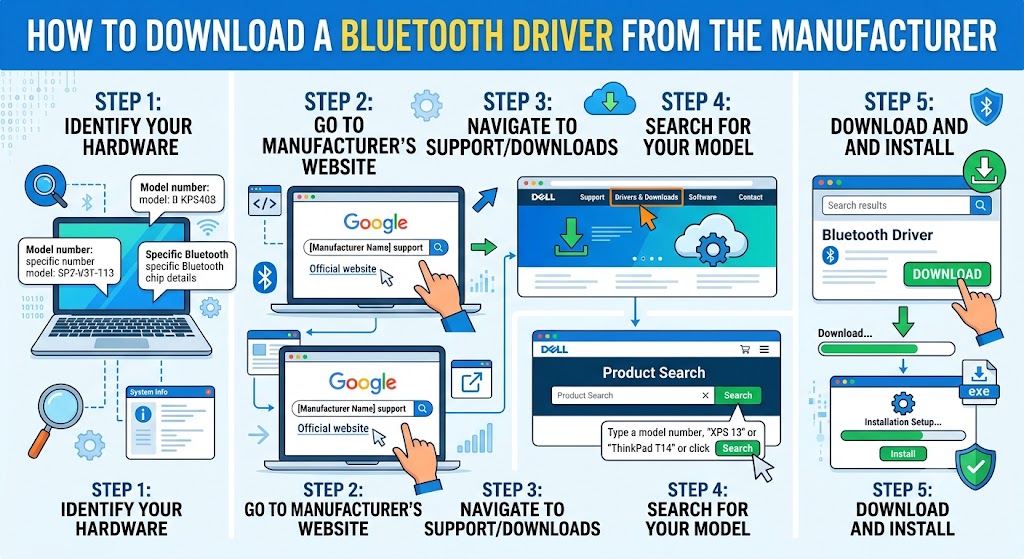
Step 1: Find the exact PC or adapter model
Open System Information by pressing Windows + R, entering msinfo32 and pressing Enter. Record the system manufacturer and model.
If you use a custom-built desktop, check the motherboard documentation and the model of the installed wireless or Bluetooth adapter. For an external USB adapter, identify the exact product model from its label or packaging.
Avoid relying only on a broad description such as a laptop series or motherboard brand. Similar models can use different hardware and require different driver packages.
Step 2: Open the official support website
Visit the manufacturer’s official website and open its support, downloads or drivers section. Enter the exact model or use the manufacturer’s serial-number or product-identification tool if available.
Confirm that the result corresponds to your computer. Do not download a driver from an advertisement or a third-party mirror merely because it appears near the top of search results.
Step 3: Select the correct Windows version and architecture
Choose the operating system listed for your computer. If the site offers separate Windows 10 and Windows 11 packages, select the one that matches your installation unless the manufacturer explicitly documents cross-version compatibility.
If architecture is requested, check it under Settings > System > About > System type. Most modern PCs use 64-bit Windows, but you should verify rather than assume.
If the support page does not list your Windows version, read the manufacturer’s compatibility notes. Do not force an incompatible package to install just because the hardware names appear similar.
Step 4: Install the driver package
Manufacturers commonly provide an executable installer. If the package is an .exe file, close unnecessary applications, run the installer and follow its instructions. Restart Windows if requested.
Some packages contain driver files rather than a conventional installer. If the download includes an .inf file, you may be able to install it through Device Manager:
- Open Device Manager.
- Expand Bluetooth, or locate the relevant unknown device.
- Right-click the adapter and choose Update driver.
- Select Browse my computer for drivers.
- Browse to the folder containing the extracted driver files.
- Follow the instructions to complete the installation.
Only use this method with a verified package intended for your hardware. If the manufacturer provides its own installer or installation instructions, follow those directions.
Step 5: Verify the installation
Restart the PC if required. Open Device Manager and check that the Bluetooth adapter appears without a warning symbol. Open Bluetooth settings and confirm that the toggle is available.
Pair a compatible accessory and test its main function. For example, play audio through headphones or move the pointer with a Bluetooth mouse.
If the installer fails, record the error message and check the manufacturer’s troubleshooting instructions. Do not repeatedly install unrelated driver packages or use a generic driver updater to force a result.
How to Install a Bluetooth Driver on Windows 11
Windows 11 uses the same basic driver installation process as Windows 10, but its Settings navigation is different. Use the following order to diagnose and resolve the problem.
Update through Device Manager
- Right-click Start and open Device Manager.
- Expand Bluetooth.
- Right-click the Bluetooth adapter.
- Select Update driver.
- Choose Search automatically for drivers.
- Follow any instructions and restart if required.
If the adapter is missing, check Other devices and verify that the computer supports Bluetooth before proceeding.
Use Windows Update
Open Settings > Windows Update and select Check for updates. Install relevant updates, then review Advanced options > Optional updates for applicable driver packages.
The exact optional updates available depend on the hardware, Windows installation and update configuration.
Install a compatible manufacturer driver
If Windows cannot find a suitable update, visit the official support page for your computer or Bluetooth adapter. Select the exact model and a compatible Windows 11 driver.
Install the package according to the manufacturer’s instructions and restart if prompted. If the support website does not offer a Windows 11 driver, confirm compatibility with the manufacturer before trying a package intended for another operating system.
Check Bluetooth settings after installation
Open Settings > Bluetooth & devices and check whether Bluetooth can be switched on. If the toggle is available, enable it and select Add device to pair an accessory.
If the toggle is missing or greyed out, check Device Manager, Airplane mode and the manufacturer’s troubleshooting guidance. A successful driver installation does not automatically resolve every hardware, service or pairing problem.
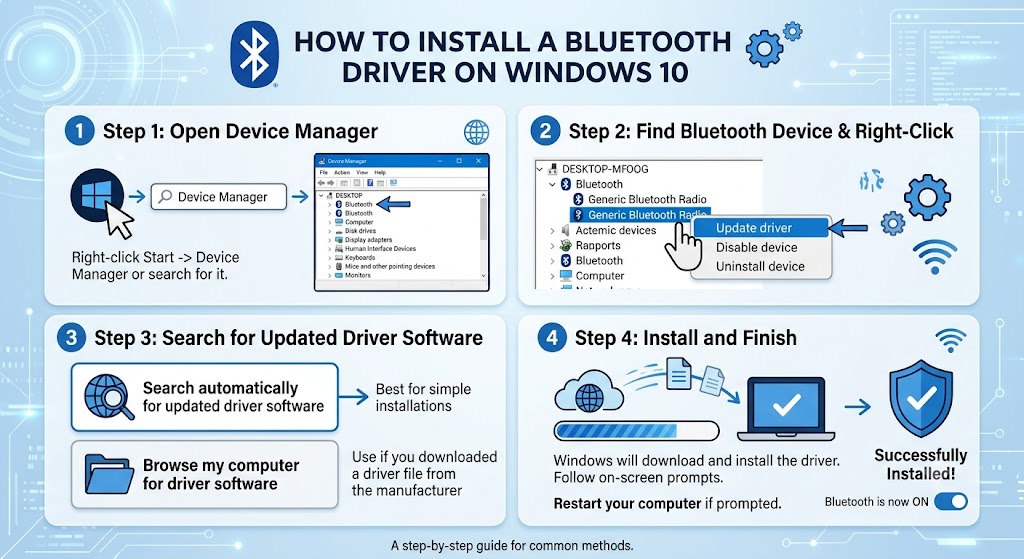
How to Install a Bluetooth Driver on Windows 10
Windows 10 uses slightly different navigation from Windows 11. The driver installation options remain familiar, but the operating system’s support status is an important consideration.
Update the driver in Device Manager
- Right-click Start and choose Device Manager.
- Expand Bluetooth.
- Right-click the relevant adapter and choose Update driver.
- Select Search automatically for drivers.
- Follow the instructions and restart if necessary.
If the adapter is missing, check Other devices and verify that Bluetooth is supported by the computer.
Check Windows Update
Open Settings > Update & Security > Windows Update and select Check for updates. Review any available driver updates and install applicable packages.
Because standard Windows 10 support ended on October 14, 2025, the availability of updates depends on the device and any applicable support arrangement. An update not appearing in Windows Update does not prove that the adapter has no compatible driver.
Download the appropriate manufacturer package
Visit the computer or adapter manufacturer’s official support website and search for your exact model. Select a compatible Windows 10 driver if one is available, then install it according to the manufacturer’s instructions.
If the manufacturer no longer provides a Windows 10 package, do not substitute a random download from another site. Check the hardware documentation for supported alternatives.
Test pairing after installation
Open Settings > Devices > Bluetooth & other devices. Turn Bluetooth on if the option is available, select Add Bluetooth or other device, and follow the pairing instructions.
If Bluetooth is still unavailable, check Device Manager for errors and verify that Airplane mode is off. If the adapter appears to work but an accessory cannot connect, troubleshoot pairing separately before reinstalling the driver again.
How to Reinstall or Roll Back a Bluetooth Driver
Reinstallation is useful when a driver is damaged or Windows is no longer detecting the adapter correctly. Rolling back is more appropriate when Bluetooth worked before a recent driver update and began failing afterward.
When reinstalling makes sense
Consider reinstalling the driver if the adapter appears in Device Manager but has a persistent error, or if the Bluetooth functionality disappeared after a driver problem. Before uninstalling it, download the correct manufacturer driver if you rely on Bluetooth and have no convenient alternative connection.
This preparation matters because Windows may not automatically find the required driver after removal.
Uninstall the adapter carefully
- Open Device Manager and expand Bluetooth.
- Right-click the relevant Bluetooth adapter.
- Select Uninstall device and follow the prompts.
- Restart or fully shut down and power on the PC, following Microsoft’s instructions for the problem you are experiencing.
- Open Device Manager again and check whether Windows detects the adapter and reinstalls a driver.
Do not select an option to remove driver software unless you understand the consequences and have a suitable replacement available. If Windows does not reinstall the driver, use the manufacturer’s package or select Action > Scan for hardware changes in Device Manager.
Restart Windows and check device detection
After restarting, look for the Bluetooth category and verify the adapter’s status. If it remains missing, confirm that Bluetooth hardware is installed and enabled. An absent device may require manufacturer-specific diagnosis rather than another uninstall cycle.
Roll back a driver after a failed update
If Bluetooth stopped working immediately after a driver update, rolling back may restore the previous version.
- Open Device Manager and expand Bluetooth.
- Right-click the adapter and choose Properties.
- Open the Driver tab.
- Select Roll Back Driver, if the option is available.
- Follow the instructions and restart if needed.
The rollback option may be unavailable if Windows has no previous driver version to restore. If rollback does not help, consult the manufacturer’s support instructions and investigate other causes of the connection failure.
How to Restart the Bluetooth Service in Windows
Windows services support background functions that help the operating system manage devices and connections. Restarting a relevant Bluetooth service can help with certain connection problems, but it is separate from installing a driver.
Open the Services console
Press Windows + R, type services.msc and press Enter. The Services window displays system services and their current status.
Find the relevant Bluetooth service
Look for Bluetooth Support Service. Depending on the Windows version and system configuration, related Bluetooth services may also appear.
Right-click the relevant service to review the available actions. If Restart is available, you can select it when the service is running. If it is stopped, Start may be available instead. Do not change unrelated service settings.
Check service status and available actions
A service’s status can provide clues, but it is not a complete diagnosis. Some services start when needed, and the available controls can differ between configurations. If Windows displays an error when starting or restarting a service, record the message and consult the relevant support guidance.
Test the connection again
Close the Services window and try Bluetooth again. If the adapter is missing from Device Manager, restarting a service is unlikely to solve the underlying hardware detection issue. Return to Device Manager and check the adapter, driver and manufacturer guidance instead.
How to Fix Common Bluetooth Driver Problems
The most efficient troubleshooting method is to match the symptom to the likely cause instead of repeatedly reinstalling the driver. Start with the least disruptive check and move to more involved steps only when necessary.
| Symptom | Possible cause | First action | Next step |
| Bluetooth missing from Device Manager | Unsupported, disabled or undetected hardware; missing driver | Check PC specifications and restart | Check unknown devices and manufacturer support |
| Bluetooth toggle missing or greyed out | Adapter or driver error, Airplane mode or hardware issue | Check Airplane mode and Device Manager | Update the driver or consult the manufacturer |
| Driver installs but Bluetooth does not work | Incompatible package, hardware or service issue | Check Device Manager for errors | Verify the exact driver and restart |
| Headphones or mouse will not connect | Pairing mode, low battery, range or configuration | Charge the accessory and re-enter pairing mode | Remove and pair the device again |
| Driver installation fails | Wrong model, incompatible Windows version or damaged package | Verify the model and Windows architecture | Download a fresh package from the official support page |
| Bluetooth keeps disconnecting | Power management, interference, driver or accessory issue | Check battery and connection distance | Review power settings and driver guidance |
Bluetooth is missing from Device Manager
First, verify that your computer actually includes Bluetooth. Some desktop systems need a separate adapter. If the hardware is present, restart the PC and check Device Manager again.
Select View > Show hidden devices and look under Other devices for an unknown or relevant device. If the Bluetooth adapter is still missing, check the computer manufacturer’s support page for model-specific instructions. A driver installer cannot restore hardware that is absent, disconnected or faulty.
The Bluetooth toggle is missing or greyed out
Check whether Airplane mode is enabled and turn it off if necessary. Then open Device Manager and inspect the Bluetooth adapter for a warning symbol or error code.
If the adapter is listed, try updating its driver through Device Manager or Windows Update. If the problem began after a recent driver update, consider rolling back the driver. If Windows cannot detect the hardware, consult the PC manufacturer instead of repeating the same installation steps.
The driver installs but Bluetooth does not work
Confirm that the package matches your exact computer or adapter model and Windows version. Restart Windows and inspect the adapter’s status in Device Manager.
If the adapter appears healthy, check Bluetooth settings and try a different known-compatible accessory. This helps distinguish a driver or hardware problem from an issue with one specific device. If several accessories fail and the adapter shows an error, use the manufacturer’s troubleshooting guidance.
Bluetooth headphones or a mouse will not connect
A working driver does not guarantee that every accessory will pair automatically. Make sure the accessory has sufficient battery power, is switched on and is in pairing mode. Keep it near the PC and check whether it is already connected to another device.
If the accessory appears in Windows but will not connect, remove it from the paired-device list and add it again. If it connects but audio does not work, troubleshoot Windows audio output separately rather than immediately reinstalling the Bluetooth driver.
The driver is incompatible or reports an error
Check the device’s Properties in Device Manager and record any error code. Revisit the manufacturer’s official support page and verify the computer model, Windows version and system architecture.
If the issue began after an update, rolling back may help. If the downloaded package is intended for a different model, remove the unsuitable installation if appropriate and install the correct package. Do not update BIOS or other firmware as a routine first step. Consider firmware only when the manufacturer specifically recommends it for the identified issue and device.
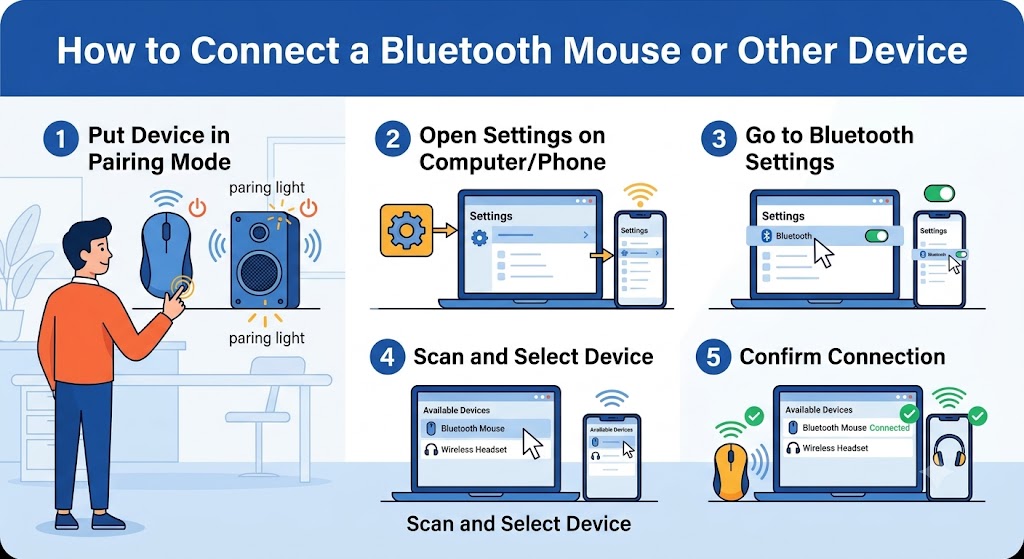
How to Connect a Bluetooth Mouse or Other Device
After installing or updating a driver, test Bluetooth by pairing an accessory you know is compatible. This confirms that Windows can use the adapter, not just display it in Device Manager.
Turn on Bluetooth
On Windows 11, open Settings > Bluetooth & devices and switch Bluetooth on.
On Windows 10, open Settings > Devices > Bluetooth & other devices and enable Bluetooth if the option is available.
If the toggle is missing, return to the driver and hardware troubleshooting steps rather than continuing with pairing.
Put the accessory into pairing mode
Switch on your mouse, headphones, keyboard or other accessory and follow its manufacturer’s instructions to enter pairing mode. Some accessories require holding a dedicated button, while others use a button combination or a switch.
A device that is powered on is not necessarily discoverable. If it does not appear in Windows, check its pairing instructions and battery level.
Add the device in Windows settings
On Windows 11, select Add device > Bluetooth under Bluetooth & devices.
On Windows 10, select Add Bluetooth or other device > Bluetooth under Bluetooth & other devices.
Choose the accessory when it appears and follow any prompts. Some devices may request a PIN or confirmation. Follow the instructions shown by Windows and the accessory manufacturer.
Check battery, range and compatibility
Keep the accessory close to the computer during pairing. Charge it or replace its batteries if necessary, and make sure it is not already connected to another device in a way that prevents pairing.
If one accessory fails but another connects successfully, the driver is probably not the only issue to investigate. Check the failing device’s compatibility and pairing instructions before changing the driver again.
Frequently Asked Questions
1. How do I install a Bluetooth driver without internet?
Use another internet-connected device to visit the official support website for your computer or Bluetooth adapter. Download the correct driver package and transfer it to the affected PC using a USB drive. Install it according to the manufacturer’s instructions, then restart and test Bluetooth. Avoid third-party driver bundles.
2. How do I know which Bluetooth driver I need?
Identify your exact computer, motherboard or USB adapter model. Check Device Manager for the adapter name and any error details, then visit the manufacturer’s official support page. Select a package compatible with your hardware, Windows version and system architecture.
3. Can Windows install a Bluetooth driver automatically?
Yes, Windows can install compatible drivers through its built-in detection process and Windows Update. However, it may not find every manufacturer-specific package. If automatic installation does not resolve the problem, check the official support website for your exact device.
4. Why is Bluetooth missing from Device Manager?
The PC may not include Bluetooth hardware, or Windows may be unable to detect it because of a driver, hardware or configuration problem. Check the computer specifications, inspect Other devices for unknown hardware, restart the PC and consult the manufacturer if the adapter remains missing.
5. Can I use Bluetooth without a driver?
Windows needs suitable driver support to communicate with Bluetooth hardware. Some drivers are installed automatically, so you may not need to download one manually. If the computer has no Bluetooth hardware, you need a compatible adapter as well as appropriate driver support.
6. How do I fix a Bluetooth driver that will not install?
Confirm that the driver matches the exact hardware and Windows version. Download a fresh package from the official manufacturer website, follow its installation instructions and restart the PC if required. If the installation still fails, record the error message and consult the manufacturer’s support guidance instead of trying unrelated drivers.
Conclusion
To install a Bluetooth driver on Windows 10 or Windows 11, first identify your Bluetooth hardware and check Device Manager. Try an automatic driver search, check Windows Update and review optional driver updates where available. If those methods do not resolve the problem, download the correct package from your computer or adapter manufacturer’s official support website.
Restart Windows after installation when required, then test the connection with a compatible accessory. If Bluetooth remains missing or fails to connect, troubleshoot the specific symptom instead of repeatedly reinstalling the driver. Always use trusted driver sources and verify hardware compatibility before making changes.