
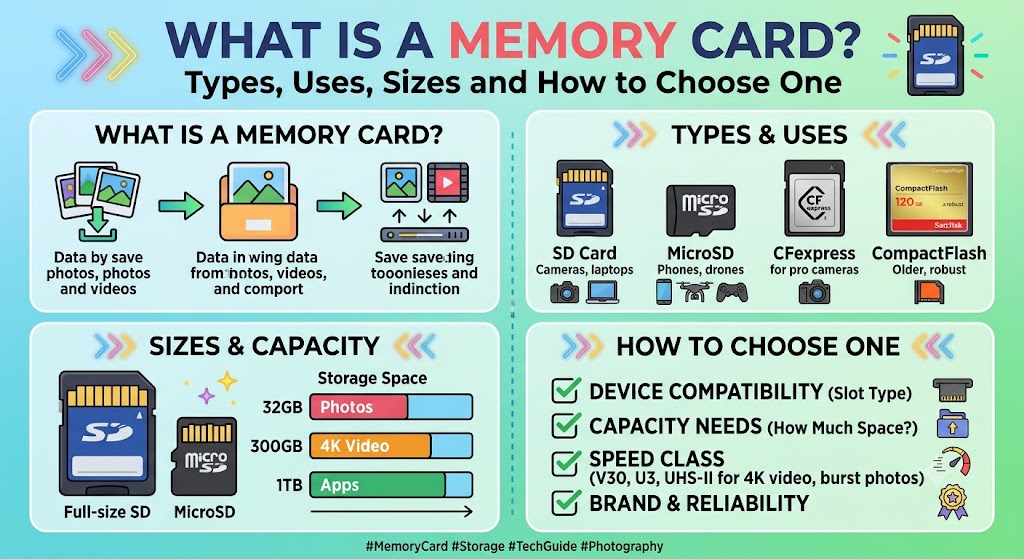
A memory card is a small, removable storage device used to save digital information such as photographs, videos, music, documents, and application data. You will find memory cards in digital cameras, smartphones, gaming consoles, dash cameras, security cameras, drones, and other compatible electronic devices. They allow users to store files, expand available storage where supported, and transfer information between devices without relying entirely on an internet connection.
However, not every memory card works with every device. Some cameras require full-size SD cards, while compact devices use microSD cards. Capacity standards, transfer speeds, and file systems also affect compatibility. A card that fits into a slot may still be unsupported by the device.
In this guide, you will learn what a memory card is, how it works, which types are available, how to choose the right capacity and speed, and how to solve common memory card problems. You will also find practical instructions for formatting and unlocking cards safely, along with compatibility guidance for cameras and Nintendo Switch consoles.
What Is a Memory Card?
A memory card is a compact, removable storage medium that uses flash memory to store digital data. It can retain information when disconnected from a device, making it useful for saving files and moving them between compatible electronics.
Unlike a temporary connection or a cloud storage account, a physical memory card lets you carry your stored information with you. You can remove it from a camera, insert it into a compatible card reader, and copy your photographs to a computer without uploading them to an online service.
Simple Definition of a Memory Card
A memory card is a small electronic device that stores digital files and allows compatible devices to read, write, and manage those files.
For example, a photographer can insert an SD card into a digital camera, capture hundreds of photographs, and later transfer the images to a laptop. Similarly, a dash camera can use a compatible microSD card to record driving footage, while a security camera may store recordings locally on supported removable storage.
The amount of information a card can hold depends on its capacity, usually expressed in gigabytes (GB) or terabytes (TB). Its performance depends on the card’s speed specifications, the device’s capabilities, and the type of work being performed.
How Does a Memory Card Work?
Most modern memory cards use flash memory, a type of non-volatile storage that retains data without continuous electrical power. When a compatible device saves a photograph or video, it writes the data to the card. When you open a saved file, the device reads the information from the card.
The process happens electronically, without the moving parts found in traditional mechanical hard drives. This allows memory cards to be small, portable, and suitable for devices that need removable storage.
A memory card also contains a controller that helps manage data storage and retrieval. Its file system organizes the stored information so that compatible devices can locate and access files.
The card’s performance depends on several factors, including its interface, flash memory, controller, speed class, and the hardware supporting it. A high-speed card cannot necessarily operate at its advertised maximum speed in a device with a slower card interface.
Memory Card vs Internal Storage
Memory cards and internal storage both hold digital information, but they serve different purposes.
Internal storage is built into a phone, tablet, camera, or computer. It generally holds the operating system, applications, settings, and user files. A removable memory card provides an additional storage location when the device supports it.
For example, a phone with 128 GB of internal storage may also accept a microSD card, but only if its hardware supports expandable storage. Many modern phones do not provide a microSD slot, so you should check the exact model before buying a card.
It is also important to distinguish storage from RAM. Storage keeps files and applications when they are not being used, while RAM supports the data and tasks a device is actively processing. Adding a memory card does not automatically increase physical RAM or make every application run faster.
What Does a Memory Card Do?
Memory cards are used in different ways depending on the device, its software, and the type of files being stored. Their most common purpose is to provide portable storage that can be accessed without keeping the card permanently connected to the original device.
Storing Photos and Videos
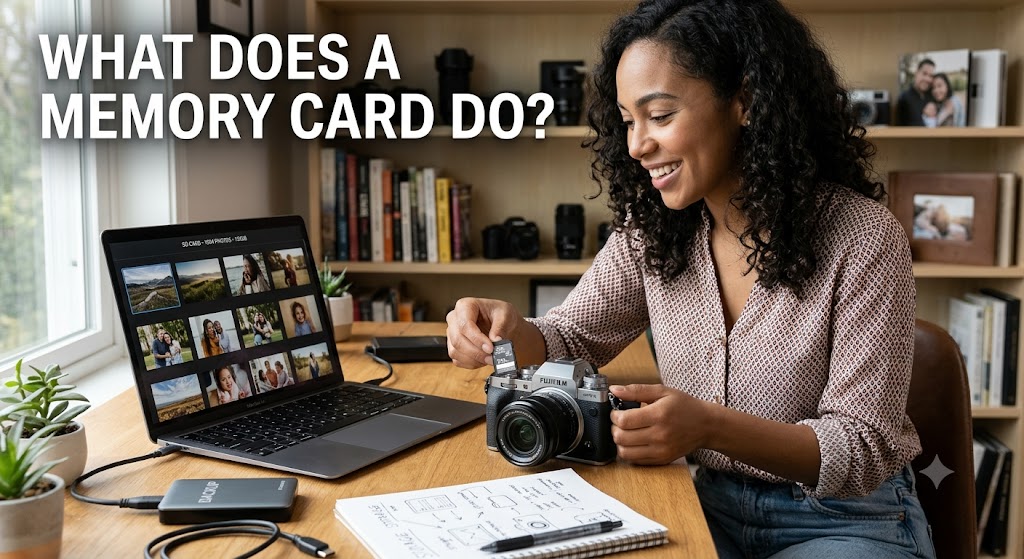
Digital cameras use memory cards to save photographs and video recordings. When you press the shutter button, the camera processes the image and writes it to the card. The same principle applies when recording video, although continuous recording places greater demands on sustained write performance.
For example, a wildlife photographer may need a card with enough capacity for hundreds of high-resolution photographs. Someone recording long videos may need both greater capacity and a suitable video speed class.
The required card depends on the camera’s supported formats and recording settings. High-resolution video, burst photography, and RAW image capture can consume storage more quickly than ordinary photographs.
Expanding Storage on Compatible Devices
A memory card can provide additional storage for devices that support removable media. This is useful when the built-in storage is limited or when a device needs a dedicated location for photographs, recordings, or other files.
Some Android devices support microSD cards, while other phones rely entirely on internal storage. Cameras, handheld gaming devices, dash cameras, and selected security cameras may also support specific memory card formats.
Before purchasing a card, check the manufacturer’s documentation for the supported card type and maximum capacity. Physical fit alone does not establish compatibility.
Transferring Files Between Devices
A memory card can make file transfer straightforward when both devices or an intermediate card reader support the format.
Suppose you take photographs on a digital camera and want to edit them on a computer. You can remove the card, insert it into a compatible reader, and copy the image files to the computer. This avoids having to connect the camera directly or transfer every photograph wirelessly.
You can also use a card reader to back up files, organize folders, and move recordings to an external drive. Always copy important files before deleting them from the original card.
Recording Video and Storing Application Data
Devices such as dash cameras and security cameras may use memory cards to store continuous or motion-triggered recordings. These applications need a card that can handle repeated writing and, in some cases, frequent overwriting.
Certain gaming devices also use memory cards to store downloadable games, application data, screenshots, or videos. The exact functions depend on the device. For example, the original Nintendo Switch and Nintendo Switch 2 have different memory card requirements and supported uses.
Do not assume a card can store every type of data on every device. Some consoles keep game-save data in internal system memory, even when they allow other content to be stored on a removable card.
Types of Memory Cards Explained
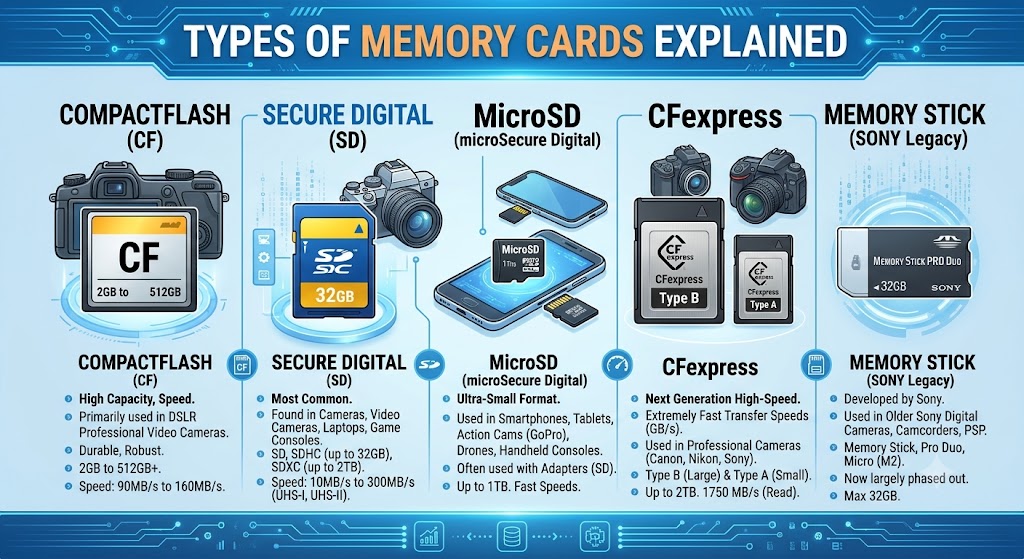
Memory cards come in several formats, each designed for particular devices and use cases. The most familiar family is Secure Digital (SD), which includes full-size SD cards and smaller microSD cards. Other formats, including CompactFlash and Memory Stick, remain relevant for certain older or specialized equipment.
1. SD Cards
An SD card, short for Secure Digital card, is a removable flash storage device used in digital cameras, camcorders, card readers, and other compatible electronics.
The standard full-size SD card measures approximately 32 × 24 mm. Its larger physical size makes it suitable for many dedicated cameras, where the slot is designed specifically for this format.
SD cards are available in different capacity standards and speed classes. Some are suitable for everyday photography, while others are designed for demanding video recording or faster data transfers.
When selecting an SD card, check whether your device supports SD, SDHC, or SDXC. These standards are related but have different capacity ranges and compatibility requirements.
2. microSD Cards
A microSD card is a smaller member of the SD card family. It is commonly used in compact electronics, including action cameras, drones, dash cameras, selected Android phones, and gaming devices.
A microSD card measures approximately 11 × 15 mm, making it significantly smaller than a full-size SD card. Despite its size, it can offer substantial storage capacity and a range of speed classes.
microSD cards are especially useful in portable devices where space is limited. However, the correct card must match the device’s supported format, capacity, and performance requirements.
For example, a dash camera may need a card designed for repeated video recording, while a compatible handheld device may prioritize capacity for applications and downloadable content.
3. SDHC and SDXC Cards
SDHC and SDXC are capacity standards within the SD family. Their names indicate different storage ranges and associated specifications.
- SD: Up to 2 GB.
- SDHC: More than 2 GB up to 32 GB.
- SDXC: More than 32 GB up to 2 TB.
- SDUC: More than 2 TB up to 128 TB under the SD Association’s standard.
The SD Association also specifies associated file-system conventions: SDHC uses FAT32, while SDXC and SDUC use exFAT under their standard specifications. Individual device compatibility and formatting requirements should still be checked.
These distinctions matter because an older device may support standard SD cards but not SDHC or SDXC. Even if a newer card fits physically, the device may not recognize it or may not support its full capacity.
For the official capacity ranges, see the SD Association’s capacity standards.
4. CompactFlash and Other Legacy Formats
CompactFlash, commonly abbreviated as CF, is a removable storage format used in certain older digital cameras and professional photography equipment. Some devices designed for CompactFlash cannot accept SD cards without specialized hardware, and a simple physical adapter may not provide the required functionality.
Other formats, such as CFast and CFexpress, are used in specific professional imaging systems. They should not be treated as interchangeable with standard SD cards because their physical designs and interfaces differ.
If you own an older camera, check the manual or the markings near the card slot before purchasing replacement storage. The correct format is determined by the device, not simply by the capacity or advertised speed of the card.
5. Memory Stick and Device-Specific Formats
Memory Stick is a proprietary family of removable storage formats associated with certain Sony products. Different versions were designed for compatible cameras and electronic devices.
Although some of these formats are now less common than SD and microSD, they can still matter when using older equipment. A camera that requires a particular Memory Stick format may not accept a standard SD card.
Always identify the exact format supported by the device. If the original card is unavailable, consult the product manual or manufacturer’s support information before purchasing a replacement.
Memory Card Types Compared
| Card type | Physical size | Common uses | Main compatibility consideration |
| Full-size SD | Approximately 32 × 24 mm | Digital cameras, camcorders, card readers | Check SD, SDHC, or SDXC support |
| microSD | Approximately 11 × 15 mm | Compact cameras, dash cameras, drones, compatible phones | Check capacity and device support |
| miniSD | Smaller than full-size SD, larger than microSD | Certain older devices | Requires a compatible miniSD slot or suitable adapter |
| CompactFlash | Larger, thicker card format | Selected older and professional cameras | Requires a CompactFlash-compatible slot |
| CFast or CFexpress | Format-specific professional media | Supported professional cameras and recording equipment | Must match the exact card format and device interface |
| Memory Stick | Varies by version | Selected older Sony devices | Check the supported Memory Stick version |
The important rule is simple: identify the device’s supported format first, then compare capacity, speed, and price.
What Is the Difference Between an SD Card and a Memory Card?
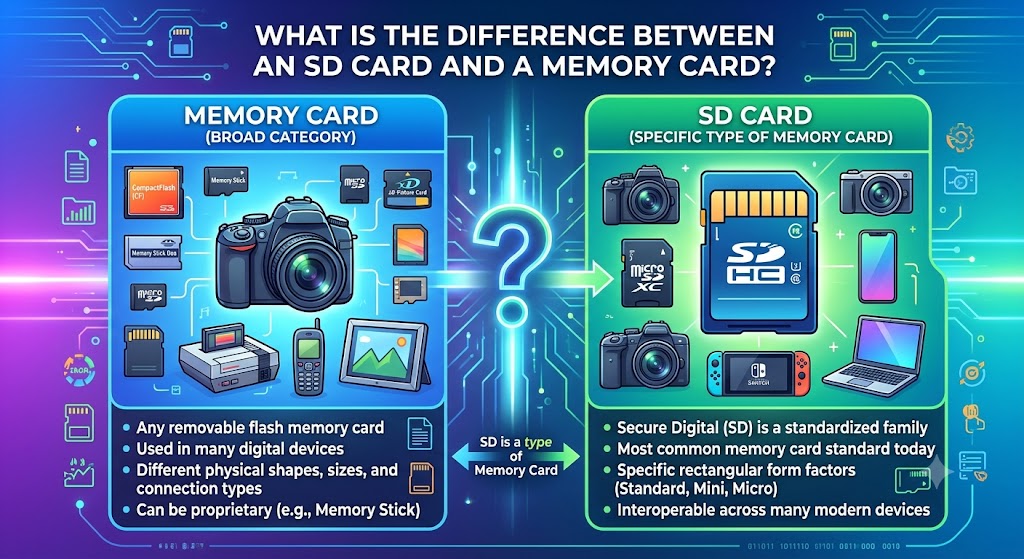
A memory card is a general category of removable storage devices. An SD card is one specific type of memory card.
This means every SD card is a memory card, but not every memory card is an SD card. CompactFlash, microSD, and Memory Stick are examples of other formats within the broader category.
Is an SD Card a Type of Memory Card?
Yes. An SD card stores digital information using flash memory and is designed for devices that support the SD standard.
Full-size SD cards are commonly used in dedicated cameras, while microSD cards serve devices that require a smaller form factor. Both belong to the SD family, but they differ in physical size.
The SD family also includes different capacity standards, such as SDHC and SDXC. A device’s compatibility with one standard does not guarantee support for every other standard.
SD Card vs microSD Card
The main difference is physical size. A full-size SD card measures approximately 32 × 24 mm, while a microSD card measures approximately 11 × 15 mm.
Both can be used to store photographs, videos, and other digital files when supported by the device. Their capacity and performance depend on the specific card rather than simply on its physical size.
For example, a camera with a full-size SD slot may accept a microSD card placed inside a compatible SD adapter. However, a microSD card cannot be inserted directly into a full-size SD slot without the appropriate adapter.
Can You Use a microSD Card in an SD Slot?
Yes, if you use a compatible microSD-to-SD adapter and the device supports the card’s format and capacity.
The adapter changes the card’s physical form so that it fits the full-size slot. It does not turn an unsupported card into a universally compatible one or increase its transfer speed beyond the limits of the card, adapter, and device.
A microSD card that works in one camera may still be unsupported in another because of differences in capacity standards, file systems, or hardware.
If a card is not recognized, check the device’s specifications before assuming the card or adapter is faulty.
Memory Card Sizes, Capacities and Speed Classes
Choosing a memory card involves more than deciding how many gigabytes you need. Capacity determines how much information the card can store, while speed specifications help indicate whether it can handle a particular recording or transfer workload.
Common Memory Card Capacities
Memory cards are commonly sold in capacities such as 16 GB, 32 GB, 64 GB, 128 GB, 256 GB, 512 GB, and 1 TB. Larger capacities are also available under supported standards.
The right size depends on your device and intended use. Someone who takes occasional photographs may need less space than someone who records long videos or keeps a large library of offline content.
Consider the following practical examples:
- 16 GB to 32 GB: May suit basic storage needs on compatible devices, depending on file sizes and recording requirements.
- 64 GB to 128 GB: Can be useful for general photography, everyday recordings, or moderate file collections.
- 256 GB to 512 GB: May suit larger video collections or devices that store substantial downloadable content.
- 1 TB or more: Can be useful for extensive media libraries, provided the device supports the chosen capacity.
These are planning examples, not universal recommendations. Check the device’s maximum supported capacity and account for the space used by formatting and existing files.
What Is a Memory Card Speed Class?
A memory card’s speed class indicates a level of minimum sustained write performance under specified conditions. This is particularly important for video recording, where the card must continue writing data at a sufficient rate without interruption.
Common markings include Speed Class, UHS Speed Class, and Video Speed Class. The symbols may appear as a number inside a C, a number inside a U, or a number beside a V.
| Speed marking | Minimum sequential write speed indicated |
| C2 | 2 MB/s |
| C4 | 4 MB/s |
| C6 | 6 MB/s |
| C10 | 10 MB/s |
| U1 | 10 MB/s |
| U3 | 30 MB/s |
| V10 | 10 MB/s |
| V30 | 30 MB/s |
| V60 | 60 MB/s |
| V90 | 90 MB/s |
These figures describe minimum performance associated with the relevant speed class, not a guarantee that every device will achieve the same real-world transfer rate. The supported interface and recording requirements also matter.
For more details, consult the SD Association’s speed-class guidance.
Read Speed vs Write Speed
Read speed describes how quickly data can be retrieved from a card. Write speed describes how quickly data can be saved to it.
A high advertised read speed can help when transferring large collections of photographs to a computer, provided the card reader and computer support the necessary interface. Write speed is especially important when a camera records high-resolution video or captures multiple photographs in quick succession.
Some product packages advertise a maximum transfer speed that is higher than the card’s sustained write speed. Do not assume the largest number on the packaging guarantees uninterrupted recording.
For demanding recording tasks, check the required speed class in the camera’s documentation and compare it with the card’s markings.
How Much Capacity Do You Need for Photos and Videos?
The capacity you need depends on the size of your files and how frequently you transfer or delete them.
For example, suppose your camera produces photographs averaging 8 MB each. A collection of 1,000 photographs would occupy approximately 8,000 MB, or 8 GB under decimal measurements, before accounting for other files.
Video can use considerably more space. If your camera records 5 GB of footage per hour under your chosen settings, a 64 GB card could theoretically hold around 12.8 hours of footage before accounting for formatting, existing data, and practical recording limits. Your actual recording rate may be very different.
Check your device’s recording settings and use a typical recording session to estimate how much storage you consume.
How to Choose a Memory Card for a Camera
The best memory card for a camera is one that matches the camera’s supported format, capacity, and recording performance requirements. Buying the largest or fastest card is not always necessary, and an incompatible card may not work at all.
Check the Camera’s Supported Formats
Start by checking the camera manual or official product specifications. Look for the supported card family, such as SD, SDHC, SDXC, CompactFlash, or CFexpress.
Also check the maximum supported capacity and any requirements for particular recording modes. Older cameras may not support newer high-capacity cards, even if the cards appear physically compatible.
If you are replacing a card, comparing the markings on the original card with the manual can provide a useful starting point. However, do not assume the old card’s specifications represent the maximum capability of the camera.
Choose Capacity for Your Photography Needs
For casual photography, a moderate-capacity card may be sufficient if you transfer photographs regularly. For holidays, events, wildlife photography, or extended shoots, additional capacity can reduce the need to change cards frequently.
If you record both photographs and video, estimate the total amount of data created during a typical day. Include room for RAW photographs, longer recordings, and unexpected extra shots if your workflow uses them.
It is also sensible to maintain backups. A large card is convenient, but it does not replace a separate copy of important photographs.
Match the Speed to the Recording Requirements
Casual photographs may not require the same sustained write performance as high-bitrate video or continuous burst shooting.
If you record 4K video, use a card that meets the camera manufacturer’s specified speed requirements. Depending on the recording mode, this may involve a suitable UHS speed class or Video Speed Class marking.
For continuous shooting, a card’s write performance can affect how quickly the camera clears its buffer and resumes capturing at full speed. The camera’s own processing and buffer limitations also affect performance, so a faster card cannot eliminate every delay.
Understand Continuous Shooting and Video Recording
A card that performs well for occasional photographs may not be suitable for every video mode. Recording resolution alone does not determine the required speed. Bitrate, codec, frame rate, and the camera’s recording format all influence how much data must be written continuously.
For example, two cameras recording at the same resolution may have different storage requirements because they use different bitrates or compression methods.
Consult the camera’s documentation for the minimum supported card specification for your chosen recording mode. If you frequently record important events, test the card using your actual settings before relying on it for a long shoot.
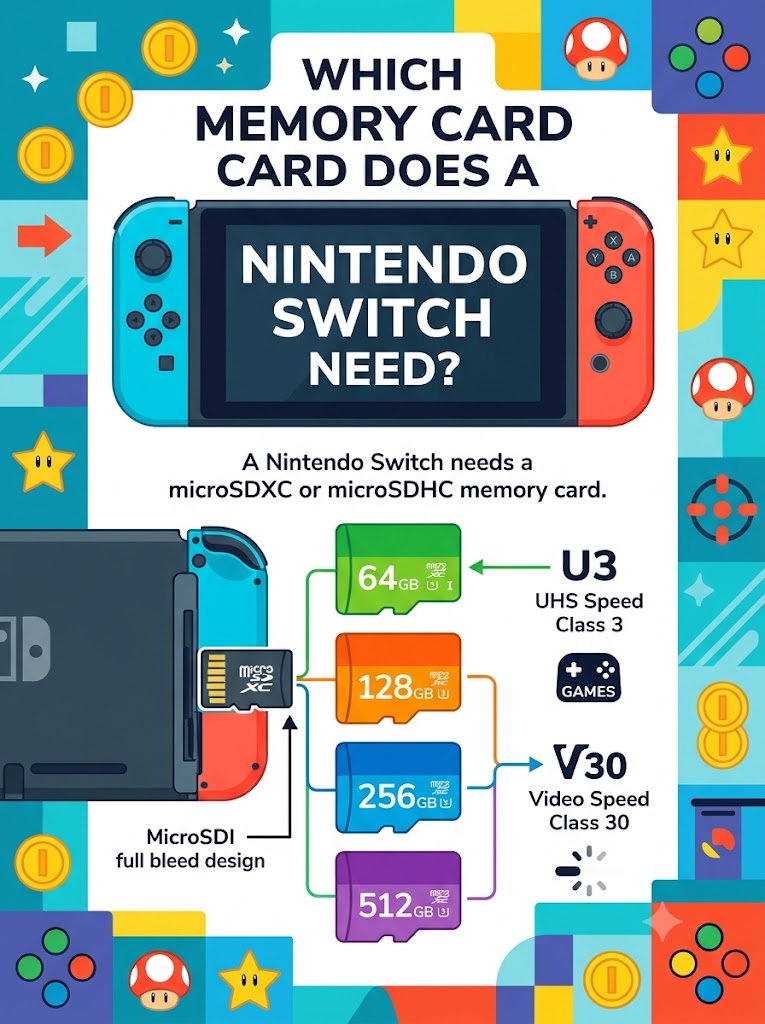
Which Memory Card Does a Nintendo Switch Need?
Nintendo Switch consoles use microSD-family cards, but Nintendo Switch and Nintendo Switch 2 do not have the same memory card requirements. This difference is particularly important when upgrading a console or reusing a card from an older device.
Original Nintendo Switch, Switch Lite and OLED Model
The original Nintendo Switch family supports compatible microSD cards. Nintendo lists the following capacity categories:
- microSD: up to 2 GB.
- microSDHC: 4 GB to 32 GB.
- microSDXC: 64 GB to 2 TB.
Nintendo notes that a system update is required to use a microSDXC card. It also recommends a compatible UHS-I card for improved transfer performance.
A full-size SD card cannot be inserted directly into the console’s microSD slot. You need a card in the supported microSD format.
For current details, see Nintendo’s microSD card FAQ.
Nintendo Switch 2 and microSD Express
Nintendo Switch 2 is compatible only with microSD Express cards for supported removable-storage functions. A standard microSD, microSDHC, or microSDXC card used with the original Switch is not a substitute for a compatible microSD Express card.
Nintendo states that microSD Express cards up to 2 TB are supported. A system update through the internet is required the first time a microSD Express card is used.
Nintendo also explains that inserting a card previously used with the original Switch does not allow the user to save or load digital games or save data on Switch 2. Captured screenshots and videos can be imported from an original Switch card, but the card cannot be used for other Switch 2 storage functions.
Read Nintendo’s official Switch 2 compatibility guidance before buying.
Check Compatibility Before Buying
Before purchasing a card for a Nintendo console, confirm which generation you own and whether it requires standard microSD or microSD Express.
Do not select a card solely because it has a large capacity or a high advertised speed. The card must support the console’s required standard.
Also remember that game-save data and downloadable game files are not necessarily stored in the same place. Nintendo’s documentation explains which data types can be stored on each console’s removable media. Check the official guidance before transferring, formatting, or replacing a card.
What Is a Memory Card Reader?
A memory card reader is a device that lets a computer or another compatible device access files stored on a memory card. It may be built into a laptop or connected externally through USB.
How Does a Card Reader Work?
A card reader provides a connection between a memory card and a computer or other supported device. Once the card is inserted and recognized, the operating system can display its accessible files.
For example, a photographer can use a card reader to transfer images from a camera card to a laptop. A reader can also help create backups or copy documents and recordings between compatible storage locations.
The reader must support the card’s physical format and interface. A reader designed for standard SD cards may not support every newer card technology.
USB Card Readers and Built-In Slots
Some laptops have built-in SD card slots. If yours does not, an external USB card reader can provide the necessary connection.
Readers vary in the formats and interfaces they support. Some accept only full-size SD cards, while others include slots for both SD and microSD. Certain advanced readers support newer standards and can offer faster transfers when used with a compatible card and computer port.
Before buying a reader, check its specifications. The fastest component in a transfer chain does not determine the overall speed if another component is slower.
How to Transfer Files to a PC or Laptop
To transfer files safely:
- Insert the memory card into a compatible card reader.
- Connect the reader to the computer, if it is an external model.
- Open File Explorer on Windows or the relevant file manager on your operating system.
- Open the card and locate the files you want to copy.
- Copy them to a folder on the computer or another storage device.
- Open a few copied files to confirm that the transfer worked.
- Safely eject the card or reader before removing it.
Copy important files before deleting them from the card. If you are transferring photographs or video footage, keep an additional backup when the files are valuable.
How to Unlock a Memory Card
If a memory card appears to be locked or write-protected, you may be unable to delete files, rename folders, or save new data. The correct solution depends on whether the card has a physical lock switch or the device is reporting a software-level write-protection problem.
Find the SD Card’s Lock Switch
Compatible full-size SD cards have a small physical lock switch along the side. Some SD adapters used with microSD cards also have this switch.
To check it:
- Remove the card from the device.
- Look for the small sliding switch on the side of the full-size SD card or adapter.
- Move the switch to the unlocked position.
- Reinsert the card carefully and test whether you can save a new file.
The switch is a mechanical write-protection indicator. It does not encrypt the card or prevent someone from reading its contents.
A microSD card itself does not have the same physical lock switch. If a microSD card is connected through a full-size SD adapter, check the adapter’s switch.
Why Does a Memory Card Appear Read-Only?
A card may appear read-only for several reasons. The physical lock switch may be engaged, the adapter may be faulty, or the device may have detected a file-system problem.
Some devices and operating systems may also apply software-level restrictions. In other cases, a card that is failing can stop accepting writes to protect existing data or because its controller can no longer operate normally.
If the card contains important files, copy or back them up if possible before attempting repairs. Do not repeatedly format or modify a card that may be failing.
What If the Card Remains Locked?
If the card remains write-protected after checking the switch, try a compatible reader or another device. This can help establish whether the problem is associated with the card, adapter, reader, or original device.
If the card is readable but cannot accept new files, back up its contents before investigating software-level write protection. If it repeatedly disconnects, reports errors, or becomes inaccessible, stop writing to it and consider professional recovery if the files are important.
Avoid assuming that a card must be formatted simply because it cannot accept new data. Formatting can erase information and may make recovery more difficult.
How to Format an SD Card Safely
Formatting prepares a memory card with a file system so a compatible device can organize and access files. It can also resolve certain file-system problems, but formatting can erase the data stored on the card.
Before formatting, make sure you have copied any photographs, videos, documents, or other information you want to keep. If the card contains important files that are not backed up and the device says the card needs formatting, do not format it immediately.
Back Up Important Files First
Insert the card into a compatible device or reader and copy accessible files to a computer or another storage location. Open a few files to check that the copies are readable.
If the card is not readable or keeps disconnecting, avoid repeated attempts to repair or format it. If the information is valuable, consider a recovery specialist before making changes.
A backup is especially important for cards used in cameras, security systems, and gaming devices, where the card may contain recordings or data that cannot easily be recreated.
How to Format an SD Card in Windows
The following method applies to a card that Windows recognizes and that you intend to erase.
- Insert the SD card into a compatible card reader.
- Open File Explorer.
- Select This PC and locate the memory card.
- Right-click the card’s drive and select Format.
- Review the available file-system and formatting options.
- Choose a file system supported by the device that will use the card.
- Confirm that you have selected the correct removable drive.
- Start formatting only after confirming that the card’s data can be erased.
- Wait for the process to finish before removing the card.
The available options may vary depending on the card, Windows version, and device. If the card will be used in a camera or console, formatting it through that device may be preferable because the device can apply its expected file-system structure.
Microsoft’s Disk Management guidance also warns that formatting a volume destroys data, so back up important files first.
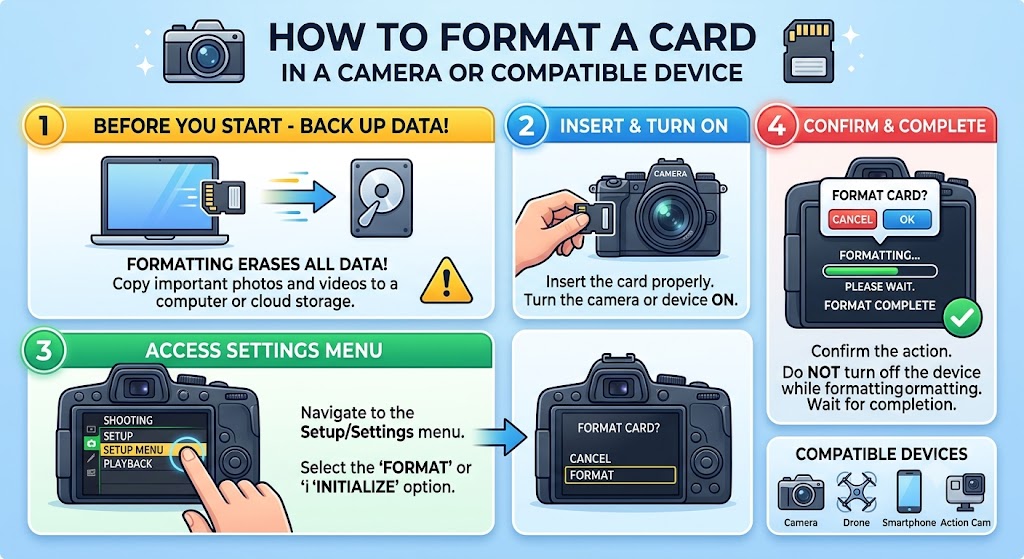
How to Format a Card in a Camera or Compatible Device
If the memory card will be used mainly in a camera, check the camera manual for the recommended formatting procedure.
Generally, the process involves inserting the compatible card, opening the camera’s setup or storage menu, selecting the format option, and confirming the operation. Menu names and steps vary by model.
Formatting through the camera can help it prepare the card for its own recording system. However, it is still destructive to existing data, so back up photographs and recordings before proceeding.
For gaming consoles and other specialized devices, follow the manufacturer’s instructions rather than applying generic computer formatting steps.
Which File System Should You Choose?
A file system determines how files and folders are organized on a storage device. Common options include FAT32 and exFAT, but the correct choice depends on the card standard and the device using it.
The SD Association associates SDHC with FAT32 and SDXC with exFAT under its standard specifications. Other devices may impose their own formatting requirements, so do not choose a file system based solely on what Windows offers.
For example, a camera may require a card to be formatted using its own menu, while a gaming console may have a dedicated formatting function. Consult the device manual before changing the file system.
What If Formatting Fails?
If Windows cannot format the card, begin with basic, non-destructive checks:
- Confirm that the card is inserted correctly.
- Try a different compatible card reader or USB port.
- Check whether the card is write-protected.
- Restart the computer and check whether the card appears again.
- Look for signs of physical damage or repeated disconnections.
If the card contains important files, stop before using disk-repair or formatting utilities. If the card is empty or backed up, you can investigate further using Windows’ built-in disk tools, but make sure you select the correct removable device.
A card that repeatedly fails to format or is reported at an incorrect capacity may be damaged or counterfeit. Replacing it may be safer than continuing to rely on it for important recordings.
Common Memory Card Problems and Fixes
Memory card problems can arise from incompatible formats, faulty readers, file-system errors, physical damage, or insufficient capacity. The best first step is to identify the symptom and try non-destructive checks before making changes to the card.
| Problem | Possible cause | First step |
| Card is not detected | Incompatible format, reader issue, poor connection | Reinsert it and test a compatible reader |
| Device asks to format the card | File-system error or unsupported format | Do not format if files need recovery |
| Card is write-protected | Lock switch, adapter issue, software restriction | Check the physical switch and adapter |
| Card is full | Insufficient free capacity | Back up files before deleting anything |
| Video recording stops | Card may be too slow or incompatible | Check the required speed class |
| Files are corrupted | Card damage, interruption, or file-system issue | Stop writing and back up or seek recovery |
| Reported capacity looks wrong | Incompatible reader, counterfeit card, or card fault | Test with a trusted reader and verify the card |
Memory Card Not Detected
First, remove and reinsert the card carefully. Check that it is the correct format for the device and that the contacts are not visibly dirty or damaged.
If the card still does not appear, try another compatible reader or device. This helps distinguish a card issue from a faulty slot or reader.
Do not format the card simply because it is not detected. If the card contains important information, preserving the existing data should be the priority.
The Card Says It Needs Formatting
A device may request formatting if it cannot read the card’s file system or if the card is not prepared in a supported format.
If you need the files, cancel the formatting prompt. Try connecting the card to a compatible computer and see whether the data can be copied. If the card remains unreadable, consider recovery options before attempting repairs.
If the card is empty or backed up, you can format it according to the device manufacturer’s instructions.
The Card Is Write-Protected
Check the lock switch on a compatible full-size SD card or adapter. If it is unlocked and the card remains read-only, test another adapter or reader.
A persistent write-protection problem may indicate a software restriction or a failing card. Back up readable files before attempting any changes.
The Card Is Full or Too Slow
If a card is full, copy important files to another storage location before deleting or moving them. For a camera or recorder, confirm whether the device supports overwriting older files automatically before relying on that feature.
If recording stops unexpectedly, check the card’s speed class against the recording requirements. A high advertised read speed does not guarantee adequate sustained write performance.
Also check whether the device supports the card’s capacity and format. An incompatible card may cause errors even when it has plenty of free space.
Recovering Files From a Damaged Card
If a card contains valuable photographs or recordings and starts producing errors, stop using it. Avoid capturing new images, copying new files onto it, or repeatedly formatting it, because further writes can reduce recovery options.
If the files remain accessible, make a copy to another drive. If the card is not readable or appears physically damaged, professional data recovery may be appropriate.
Recovery is not guaranteed, especially when flash memory or the card controller has failed. For important data, prevention through regular backups is more reliable than depending on recovery tools after a failure.
Frequently Asked Questions About Memory Cards
1. What is a memory card used for?
A memory card stores digital files such as photographs, videos, audio, documents, and supported application data. It is commonly used in cameras, dash cameras, drones, compatible phones, gaming devices, and other electronics. The exact functions depend on the device and its supported card format.
2. Is a memory card the same as an SD card?
No. A memory card is the general category, while an SD card is one type of memory card. microSD, CompactFlash, and Memory Stick are examples of other formats. An SD card is compatible only with devices that support its format, capacity, and relevant specifications.
3. Does a memory card increase RAM?
No. A memory card adds removable storage, not physical RAM. Storage holds files and applications, while RAM supports tasks and data currently being processed. A compatible card can provide more space for supported content, but it does not automatically improve processing performance or increase the device’s RAM.
4. Can I use a microSD card in an SD slot?
Yes, if you use a compatible microSD-to-SD adapter and the device supports the card’s capacity and format. The adapter allows the smaller card to fit a full-size SD slot. It does not guarantee compatibility with every device or increase the card’s performance beyond the limits of the connected hardware.
5. Do all cameras use SD cards?
No. Many modern cameras use SD or microSD cards, but other cameras use formats such as CompactFlash or CFexpress. Some older devices support proprietary or legacy formats. Check your camera’s manual or official specifications before buying a replacement card.
6. How do I unlock an SD card?
Check the small physical lock switch on the side of a compatible full-size SD card or adapter. Move it to the unlocked position, then reinsert the card and test it. If the card remains write-protected, try a different adapter or reader and back up important files before attempting further troubleshooting.
7. How do I format an SD card?
Back up all important files first. In Windows, insert the card, open File Explorer, select This PC, right-click the card, choose Format, and review the file-system options. Confirm that you have selected the correct card before proceeding. If the card is intended for a camera or console, follow the manufacturer’s formatting instructions.
8. How do I know which memory card my device supports?
Check the device’s official manual or specifications for its supported card family, capacity, and speed requirements. Look for terms such as SDHC, SDXC, microSD, or microSD Express. If you already own a card, compare its markings with the supported specifications. Do not rely on physical fit alone.
9. What is the difference between SDHC and SDXC?
SDHC is the SD capacity standard for cards above 2 GB up to 32 GB. SDXC covers cards above 32 GB up to 2 TB under the SD Association’s standard. They also use different standard file systems. A device that supports SDHC does not automatically support SDXC, so check the manufacturer’s documentation.
10. What memory card is best for 4K video?
The best card depends on the camera’s required sustained write speed, recording bitrate, and supported interface. Check the manual for the minimum speed class for the specific 4K recording mode. A card marked V30, V60, or another suitable class may be appropriate depending on those requirements, but no single class is correct for every camera.
11. Can I use the same memory card in two devices?
Sometimes, but compatibility and formatting matter. Two devices may support the same physical card format while using different file systems or folder structures. Formatting the card in one device can erase existing files. Back up your data before moving a card between devices, and check the manuals if it will be used for important recordings.
12. Can I recover files from a formatted memory card?
Recovery may be possible in some circumstances, but it is not guaranteed. Stop using the card immediately to avoid overwriting data. Do not save new files to it or repeatedly format it. If the information is valuable, consider a reputable data-recovery service before attempting further changes.
13. Why does my memory card have less space than advertised?
Manufacturers generally express card capacity using decimal units, and the operating system may report capacity using a different convention. Formatting and existing files also affect available space. If the reported capacity is dramatically lower than expected, test the card with a trusted reader and investigate whether the card is faulty or counterfeit.
14. Which memory card does Nintendo Switch 2 use?
Nintendo Switch 2 requires a compatible microSD Express card for its supported removable-storage functions. Standard microSD, microSDHC, and microSDXC cards used with the original Switch are not substitutes for microSD Express. Check Nintendo’s current compatibility documentation before buying or transferring data.
15. Should I buy a larger memory card or a faster one?
Choose capacity and speed according to your actual needs. Larger capacity helps store more files, while suitable write performance is important for demanding video recording and burst photography. The device’s supported specifications set the limits. A very fast card may provide little benefit in hardware that cannot use its higher performance.
Conclusion
A memory card is a compact, removable storage device that makes it easier to save, carry, and transfer digital files. SD and microSD are common formats, but other types remain important for particular cameras and specialized electronics. The right choice depends on the device’s compatibility, card capacity, speed class, and intended use.
Before buying a card, check the manufacturer’s specifications rather than relying only on its physical size or advertised speed. Before formatting, back up important files and follow the device’s instructions. These simple checks help you choose compatible storage, avoid unnecessary data loss, and get reliable performance from your memory card.