
A memory card that suddenly stops appearing on your phone, camera, or computer can be frustrating, especially when it contains important photographs, videos, or documents. Sometimes, the problem is caused by a loose connection, an incompatible card reader, or an unsupported file system. In other cases, the card may have corrupted data or physical damage that prevents the device from recognizing it.
Before assuming that your memory card has failed, perform a few basic checks to identify the cause. This guide explains why a memory card is not showing up, how to troubleshoot it on Windows, Android, and cameras, and what to do when the card contains files you cannot afford to lose.
Why Is an SD Card Not Detected?
An SD card or microSD card may fail to appear because the device cannot establish a connection, recognize the card’s format, or access its stored data. The same symptoms can occur when a reader is faulty or the card itself is damaged. Identifying the likely cause helps you choose a suitable solution without accidentally losing important files.
Loose Connections and Card-Reader Issues
One of the simplest reasons a memory card is not detected is a connection problem. A card may not be fully inserted into its slot, or dust and debris may interfere with contact between the card and the reader. An external USB card reader can also become loose or malfunction.
Start by safely removing the card and checking that it is inserted in the correct orientation. If you use an external reader, disconnect it and reconnect it to another USB port. When possible, test the card with another compatible reader to determine whether the original reader is responsible.
Avoid forcing the card into its slot or scraping its electrical contacts with sharp objects. If the contacts appear dirty, follow the manufacturer’s cleaning recommendations. Damaged contacts, bent connectors, or persistent connection problems may require professional inspection.
Unsupported Formats or Capacities
Not every device supports every memory card format or capacity. An older camera may not recognize a high-capacity SD card, while a phone may support only specific microSD card capacities. Compatibility can depend on the device’s hardware, firmware, and supported file systems.
For example, SDHC cards typically range from 4GB to 32GB, while SDXC cards generally range from above 32GB to 2TB. SDUC cards support higher capacities. A device designed for an older card standard may not support a newer card, even if the card physically fits into the slot.
Check the device manufacturer’s specifications before troubleshooting further. Confirm the supported card type, maximum capacity, and file system. If the card is incompatible, formatting it may not solve the problem, and doing so could erase its contents unnecessarily.
Corrupted File Systems
A memory card may be detected by a computer but fail to open because its file system is damaged or unsupported. File-system corruption can occur after a device loses power during a write operation, a card is removed while files are being transferred, or the storage media develops errors.
You might see a message asking you to format the card, find that folders are inaccessible, or notice that the card appears with an unexpected capacity. These symptoms do not necessarily mean the files have disappeared permanently, but they indicate that the card may not be readable normally.
If the card contains important data, avoid formatting it or running repair commands that modify its contents. First, determine whether the card can be read by another compatible device. If the data remains inaccessible, consider recovery options before attempting repairs.
Physical Card Damage
Memory cards are small and portable, but they can still suffer physical or electronic damage. Bent contacts, cracks, water exposure, excessive heat, and electrical faults can prevent a card from being recognized.
A damaged card may disappear intermittently, disconnect during file transfers, or fail to appear on multiple devices. If the card becomes unusually hot, has visible cracks, or shows signs of water damage, stop using it.
Repeatedly inserting a failing card or attempting multiple repair operations can make recovery more difficult. When important files are involved, prioritize protecting the existing data rather than trying every available troubleshooting method.
What to Check Before Troubleshooting
Before changing settings or attempting repairs, perform a few basic checks. These steps help determine whether the problem is caused by the card, the reader, or the device. They also reduce the risk of accidentally overwriting files that may still be recoverable.
Try Another Compatible Reader
If your memory card is not showing up on a computer, try a different compatible card reader or USB port. A faulty reader may prevent the computer from detecting a perfectly functional card.
For microSD cards, check whether the adapter is working properly if you are using one to connect the card to a standard SD slot. Some full-size SD adapters include a write-protection switch, but that switch generally prevents writing rather than preventing detection.
If the card works with another reader, inspect or replace the original reader. If it fails with multiple known-working readers, the problem may be related to the card, its file system, or compatibility.
Check the Card in Its Original Device
Try the card in the camera, phone, or other device where it was originally used, provided that doing so is safe. If the original device recognizes the card and its files remain accessible, the problem may be related to the computer, reader, or supported file system.
If the card contains important files, copy them to another storage location as soon as possible if the device can read them reliably. Avoid recording new photos or videos on the card because new data may overwrite files you are trying to recover.
If the original device also fails to recognize the card, stop making unnecessary changes. This may indicate a compatibility issue, file-system corruption, or card failure that requires further investigation.
Protect Important Files
Before attempting repairs, decide whether the files on the card are important. If you have another copy of the data, troubleshooting is generally less risky. If the card contains your only copies of important photographs or videos, data recovery should take priority over making the card usable again.
Do not format the card, initialize it in Disk Management, create new partitions, or save recovered files back onto it before assessing the situation. These operations can modify information that recovery software or a specialist might otherwise be able to retrieve.
If the card is detected intermittently, disconnects repeatedly, or appears to be physically damaged, consider professional recovery assistance. A failing card may become less accessible if you continue testing it.
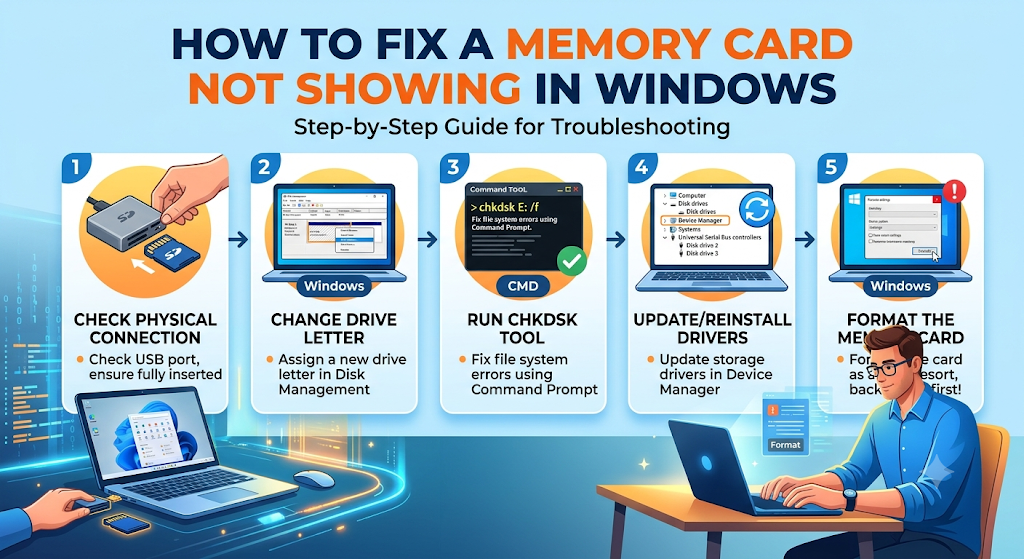
How to Fix a Memory Card Not Showing in Windows
Windows may recognize a memory card without displaying it in File Explorer. The card could be missing a drive letter, contain an unsupported file system, or have a problem with the reader or driver. The following checks can help identify the issue without immediately formatting the card.
Check File Explorer
Start by connecting the memory card through a compatible reader. Open File Explorer using Windows + E and select This PC. Look for the card under Devices and drives.
If the card appears, open it and check whether your files are accessible. If Windows displays a warning that the card needs to be formatted, do not accept the prompt if you need the existing data.
If the card does not appear, try another compatible reader or USB port. You can also restart the computer and reconnect the card. If it remains missing, check Disk Management to determine whether Windows detects the storage device at a lower level.
Inspect Disk Management
Disk Management helps you see storage devices, partitions, file systems, and drive-letter assignments. It can reveal a memory card that is detected by Windows but missing from File Explorer.
To open it, right-click the Start button and select Disk Management. Alternatively, press Windows + R, enter diskmgmt.msc, and press Enter.
Look for a disk or removable volume that matches the card’s approximate capacity. The volume may appear without a drive letter, as unallocated space, or with a file system Windows cannot recognize.
Be careful when interpreting the information. If the card appears as RAW, unallocated, or uninitialized, do not immediately format it or create a new volume. These actions can make recovery harder if the card contains important files. If the card is not listed at all, check the reader, USB connection, and device drivers.
Check Drive Letters and Partitions
A card may be detected by Windows but remain inaccessible because it has no assigned drive letter. If Disk Management shows a healthy, recognized partition without a drive letter, assigning one may make it appear in File Explorer.
To do this, right-click the relevant volume in Disk Management and select Change Drive Letter and Paths. If the option is available, choose Add, select an unused drive letter, and confirm the change.
Only perform this step when you are confident that you have selected the correct memory card and that its existing partition is recognized. Do not delete partitions or create new ones simply because the card is not visible in File Explorer.
If the card appears as unallocated or RAW, assigning a drive letter may not solve the problem. When the data matters, assess recovery options before making changes to the partition or file system.
Check Drivers and the Card Reader
A faulty or outdated card-reader driver can prevent Windows from detecting a memory card correctly. This is especially relevant when the reader is built into a laptop or connected through a USB adapter.
Right-click the Start button and open Device Manager. Expand the relevant categories, such as Disk drives, Universal Serial Bus controllers, or other categories containing the card reader. Look for warning symbols or devices that appear unexpectedly.
If you identify a driver problem, use Windows Update or the computer manufacturer’s official support website to obtain an appropriate driver. You can also disconnect and reconnect an external USB reader to see whether Windows detects it again.
Avoid downloading drivers from unfamiliar websites. If the card works on another computer but not yours, investigating the original computer’s reader, USB ports, and drivers is a sensible next step.
How to Fix an SD Card Not Showing on Android
An Android phone may fail to recognize a microSD card because the device does not support expandable storage, the card is not inserted correctly, or the card’s file system is unreadable. Some phones do not include a memory card slot at all, so compatibility should be checked before troubleshooting.
Check Device Compatibility
Check your phone manufacturer’s specifications to confirm whether your model supports microSD cards. If it does, verify the maximum supported capacity and any restrictions on card types or file systems.
A card that works in another phone may not be compatible with your current device. This is particularly relevant when using high-capacity cards with older phones or devices with limited storage support.
If the card is compatible but still not detected, check whether the manufacturer recommends a particular file system. Do not format the card merely to test compatibility if it contains files you need to preserve.
Restart and Reinsert the Card
If your phone supports removable storage, restart it and check whether the card appears. If the problem continues, power off the device before removing and reinserting the card, following the manufacturer’s instructions.
Inspect the card and slot for visible debris or damage. Insert the card in the correct orientation without forcing it into place. After restarting the phone, allow a short time for Android to detect and mount the storage.
If the card works intermittently, copy important files to another location when possible. Repeated disconnections may indicate a problem with the card, slot, or file system.
Inspect Storage Settings
Open your phone’s Settings and look for Storage or a similarly named option. Depending on the device and Android version, the menu may display removable storage, the card’s capacity, and options for managing its contents.
If the card appears in Storage settings but not in a file-management application, check whether the phone has mounted it correctly and whether the file manager has the necessary permissions. You can also try a trusted file manager compatible with your Android version.
If Android reports that the card is corrupted or needs formatting, avoid formatting it if the data matters. Try reading the card through a compatible computer and reader, or seek recovery assistance if the files cannot be accessed safely.
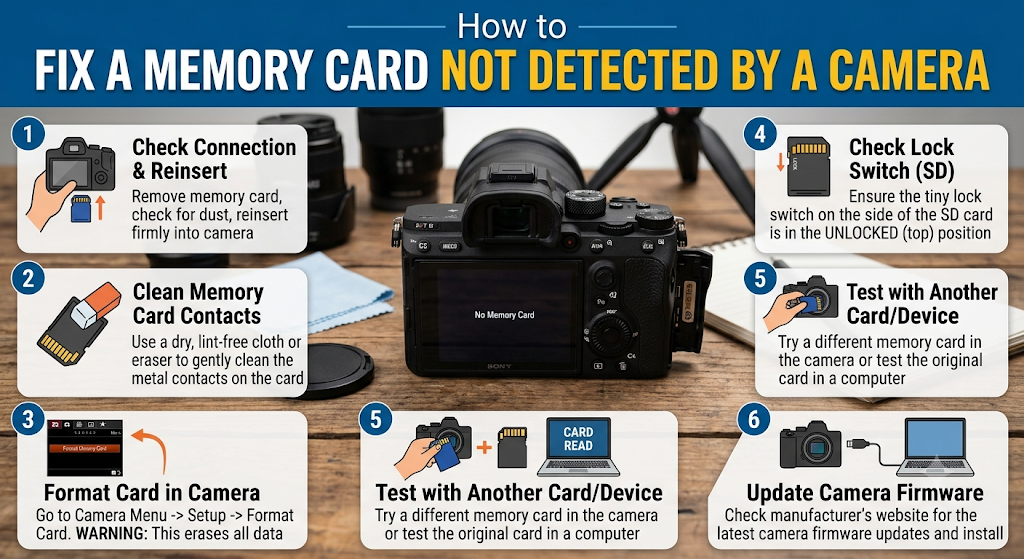
How to Fix a Memory Card Not Detected by a Camera
Digital cameras rely on compatible memory cards to save photographs and videos. If a camera does not recognize a card, the issue may involve card compatibility, incorrect insertion, dirty contacts, or a file system the camera cannot read.
Check Supported Card Types
Consult your camera’s manual or manufacturer specifications to determine which card types and capacities it supports. Some older cameras may support standard SD or SDHC cards but not newer SDXC or higher-capacity formats.
Also check whether the camera requires a particular file system. A card that has been used in another device may have a format that the camera does not recognize.
Do not assume that a card will work simply because it fits into the camera’s slot. Confirm the supported standard and capacity before purchasing a replacement or attempting to reformat the existing card.
Inspect Contacts and Insertion
Turn off the camera before removing or inserting the memory card. Check that the card is facing the correct direction and that it fits securely into the slot.
Inspect the card’s contacts for visible dirt, corrosion, or damage. Avoid touching the contacts unnecessarily or using liquids and abrasive materials that could damage them. If the camera’s slot appears damaged, professional inspection may be necessary.
If the card is detected intermittently, avoid taking new photographs until important existing files have been backed up. Continuing to use an unreliable card can increase the risk of losing additional images.
Review the Camera Manual
Your camera manual may provide specific troubleshooting instructions for memory card errors. Check the recommended card types, capacity limits, and any supported formatting procedures.
If the camera recognizes the card but reports an error, determine whether the problem relates to the file system, card compatibility, or the card itself. If the existing photographs are important, transfer or recover them before considering formatting.
Once your files are safely backed up, you may be able to format a compatible card using the camera’s built-in formatting option. Follow the manufacturer’s instructions and confirm that the card is supported before proceeding.
What to Do If Windows Asks You to Format the Card
A message asking you to format a memory card can be alarming, particularly when it contains valuable photographs or videos. The message generally means Windows cannot access the card’s current file system as expected. It does not necessarily mean that every file has been erased.
Why This Message Appears
Windows may ask you to format a card when its file system is corrupted, unsupported, or unreadable. The card may also have been formatted by a device that uses a file system Windows cannot interpret normally.
Other possible causes include interrupted file transfers, unsafe removal, card-reader problems, or storage errors. The exact cause cannot always be determined from the message alone.
If the card was recently used in a camera or phone, check whether that original device can still read it. A compatibility issue may be easier to resolve than a damaged file system.
Avoid Formatting If Data Matters
Formatting can change the card’s file-system structures and make existing data harder to recover. If the card contains important files, do not click Format simply to remove the warning.
Instead, cancel the prompt, safely disconnect the card if possible, and try a compatible reader or another computer. If the card becomes readable, copy the files to a separate storage device immediately.
Avoid running repair commands or writing new data to the card before assessing the situation. If the card is inaccessible on multiple devices and the files are valuable, consider recovery software or professional data recovery before attempting repairs.
Consider Recovery Options
If the card is detected but its files cannot be opened, recovery software may be able to locate recoverable photographs, videos, and documents. Choose a reputable tool compatible with the card and your operating system, and follow its instructions carefully.
Whenever possible, create a sector-by-sector image of a readable but potentially failing card and perform recovery attempts on that image rather than repeatedly accessing the original. This approach can reduce additional stress on an unreliable card, although creating an image may not be safe or successful if the card is physically failing.
Save recovered files to a different drive, never back onto the affected card. If the card is not detected at all, disconnects repeatedly, or shows signs of physical damage, professional recovery may be more appropriate than repeated software attempts.
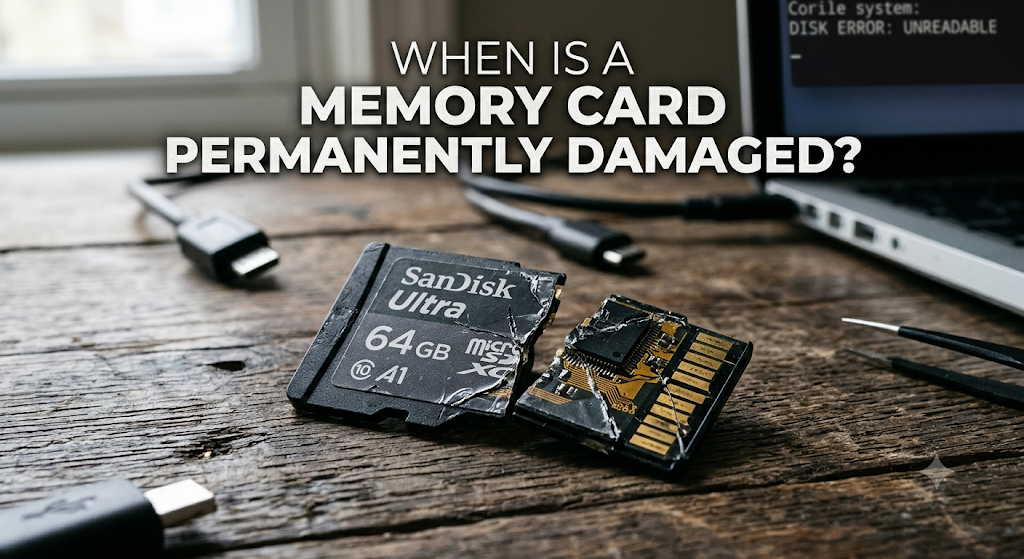
When Is a Memory Card Permanently Damaged?
A memory card may be failing when it repeatedly disappears, cannot be read by multiple compatible devices, or develops physical damage. However, these symptoms do not always prove permanent failure. A faulty reader, unsupported format, or corrupted file system can produce similar behavior.
Repeated Detection Failures
If the card appears and disappears repeatedly, disconnects during transfers, or reports errors across several known-working readers, it may have a hardware or storage problem.
Try a different compatible reader only if doing so is safe and does not require repeated attempts with a physically damaged card. If the card becomes readable even briefly, prioritize copying important files rather than testing its performance.
If the card consistently fails on multiple compatible devices, replacing it may eventually be necessary. However, if its data is valuable, consider professional recovery before discarding it.
Physical Damage and Overheating
Cracks, bent contacts, corrosion, water exposure, or unusual heating can indicate physical or electrical damage. A card that becomes unusually hot during use or has visible damage should be disconnected when safe and left unused.
Do not attempt to open, bend, solder, or otherwise repair a memory card yourself. These actions can make recovery more difficult and may create further damage.
If the card has suffered physical damage and contains important data, seek advice from a specialist before trying additional readers or software tools.
When to Seek Professional Recovery
Professional data recovery may be appropriate when a memory card contains irreplaceable photographs, important work files, or recordings that cannot be recreated. It is particularly worth considering when the card is physically damaged, not detected by multiple devices, or repeatedly disconnects during access.
Stop troubleshooting if further attempts could risk the only copy of your data. Explain what happened to the recovery specialist, including whether the card was formatted, exposed to water, or subjected to repair commands.
Recovery cannot be guaranteed, and the cost may depend on the type and severity of the damage. For valuable data, however, professional assessment may be safer than repeated attempts to force a failing card to work.
Frequently Asked Questions
Why Is My SD Card Not Showing Up?
An SD card may not appear because of a loose connection, faulty reader, unsupported card format, missing drive letter, corrupted file system, or physical damage. Try a compatible reader and check the card in its original device. On Windows, inspect File Explorer and Disk Management. If the card contains important files, avoid formatting it until you have assessed recovery options.
Why Can a Phone Read a Card but a PC Cannot?
A phone may support the card’s file system while the computer does not recognize it normally. The computer may also have a faulty card reader, missing drive letter, or driver issue. Try a compatible reader and inspect the card through Disk Management. If the phone can still access the files, back them up before making changes to the card.
Can a Corrupted Memory Card Be Repaired?
Some memory cards with file-system corruption can become usable again, but the appropriate method depends on the cause. If the card contains important data, recover or back up the files before attempting repairs. If the card has physical damage or is failing electronically, software repair may not work. Even if the card becomes usable again, replace it if it continues to produce errors.
Should I Format an Unreadable Card?
Do not format an unreadable memory card if you need its existing files and do not have another copy. Formatting may alter file-system information and make recovery more difficult. First, try a compatible reader and check whether another device can access the data. If the files are important and remain inaccessible, consider recovery options before formatting the card for reuse.
Conclusion
A memory card that is not showing up may have a simple connection problem, an incompatible format, a missing drive letter, a driver issue, or a damaged file system. Checking the reader, testing the card in its original device, and inspecting Windows storage settings can help identify the cause.
If the card contains important photographs, videos, or documents, protect the data before attempting repairs. Avoid formatting an unreadable card until you have considered recovery options, and stop using cards that show signs of physical damage or repeated failure. Once your files are safe, you can determine whether the card can be repaired, should be replaced, or needs professional recovery assistance.