
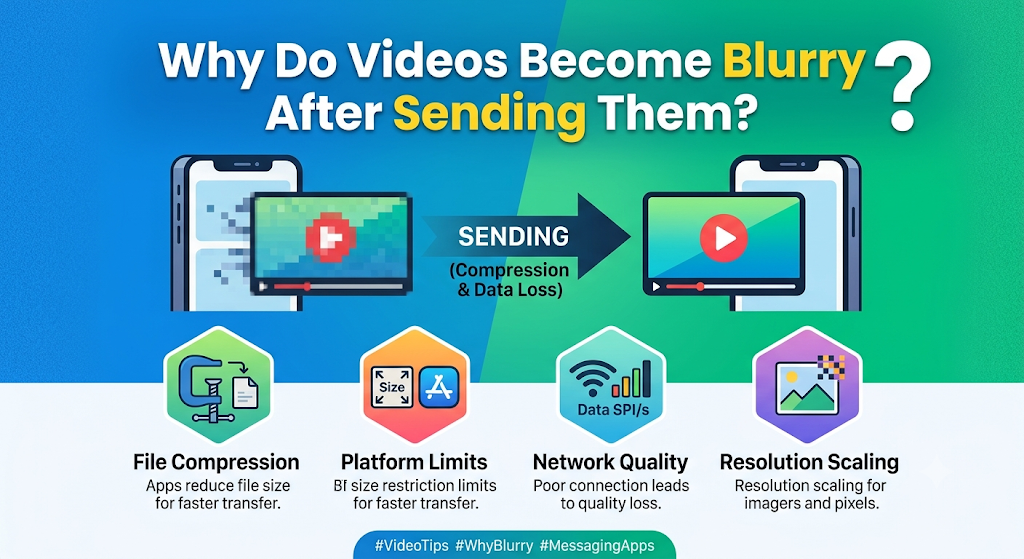
Have you ever recorded a sharp, detailed video on your phone, only to discover that it looks blurry after sending it to someone? This happens frequently when sharing videos through WhatsApp, social media platforms, email, and other messaging applications. Fine details may disappear, text can become difficult to read, and moving objects may look pixelated compared with the original recording.
The main reason is often video compression, which reduces file size to make sharing faster and more convenient. Changes to resolution, bitrate, and encoding settings can also affect visual quality. Fortunately, choosing the right sharing method can help preserve more detail and, in some cases, transfer the original video without additional compression.
Why Messaging Apps Reduce Video Quality
Messaging applications often process videos before delivering them to recipients. A video recorded in high resolution can occupy hundreds of megabytes, making it slower to upload, download, and store. Compressing the video reduces its size and helps platforms deliver media more efficiently, particularly when users have limited internet bandwidth.
However, reducing file size can affect visual detail. The amount of quality loss depends on the application, video format, original recording settings, and sharing method. Some services offer high-quality options, while others may process videos automatically when they are shared as regular media.
Automatic Compression
Automatic compression occurs when an application processes a video to reduce its file size before sending it. The application may use a different encoding format, lower the bitrate, reduce the resolution, or adjust other video settings. These changes help make large recordings easier to transfer and play across different devices.
Compression does not always make a video noticeably worse. When the original recording has sufficient detail and the compression settings are appropriate, the difference may be difficult to notice on a small screen. However, aggressive compression can make fine textures, hair, leaves, distant objects, and small text appear softer or less detailed.
For example, a video recorded in 4K may look sharp in your phone’s gallery but lose visible detail after being shared through a messaging application. Fast-moving scenes, low-light footage, and recordings with lots of texture can be particularly affected by compression.
File-Size and Bandwidth Limits
Large video files require more time and bandwidth to upload and download. A high-resolution recording lasting several minutes can occupy hundreds of megabytes or more, depending on its frame rate, bitrate, and encoding settings. Sending such files can be inconvenient for people using mobile data or slower internet connections.
Messaging platforms may optimize videos to reduce transfer times and data consumption. Some services also impose file-size limits or apply different processing rules depending on how the video is shared. These restrictions can influence whether a video is compressed, uploaded as a file, or shared through another method.
If a video repeatedly loses quality when sent through a particular application, consider using a file-sharing option instead. Uploading the original recording to a cloud storage service and sharing a download link can be a practical alternative when the recipient needs a high-quality copy.
Resolution and Bitrate Changes
Resolution and bitrate are two important factors that determine video quality. Resolution describes the number of pixels used to display each frame. Common formats include 720p, 1080p, and 4K, with higher resolutions generally providing more potential detail when the recording and playback conditions support it.
Bitrate measures how much data is used to represent each second of video. A higher bitrate can preserve more visual information, particularly in scenes with rapid movement or complex textures. Reducing bitrate too aggressively can introduce blocky artifacts, smearing, and loss of detail even when the video’s resolution remains unchanged.
This explains why a video can still display a resolution of 1080p after sharing but look worse than the original. Resolution is only one part of video quality. Bitrate, compression method, lighting, camera quality, and the original recording all influence the final result.
How to Send Videos Without Losing Too Much Quality
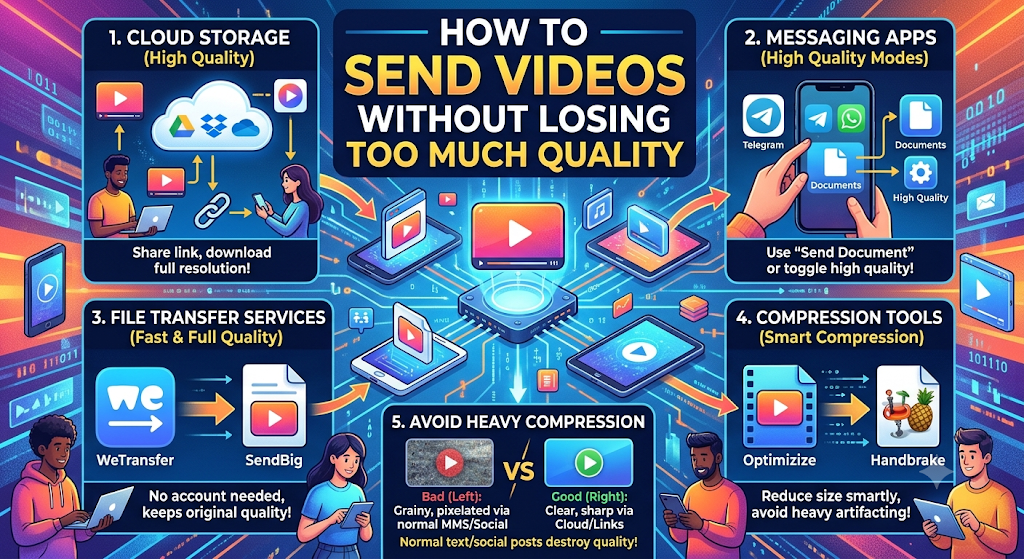
The best way to share a video depends on whether the recipient needs a convenient preview, a high-quality version, or the exact original file. Regular media sharing is convenient for everyday clips, but it may involve compression. High-quality settings, file attachments, and cloud storage links provide alternatives when preserving detail matters.
Check Available High-Quality Sharing Options
Some messaging applications provide an HD or high-quality option when selecting a video for sharing. This setting may preserve more visual detail than the standard option, making it useful for travel videos, family recordings, presentations, and other clips where image clarity matters.
Before sending a video, select it from your gallery and check whether an HD option is available. Choose the higher-quality setting when appropriate, keeping in mind that the application may still compress the recording. HD sharing does not automatically guarantee that the recipient will receive the exact original file.
It is also worth considering file size and internet speed. A high-quality video may take longer to upload and download, but the additional time can be worthwhile when the recipient needs clearer footage.
Send the Original File Where Supported
Sending a video as a file or document can help preserve its original properties when the application transfers the file without re-encoding it. This method is particularly useful for high-resolution recordings, professional footage, educational demonstrations, and videos containing small text that must remain readable.
The process differs between applications, but it generally involves choosing a file or document attachment option instead of selecting the video through the regular media-sharing interface. You may need to browse your phone’s file manager to locate the recording.
After sending the video, ask the recipient to download it and check its properties. Compare the received file with the original to confirm that its resolution, duration, and file size are consistent with expectations. Sending a file is not a guarantee of preservation on every platform, so verification is important.
Use Cloud Storage or a File-Transfer Link
Cloud storage is another useful option for sharing large videos without unnecessary quality loss. Services such as Google Drive, Microsoft OneDrive, and Dropbox allow users to upload a recording and share a link with the intended recipient.
To use this method, upload the original video file rather than a compressed export. Once the upload is complete, generate a sharing link and provide the recipient with permission to access or download the file. The recipient can then download the original instead of relying on a lower-quality preview or streamed playback.
This approach is particularly useful for long recordings, 4K footage, work presentations, and videos that are too large for convenient messaging. Before sharing, check the upload status, available storage, access permissions, and privacy settings. A cloud link is only useful if the recipient can access the correct file.
How to Send Clear Videos on WhatsApp
WhatsApp is widely used to share personal recordings, travel clips, work videos, and other media. However, a video sent through its regular media-sharing interface may undergo compression. Choosing the available HD option or sending the recording as a document can help preserve more detail, depending on the method and application version.
Check the Available HD Option
To send a video using WhatsApp’s HD option, open the conversation with the intended recipient and select the video from your gallery. Before sending it, look for the HD option in the media preview screen, if available. Select it to use the higher-quality sharing setting.
Review the preview and confirm your selection before sending the video. The HD option is designed to preserve more detail than standard-quality sharing, but it may still reduce the original file’s bitrate or alter other properties.
If the video contains important visual information, such as presentation slides, product details, or distant scenery, compare the received version with the original. If the result is not sufficiently clear, consider sending the recording as a file instead.
Understand the Difference Between Media and Document Sharing
When you select a video directly from the gallery, WhatsApp may process it through its media-sharing system. Depending on the available settings and sharing method, this can result in a smaller file with reduced visual detail.
Sending a video as a document or file provides a different approach. Where supported, this method can transfer the original recording without applying the same media compression. It is useful when the recipient needs the original resolution, bitrate, or file format.
To try this method, open the conversation, choose the attachment option, and select Document or the equivalent file-sharing option available on your device. Browse to the original video and send it. The exact interface and supported file limits can vary by device and application version.
Remember that sending a video as a document may result in a larger transfer and take longer on slower connections. However, this trade-off can be worthwhile when preserving the original recording is more important than minimizing file size.
Verify the Received Video
After sending a video, ask the recipient to download it before judging its quality. A preview may look different from the downloaded file because of playback settings, loading conditions, or the way the application displays media.
Compare the downloaded video with the original recording using the same device or display whenever possible. Look for differences in sharpness, fine details, motion, text, and visible compression artifacts. You can also compare resolution, duration, and file size to identify potential changes.
If the video appears blurry only while streaming or previewing it, wait for it to load fully or open the downloaded copy in a video player. If the downloaded version is still visibly worse, try another sharing method and verify the result before deleting the original.
How to Share Videos on iPhone and Android
Both iPhones and Android phones provide several ways to share video recordings. However, the quality of the final file depends on the application, export settings, cloud synchronization, and selected sharing method. Keeping the original recording and avoiding unnecessary conversions can help preserve its detail.
Preserve Original Files
Always keep the original recording when video quality matters. Before editing or sharing a video, make sure you have a copy of the original in your phone’s gallery or another reliable storage location. This gives you a clean source if the shared version becomes compressed or altered.
On iPhone, you can use the Photos app and compatible file-sharing options to access or transfer recordings. If you use iCloud Photos with an optimized-storage setting, the full-resolution original may need to be downloaded from iCloud before you transfer it.
On Android, you can usually locate recordings in Google Photos, your phone’s gallery, or the file manager. Check that you are sharing the original file rather than a downloaded preview or an edited copy that has already been compressed.
Avoid Repeated Exporting
Editing applications may re-encode a video whenever you export it. If you repeatedly edit and export the same recording using lossy compression, each generation can introduce additional quality loss. This can make the video look progressively softer, particularly when lower bitrates or reduced resolutions are used.
Whenever possible, make edits using the original recording and export the final version only once. Select a suitable resolution, frame rate, and bitrate for your intended use. For example, a 1080p recording intended for a presentation may not need to be converted into a smaller, lower-bitrate file simply to make it easier to send.
Copying or transferring a video file without re-encoding it does not inherently reduce quality. The main concern is whether an application changes the video during editing, conversion, or sharing.
Check Cloud Photo Settings
Cloud photo services can store original recordings online while keeping smaller local versions on your device to save space. This is useful when phone storage is limited, but it is important to understand which version you are sharing.
Before sending a video, confirm that the original has finished uploading to your cloud account. If the phone stores an optimized local copy, download the full-resolution original when necessary before transferring it to another person.
Check the synchronization status and ensure that the correct account is being used. If the recipient needs the original recording, share a download link or send the actual original file rather than relying on a preview. Cloud storage settings and behavior differ between providers, so verify the downloaded result when quality is important.
How to Send Large Videos by Email
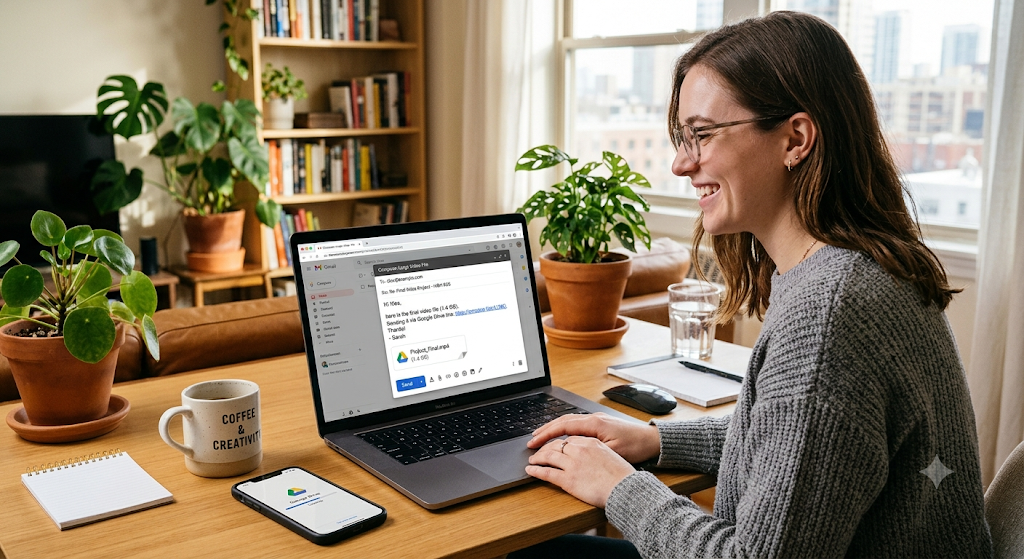
Email is convenient for sharing short video clips, work demonstrations, and presentations. However, large recordings may exceed the attachment limits imposed by email providers. Instead of repeatedly reducing the video’s quality to make it fit, users can share a cloud storage link that allows the recipient to download the original file.
Understand Attachment Limits
Email services limit the total size of messages and attachments. A short, low-resolution video may fit comfortably within these restrictions, while a long 4K recording can exceed them. Some email providers also account for encoding overhead, meaning the total message can become larger than the original attachment.
If an attachment is too large, the email service may reject it or suggest using cloud storage. Compressing the video can reduce its size, but re-encoding it at a lower bitrate may affect its clarity.
Before compressing an important recording, consider whether a cloud link would be more appropriate. This lets you share the original file without making unnecessary changes simply to meet an attachment limit.
Use Cloud Links for Larger Files
To share a large video, upload the original file to a trusted cloud storage service and create a sharing link. Add the link to your email and make sure the recipient has permission to access or download the recording.
This method is useful for professional presentations, event footage, training videos, and recordings that need to retain their original quality. It also avoids sending a large attachment to every recipient individually.
After uploading, check that the transfer is complete and the correct file has been selected. If the video is sensitive, restrict access to the intended recipients instead of creating a publicly accessible link.
Keep Permissions and Privacy in Mind
Sharing a video through a cloud link requires attention to privacy. Depending on the service, a link may allow anyone who possesses it to view or download the file. This can create problems when recordings contain personal information, confidential work, or private events.
Choose the narrowest access permissions that meet your needs. Where available, restrict access to specific accounts, disable unnecessary editing permissions, and use expiration settings when appropriate.
Always verify the sharing settings before sending the link. If you later discover that a private video has been shared too widely, review the permissions and revoke access where possible.
How to Check Whether a Video Has Been Compressed
If a video looks different after sharing, you can compare the original and received files to identify possible changes. File size, resolution, bitrate, and visible detail can provide useful clues. However, no single measurement proves that compression has occurred, because different encoding methods can produce different file sizes and quality levels.
Compare Resolution and File Size
Start by comparing the resolution of the original and received videos. For example, an original recording may measure 1920 × 1080 pixels, while a shared version may have been reduced to 1280 × 720 pixels. This indicates that the shared video has fewer pixels per frame.
Next, compare the file sizes. If the original occupies 200MB and the received copy occupies 30MB, the difference may indicate that the video was compressed or re-encoded. However, a smaller file is not necessarily worse, because efficient encoding can reduce file size while maintaining good visual quality.
Also consider the duration and content of the video. A short recording with little movement may require less data than a longer clip containing complex motion, even at the same resolution. Comparing several properties provides a more reliable picture than examining file size alone.
Check Video Properties
Your phone’s gallery or file manager may display basic video properties, including resolution, duration, and file size. On a computer, tools such as MediaInfo can provide additional information about video codecs, bitrates, frame rates, and audio streams.
These details can help identify whether a video has been resized, converted, or re-encoded during sharing. For example, a substantially lower bitrate may explain why the received file looks less detailed despite retaining the original resolution.
Metadata differences do not always prove that visible quality has been lost. Some services remove metadata or change file properties without substantially affecting the picture. For the most useful comparison, inspect both the technical details and the actual video.
Compare the Original and Received Files
Play the original and received videos on the same device under similar conditions. Pause at identical moments and compare fine details, text, edges, textures, and moving objects. Compression artifacts may appear as blocky patches, smeared textures, or reduced sharpness.
Make sure both files are downloaded locally before comparing them. Streaming quality, buffering, display scaling, and playback settings can affect how a video appears on screen. A low-quality preview is not always evidence that the downloaded file has been permanently degraded.
If the received version has noticeably less detail, ask the sender to share the original file or use a different transfer method. Keeping the original available makes it easier to confirm whether quality has been preserved.
Can You Restore Video Quality After Compression?
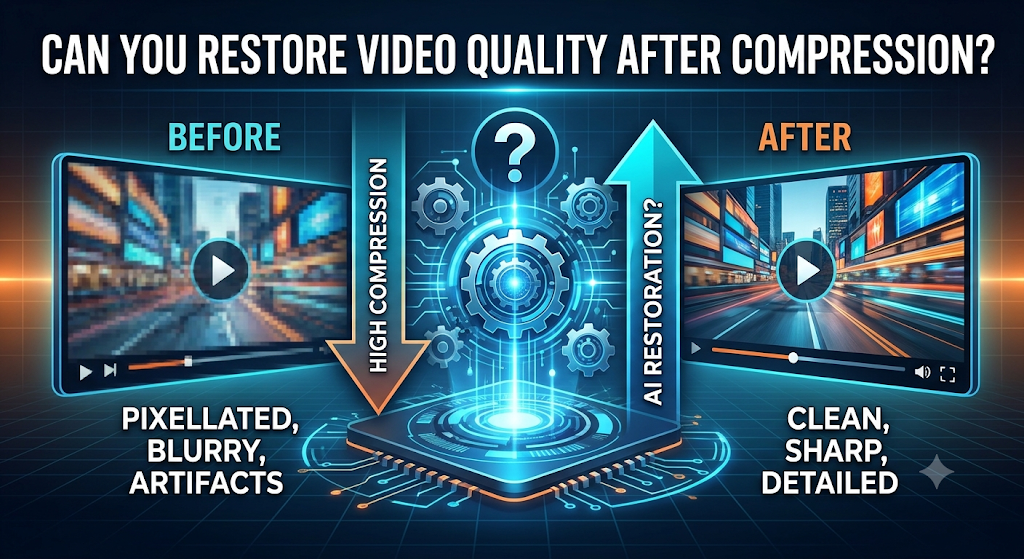
Whether you can restore a blurry video depends on the cause of the problem and whether the original recording is still available. If the video only appears blurry because of playback or preview settings, downloading the file may solve the issue. If compression has permanently removed visual information, however, complete restoration may not be possible.
Recover the Original if Available
The most reliable way to recover the original quality is to obtain the original recording. Check your phone’s gallery, cloud photo library, computer backups, or other storage locations for a higher-quality copy.
If someone sent you a compressed video, ask them to upload the original file to a trusted cloud service or send it through a file-sharing method that preserves the recording. This is generally more effective than trying to improve a heavily compressed copy.
Before replacing or deleting any version, confirm that the recovered file has the expected resolution, duration, and visual detail. Keep a backup of the original so that you can use it again if needed.
Use Enhancement Tools Carefully
Video enhancement software can improve the appearance of some recordings. Depending on the tool, features may include sharpening, noise reduction, stabilization, color correction, and AI-based upscaling.
These features can make a video easier to view, but they cannot reliably recreate every detail that was removed during compression. AI tools may generate artificial textures or alter small features, which can make a result look more detailed without accurately reproducing the original scene.
Work on a copy rather than overwriting the original file. Compare the enhanced version with the source and check faces, text, edges, and moving objects for unnatural changes. Enhancement can be useful in some situations, but recovering the original recording remains the preferred solution.
Understand Permanent Quality Loss
Lossy compression reduces file size by discarding some information from the video. Once that information has been removed, simply increasing the resolution or saving the file again cannot reliably restore the missing details.
For example, converting a compressed 720p video into a 1080p or 4K file increases its pixel dimensions but does not recreate the detail of footage originally captured at those resolutions. Similarly, increasing the bitrate during export cannot recover information that is no longer present.
The best approach is to prevent unnecessary quality loss before sharing. Keep original recordings, use suitable export settings, select high-quality sharing options, and transfer the original file when exact preservation matters.
Frequently Asked Questions
Why Is a Video Blurry on WhatsApp?
A video may look blurry on WhatsApp because the application compresses it when it is shared as regular media. The amount of quality loss depends on the selected sharing option, the video, and the application version. Try the available HD option or send the original recording as a document where supported. Also download the received video before judging its quality, since previews and streaming conditions can affect sharpness.
Does HD Sharing Preserve Original Quality?
HD sharing generally aims to preserve more detail than standard-quality sharing, but it does not necessarily preserve every original file property. The video may still be compressed, and its bitrate, resolution, or encoding may differ from the original. If you need an exact copy for editing or professional use, consider sending the original file through a suitable file-sharing method and verifying the received version.
Is Sending a Video as a File Better?
Sending a video as a file or document can be better when you need to preserve its original quality. Where the application transfers the file without re-encoding it, the recipient can receive the original recording rather than a compressed media version. This is particularly useful for high-resolution footage, work presentations, and videos containing fine details. Check the file size and properties after transfer to confirm that the intended version was received.
Does Downloading a Video Restore Its Quality?
Downloading a video does not automatically restore quality that was lost during compression. It retrieves the version made available by the service. If that version has already lost detail, downloading it again will not recreate the missing information. To recover the original quality, locate the original recording, retrieve it from a backup, or ask the sender to share the original file.
Conclusion
Videos often become blurry after sending because messaging applications reduce file sizes, change bitrates, or adjust resolutions during sharing. Although these changes make transfers more convenient, they can reduce fine detail and affect the viewing experience.
To preserve video quality, check available HD settings, send original files where supported, and use cloud storage links for large recordings. Keep the original video before editing or sharing, and verify the received file whenever clarity matters. Preventing unnecessary compression is generally the most reliable way to ensure that your videos reach their recipients looking as close to the original as possible.