
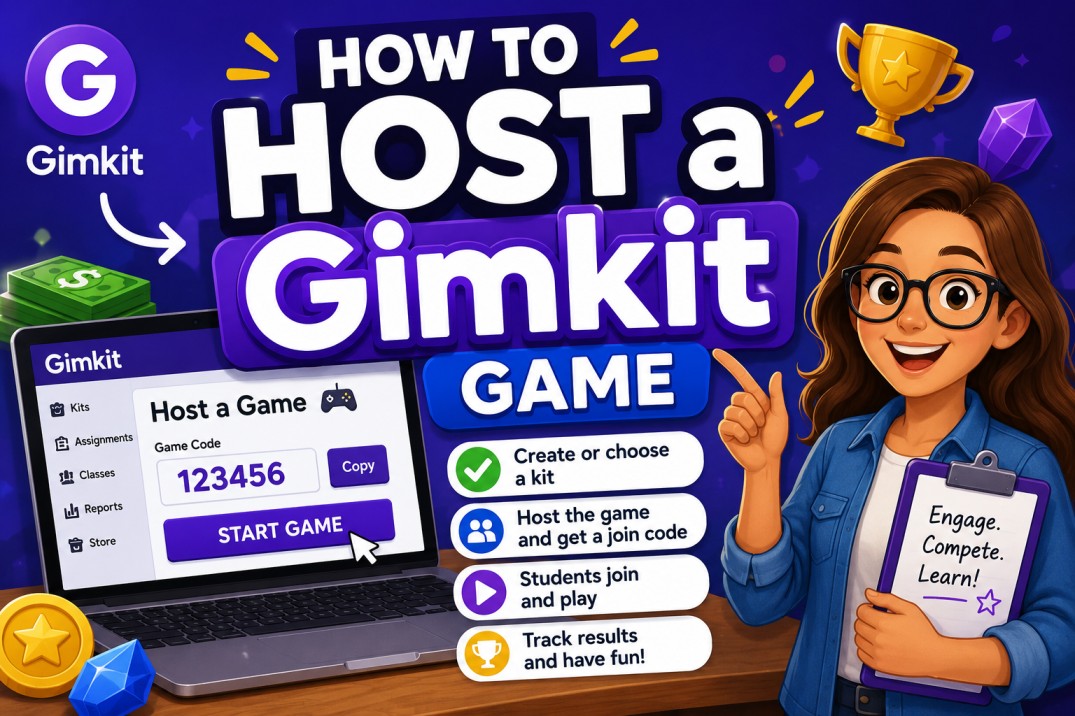
Educational technology has evolved dramatically over the past decade, and game-based learning platforms have become a major part of modern classrooms. Among the many educational tools available today, Gimkit stands out because it combines learning, competition, strategy, and engagement into a single interactive experience. Created by a high school student who wanted learning games to be more exciting, Gimkit has grown into one of the most widely used educational platforms in schools around the world.
At the center of every successful Gimkit session is the Gimkit Host. The host controls the game, selects content, manages participants, chooses settings, and creates the overall learning experience. Whether you’re a teacher running a classroom review session, a tutor organizing an online study group, or a student exploring interactive learning opportunities, understanding how to host a Gimkit game effectively can make a significant difference in engagement and educational outcomes.
Hosting a Gimkit game is about much more than simply starting a quiz. The platform offers multiple game modes, customization options, team settings, scoring systems, and classroom management tools that allow hosts to create unique experiences tailored to specific learning objectives. A well-hosted session can transform a routine review lesson into an exciting event that students genuinely look forward to participating in.
This comprehensive guide explains everything you need to know about becoming a successful Gimkit Host, including setup instructions, free hosting options, student hosting capabilities, login requirements, game modes, troubleshooting solutions, and proven strategies for maximizing participation and learning outcomes.
What Does Gimkit Host Mean?
Definition of Hosting
In Gimkit, hosting refers to the process of creating, launching, and managing a live game session for participants. The host acts as the session organizer and controls nearly every aspect of gameplay before and during the activity.
A Gimkit host typically:
- Selects the question set or Kit
- Chooses the game mode
- Configures game settings
- Generates player access codes
- Starts and ends sessions
- Monitors player activity
- Reviews performance data
Without a host, players cannot join a live Gimkit session. The host serves as the central administrator responsible for creating a structured learning environment.
Teacher vs Student Hosting
Most Gimkit hosts are teachers who use the platform to support classroom instruction. Teachers create educational games aligned with lesson plans, curriculum standards, and assessment goals.
Teacher hosts often use Gimkit for:
- Test preparation
- Lesson reviews
- Vocabulary practice
- Science concepts
- Mathematics drills
- History review sessions
- Language learning
Students may also host games in certain situations. Student-hosted sessions can be useful for independent study, peer learning, group projects, and exam preparation.
While teacher-hosted games remain the most common use case, student hosting continues to grow as learners become more comfortable using educational technology independently.
Live Sessions Explained
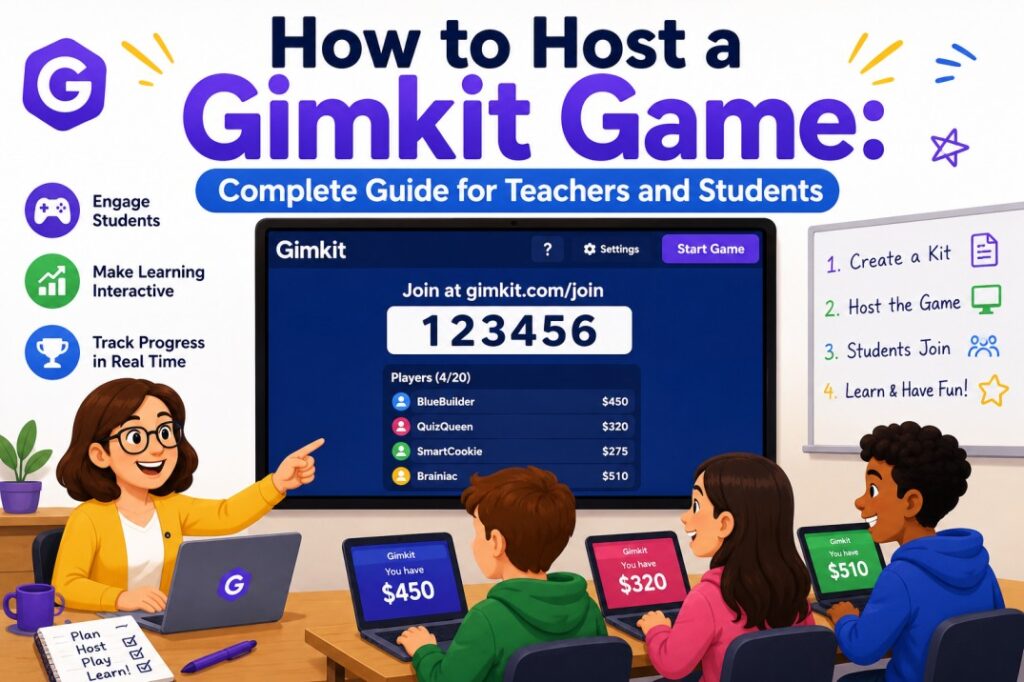
A live Gimkit session is a real-time game where participants answer questions simultaneously. Players join using a unique game code provided by the host.
During gameplay:
- Students answer questions
- Correct answers earn virtual money
- Players purchase upgrades
- Scores update in real time
- Leaderboards display rankings
- Competition drives engagement
Unlike traditional quizzes, Gimkit incorporates strategy elements that encourage repeated participation and deeper engagement with learning material.
How To Host a Gimkit Game
Create an Account
The first step toward becoming a Gimkit Host is creating an account.
The registration process typically includes:
- Visiting the Gimkit website.
- Selecting account type.
- Providing email information.
- Creating login credentials.
- Verifying account details.
Teachers generally choose educator accounts, while students create student accounts when available.
Account creation usually takes only a few minutes.
Choose a Kit
A Kit is the foundation of every Gimkit game.
Each Kit contains:
- Questions
- Answers
- Explanations
- Learning content
Hosts can:
- Create Kits from scratch
- Import existing content
- Modify previous Kits
- Use community-created resources
The quality of the Kit often determines the effectiveness of the learning experience. Well-designed questions help maintain student interest while reinforcing important concepts.
Select a Game Mode
One reason many educators prefer Gimkit is the wide variety of game modes available.
Different modes support different learning goals:
- Individual competition
- Team collaboration
- Strategic gameplay
- Creative activities
- Social interaction
Choosing the right mode can significantly impact student engagement levels.
Configure Settings
Before launching a game, hosts can customize various settings.
Popular options include:
- Game duration
- Team size
- Starting cash
- Power-up availability
- Question order
- Difficulty level
- Participation rules
Customization allows educators to adapt gameplay to specific classroom needs.
Launch the Session
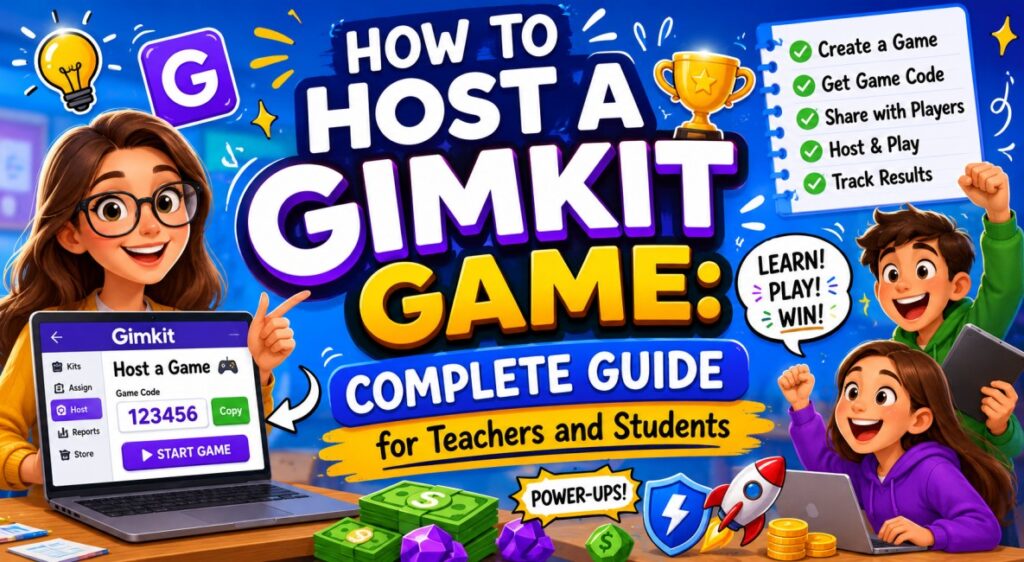
Once everything is configured, the host launches the game and receives a unique join code.
Participants enter the code and join the session from their own devices.
After everyone joins, the host starts gameplay and monitors progress throughout the activity.
Step-by-Step Gimkit Host Tutorial
Login Process
To begin hosting:
- Open Gimkit.
- Enter login credentials.
- Access the dashboard.
- Navigate to available Kits.
- Select the desired content.
The login process is designed to be simple and accessible for both new and experienced users.
Dashboard Overview
The dashboard serves as the command center for all hosting activities.
Common dashboard sections include:
My Kits
Stores all created and saved Kits.
Assignments
Displays homework and asynchronous learning activities.
Reports
Provides performance analytics and student progress data.
Classes
Helps teachers organize students into groups.
Settings
Allows account customization and preference management.
Understanding the dashboard makes hosting significantly easier.
Hosting Controls
During live sessions, hosts gain access to special controls.
These may include:
- Pause game
- Resume game
- End session
- View leaderboard
- Monitor participation
- Review responses
Effective use of these controls ensures smooth gameplay.
Session Management
Managing a live session involves more than simply observing scores.
Good hosts:
- Encourage participation
- Address technical issues
- Explain objectives
- Monitor fairness
- Keep students engaged
Successful session management often leads to stronger learning outcomes.
Gimkit Host Free Options
Free Plan Features
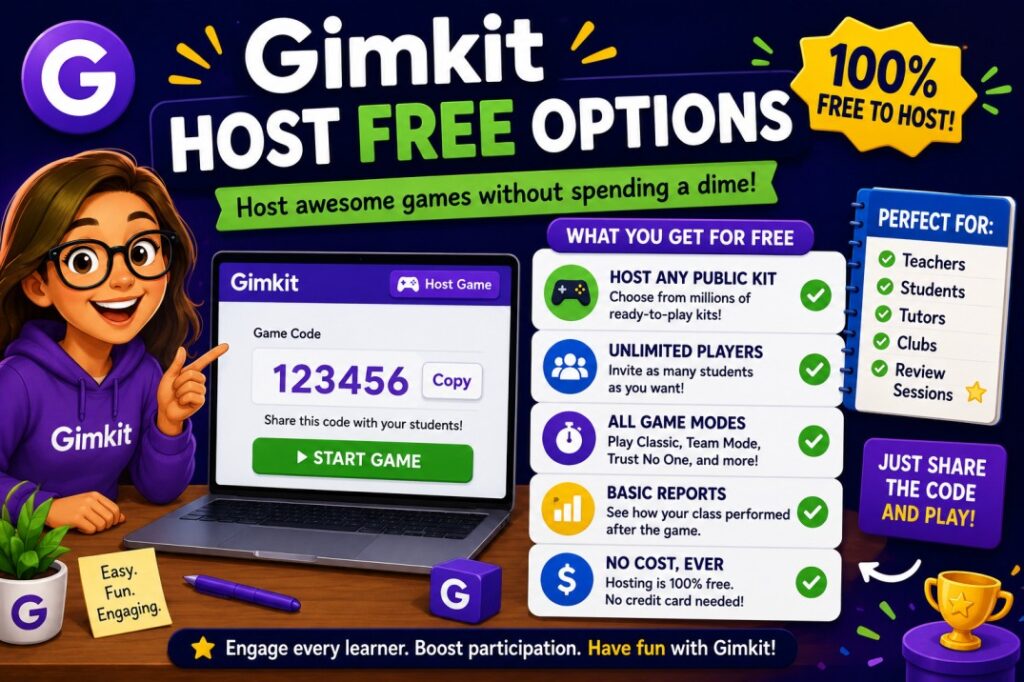
Many educators begin with Gimkit’s free plan.
Common free features may include:
- Basic hosting functionality
- Question creation tools
- Live game sessions
- Student participation
- Limited game mode access
For many classrooms, these tools provide sufficient functionality for regular educational activities.
Premium Features
Premium subscriptions often unlock additional capabilities.
These may include:
- More game modes
- Enhanced reports
- Advanced customization
- Additional classroom tools
- Expanded content options
Premium plans are generally designed for educators seeking more flexibility and deeper analytics.
Limitations of Free Hosting
While useful, free hosting may include restrictions such as:
- Limited access to premium modes
- Reduced customization
- Fewer reporting options
- Participation limits in certain situations
Despite these limitations, many teachers successfully use the free version for daily classroom activities.
Can Students Host Gimkit Games?
Student Permissions
One frequently asked question is whether students can become a Gimkit Host.
The answer depends on:
- Account type
- School policies
- Platform permissions
- Subscription availability
Students should verify available options through their accounts.
Classroom Scenarios
Student hosting can support several educational scenarios.
Examples include:
Peer Teaching
Students create review sessions for classmates.
Study Groups
Groups host collaborative revision games.
Project Presentations
Students demonstrate understanding through custom Kits.
Exam Preparation
Learners create practice activities before assessments.
These activities encourage ownership of learning.
Independent Practice
Hosting allows students to take a more active role in education.
Benefits include:
- Improved retention
- Greater engagement
- Better collaboration
- Enhanced confidence
- Stronger understanding
Student-created learning experiences often reinforce concepts more effectively than passive study methods.
Can You Host Gimkit Without Login?
Account Requirements
Hosting generally requires a registered account.
Accounts provide access to:
- Saved Kits
- Session controls
- Performance reports
- Custom settings
Without an account, many essential hosting features would not be available.
Guest Access
Players often enjoy greater flexibility than hosts.
In many cases, participants can join using a game code without creating full accounts.
This makes participation simple and accessible.
Alternative Methods
If you want to host a Gimkit game but do not yet have an account, creating a free account is usually the fastest solution.
Benefits include:
- Saved progress
- Content storage
- Session management
- Future access
The registration process is typically quick and straightforward.
Popular Gimkit Game Modes
One of Gimkit’s greatest strengths is its collection of engaging game modes.
Classic Mode
Classic Mode is the traditional Gimkit experience.
Players:
- Answer questions
- Earn money
- Buy upgrades
- Compete for high scores
This mode works well for most classroom situations.
Team Mode
Team Mode encourages collaboration.
Students work together to:
- Solve questions
- Share strategies
- Earn collective rewards
This mode promotes communication and teamwork.
Trust No One
Inspired by social deduction games, Trust No One adds mystery and strategy.
Students must:
- Answer questions
- Complete tasks
- Identify hidden roles
The combination of learning and deduction creates highly engaging gameplay.
Draw That
Draw That focuses on creativity.
Participants:
- Create drawings
- Interpret visual clues
- Reinforce concepts visually
This mode works especially well for younger students and creative subjects.
Fishtopia
Fishtopia introduces exploration and progression elements.
Students answer questions to earn rewards and unlock achievements.
The sense of progression helps sustain long-term engagement.
Snowbrawl
Snowbrawl combines action-oriented mechanics with educational content.
Fast-paced gameplay keeps students motivated while reinforcing lesson objectives.
Best Settings for Hosting Successful Games
Time Limits
Appropriate time limits help maintain momentum.
Consider:
- Student age
- Subject complexity
- Learning objectives
- Class duration
Short games create excitement, while longer sessions support deeper review.
Question Settings
Effective question configuration improves educational value.
Recommendations include:
- Randomized order
- Balanced difficulty
- Mixed question types
- Review opportunities
Variety helps prevent boredom.
Team Setup
Team-based gameplay offers several advantages.
Benefits include:
- Reduced anxiety
- Increased collaboration
- Better participation
- Stronger peer support
Many educators report higher engagement during team activities.
Difficulty Levels
Questions should challenge students without overwhelming them.
A balanced approach typically includes:
- Easy questions
- Moderate questions
- Advanced questions
This structure keeps all learners involved.
Common Gimkit Hosting Problems
Even experienced hosts occasionally encounter issues.
Players Cannot Join
Possible causes include:
- Incorrect code
- Session expiration
- Internet issues
- Browser problems
Verify the code and ensure the session remains active.
Code Not Working
Solutions may include:
- Refreshing the session
- Generating a new code
- Checking for typing errors
- Restarting the game
These steps resolve many connection problems.
Connection Issues
Stable internet access is essential.
Recommendations:
- Use reliable Wi-Fi
- Reduce network congestion
- Close unnecessary applications
- Update browsers
Strong connectivity improves gameplay quality.
Performance Problems
Performance issues may occur on older devices.
Solutions include:
- Closing background programs
- Restarting devices
- Updating software
- Using supported browsers
Browser Compatibility
Modern browsers generally provide the best experience.
Keeping software updated helps avoid technical difficulties.
Tips for Better Engagement
Reward Participation
Recognize effort as well as achievement.
Students respond positively to:
- Praise
- Recognition
- Participation awards
- Improvement milestones
Positive reinforcement encourages continued involvement.
Use Teams
Teams create social motivation.
Students often participate more actively when working toward shared goals.
Mix Question Types
Combining different question styles prevents repetition.
Examples include:
- Vocabulary
- Problem-solving
- Concept review
- Application questions
Variety keeps learning fresh and engaging.
Encourage Competition
Healthy competition can increase motivation.
Leaderboards, challenges, and rewards create excitement while supporting educational objectives.
Gimkit vs Kahoot vs Quizizz
| Feature | Gimkit | Kahoot | Quizizz |
| Hosting | ✓ | ✓ | ✓ |
| Gamification | ✓✓✓ | ✓✓ | ✓✓ |
| Student Economy | ✓ | ✗ | ✗ |
| Homework Mode | ✓ | ✓ | ✓ |
| Strategy Elements | ✓✓✓ | ✓ | ✓ |
| Upgrade System | ✓ | ✗ | ✗ |
| Real-Time Competition | ✓ | ✓ | ✓ |
Gimkit’s unique economy system distinguishes it from competitors. Students earn currency, purchase upgrades, and make strategic decisions that influence outcomes.
This combination of learning and gameplay often leads to higher engagement levels.
Frequently Asked Questions
Is Gimkit free?
Yes. Gimkit offers a free version that provides access to core hosting and learning features. Additional functionality may be available through premium subscriptions.
Can students host games?
Students may be able to host games depending on permissions, account types, and platform policies.
Do players need accounts?
Players can often join using a game code, making participation simple and accessible.
Can Gimkit be used remotely?
Yes. Gimkit works effectively in both in-person and remote learning environments.
What is the player limit?
Player limits may vary depending on account type, subscription level, and platform updates.
Is Gimkit suitable for all subjects?
Yes. Teachers use Gimkit for mathematics, science, history, language arts, geography, foreign languages, and many other subjects.
Does hosting require special equipment?
No. Most users only need a computer or mobile device with internet access.
Can hosted games be reused?
Yes. Saved Kits can often be reused, edited, and improved for future sessions.
Conclusion
Becoming an effective Gimkit Host involves much more than starting a game and sharing a join code. Successful hosting requires thoughtful preparation, strong session management, engaging content, and a clear understanding of available features. From creating high-quality Kits and selecting the right game modes to troubleshooting technical issues and encouraging participation, hosts play a critical role in shaping the overall learning experience.
Whether you’re exploring Gimkit host free options, wondering if a gimkit host student account is possible, searching for ways to host a Gimkit game, or learning about gimkit host without login requirements, understanding the platform’s capabilities can help you create more effective educational experiences.
As classrooms continue embracing interactive learning, Gimkit remains one of the most engaging platforms available. By mastering hosting tools, settings, and strategies, teachers and students can transform ordinary review sessions into exciting, memorable, and highly effective learning experiences that keep participants motivated and eager to learn.