
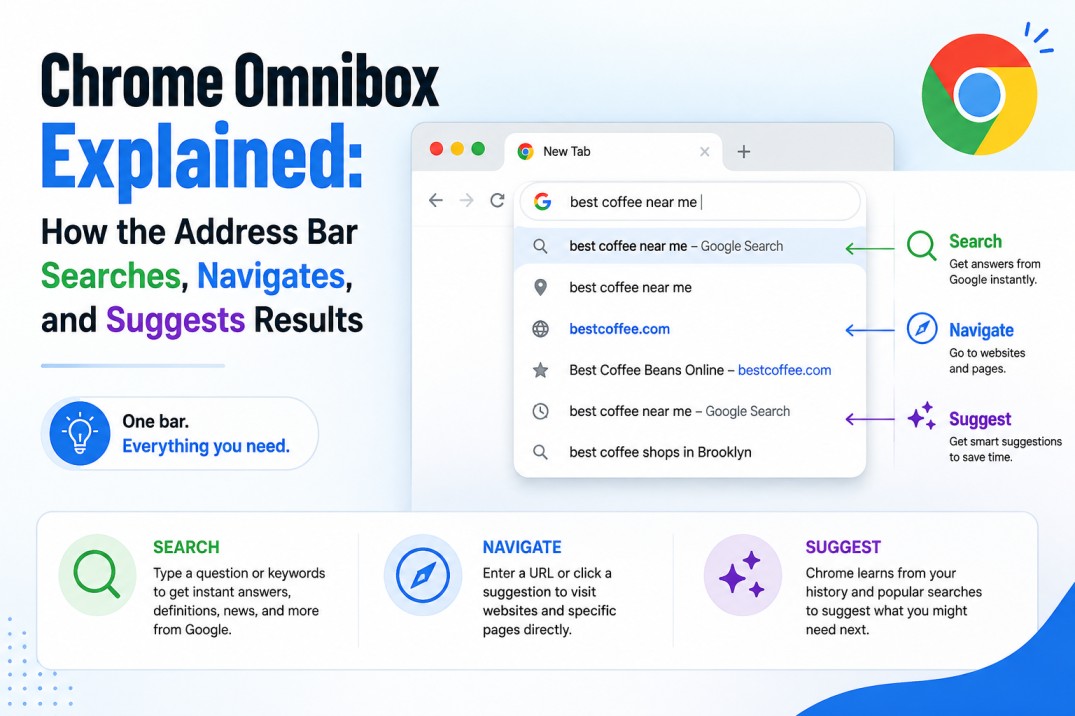
The address bar is one of the most frequently used parts of Google Chrome, yet most people rarely think about what it actually does. A website address can be entered into it to open a page, a search query can be entered to find information, and a previously visited page may appear as a suggestion before anything is submitted. What looks like a simple text field is therefore handling several different types of browser activity at once.
The Chrome Omnibox is the name Chrome uses for this combined address and search field. It is designed to interpret different kinds of input and provide an appropriate response, whether that means navigating to a website, sending a query to a search engine, finding a bookmark or suggesting a page from browsing history.
That flexibility is also why the Omnibox is sometimes called the Chrome address bar or Chrome search bar. These names refer to overlapping functions, although the Omnibox is broader than a traditional address field. It sits at the centre of Chrome’s navigation experience and has expanded over time to include search suggestions, shortcuts, calculations, conversions and newer AI-assisted features.
What Is the Chrome Omnibox?
The Chrome Omnibox is the combined field at the top of the browser window where users enter website addresses, search queries and other supported inputs. Instead of maintaining a separate search box and address box, Chrome brings both functions together in one place.
The word “Omnibox” reflects this broader role. The field is not restricted to URLs. It can interpret an address such as example.com, a query such as best smartphones under ₹30,000, or another supported command and then determine what kind of action is appropriate.
This is one reason Chrome’s address bar is so central to browsing. A visitor can move between websites, search the internet, revisit pages and use browser features without opening separate tools.
Omnibox vs Address Bar vs Search Bar
The terms can be confusing because they are often used interchangeably.
The address bar describes the field where a web address is entered. The search bar generally refers to a field used for entering search queries. In Chrome, both functions are combined into the same interface, which is why the term Omnibox is used.
In everyday use, calling it the Chrome address bar is perfectly understandable. However, “Omnibox” better describes the range of things Chrome allows users to do from that location.
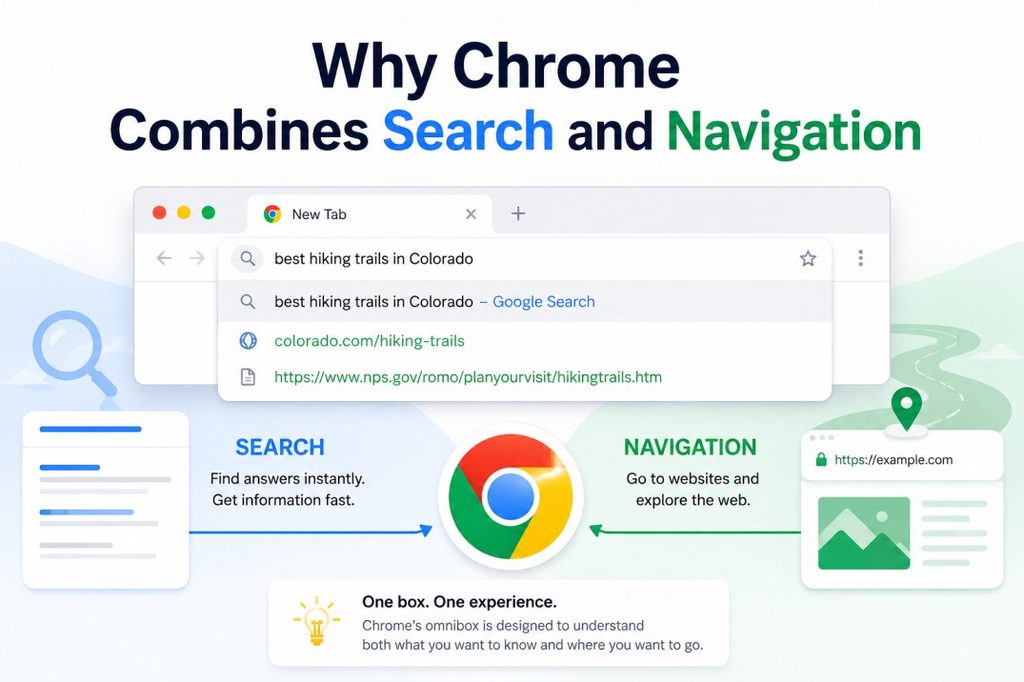
Why Chrome Combines Search and Navigation
Older browsing interfaces often separated website navigation from web searching. One field was used for addresses, while another could be used to enter search terms.
As web search became a standard part of browsing, maintaining separate fields became less necessary. Users could enter either a URL or a search query into the same location, and the browser could interpret the input accordingly.
The combined approach is more convenient because modern browsing involves constant movement between discovery and navigation. A person might search for a topic, open a result, visit another website directly, return to a previously visited page and then perform another search. Having one central input field simplifies that process.
The distinction still matters technically, however. A URL identifies a known destination, while a search query asks a search engine to find relevant information or websites.
How the Omnibox Works
The Omnibox has to interpret what is being entered before it can decide what to do with it.
A complete address such as:
is clearly a URL and is intended for direct navigation.
An input such as:
best places to visit in Japan
is clearly a search query.
The more interesting cases are inputs that fall somewhere between those two. Someone might enter a company name, a product name or a single website name without including the full domain. Chrome has to determine whether the input should be treated as a navigation request, a search or another supported action.
The process can be simplified into several stages:
- Input is entered into the Omnibox.
- Chrome interprets the input.
- Suggestions may appear.
- The appropriate action is selected after submission.
- The browser either navigates to a destination or sends the query to the configured search provider.
The exact behaviour can depend on the input, browser settings and available features.
Searching From the Omnibox
One of the primary functions of the browser Omnibox is web search.
When a search query is entered rather than a complete URL, Chrome uses the configured default search engine to process the query. For many users, that search engine is Google, which is why Chrome has historically displayed the familiar wording “Search Google or type a URL.”
The search process begins with the query itself. It could be a simple phrase such as:
weather in Mumbai
or a more detailed question such as:
how does solar energy work
After the query is submitted, the selected search engine processes it and returns a results page.
The results may include traditional web pages alongside other search features, depending on the nature of the query. These can include images, maps, videos, news, shopping results and AI-generated search experiences.
Chrome Browser Search Is Not Locked to Google
An important distinction is that Chrome and Google Search are separate products.
Chrome is the browser, while Google Search is one possible search provider. Chrome allows the default search engine used from the address bar to be changed.
This means that the Omnibox should not be understood as a Google-only search field. Its search function depends on the search engine configured in the browser.
Typing a URL Into the Omnibox
The second major function is direct navigation.
When a complete website address is entered, Chrome can attempt to open that destination without first sending the text through a search engine.
For example:
clearly identifies a website.
The browser can interpret the input as a navigation request, resolve the destination and request the relevant resource.
The process involves several technical stages behind the scenes. The domain must be resolved through DNS, a connection needs to be established with the destination server and the requested resource must be retrieved before Chrome can render the resulting page.
For most users, these details remain invisible. The practical experience is simply entering the address, pressing Enter and arriving at the website.
Why Direct Navigation Is Useful
Direct navigation is particularly helpful when the destination is already known.
It can be useful for:
- Frequently visited websites
- Official company portals
- Workplace systems
- Online banking
- Webmail
- Specific pages with known addresses
For sensitive services, using a verified address or trusted bookmark can also reduce the chance of accidentally selecting a deceptive search result.
How Chrome Autocomplete Works
One of the most noticeable Omnibox features is autocomplete.
As characters are entered, Chrome may display suggestions beneath the address bar. These suggestions can help users complete a search, return to a previously visited page or navigate to a commonly used destination.
The suggestions are not necessarily generated from one source. Chrome can use information associated with the default search engine as well as browsing-related information, depending on the browser’s configuration and privacy settings.
For example, entering:
example
could produce suggestions related to searches, previously visited websites or other relevant destinations.
Autocomplete is designed to reduce typing and help users reach their intended result more quickly.
Autocomplete Is Not the Same as Search Results
This distinction is important.
An autocomplete suggestion appears before a search is submitted. A search result appears after the query has been processed.
An autocomplete prediction may look like a complete search query, but it is still only a suggestion. Selecting it can change the final input before the search is submitted.
History and Bookmark Suggestions
The Omnibox can also act as a quick navigation tool for browser history and bookmarks.
Suppose a page has been visited several times. Entering part of its title or address may cause Chrome to surface it as a suggestion. This means users do not necessarily need to remember the exact URL.
Bookmarks work similarly. A saved website can become easier to access through the address bar because Chrome can surface saved destinations while the user types.
This function is particularly useful for websites with long or complicated URLs.
Instead of manually entering:
https://www.example.com/support/account/security/settings
a saved bookmark can provide a much simpler route back to the same page.

Why Suggestions Can Look Different for Different Users
Two people entering exactly the same characters may not necessarily see identical suggestions.
Browsing history is one reason. A website frequently visited by one person may appear prominently for that person but not for another user.
Search-engine information, settings and other contextual factors can also influence suggestions.
This is one reason the Omnibox can feel personalised even though its basic interface looks identical across users.
How to Change the Default Search Engine
The search engine used by the Chrome address bar can be changed through Chrome’s settings.
The general route is:
Chrome Settings → Search engine → choose the preferred search engine
The available options and exact interface can vary between Chrome versions and devices, but the underlying setting allows users to select the provider used for ordinary address-bar searches.
Changing the default search engine does not remove the Omnibox’s navigation function. URLs can still be entered directly, while search queries are sent to whichever search provider has been configured.
This distinction is useful for understanding why the Omnibox may be described as a search box even though it is also responsible for direct website navigation.
Site Search Shortcuts
The Omnibox can also provide shortcuts for searching specific websites.
Instead of searching the entire web first, a site-search shortcut can allow users to send a query directly to a particular website’s search function.
This can be useful for services that contain large amounts of information, including shopping sites, knowledge bases and productivity platforms.
For example, someone researching products may prefer to search directly within a particular retailer rather than perform a general Google search and then filter through the results.
Site-search shortcuts therefore extend the role of the Omnibox from general web search to targeted information retrieval.
Calculations and Conversions
The Omnibox is also capable of handling certain simple calculations and conversions.
An expression such as:
150 * 12
can be entered directly into the field without opening a separate calculator webpage.
Likewise, common unit conversions can be entered directly when supported.
This may seem like a small feature, but it illustrates the broader purpose of the Omnibox. Chrome is not simply trying to determine whether an input is a URL or search query. It can recognise several types of useful requests.
That makes the browser address bar more like a general-purpose command field than a traditional website address box.
AI Features in the Chrome Address Bar
The role of the Omnibox continues to expand as browsers incorporate AI-powered search and assistance.
Traditional search generally works by matching a query with relevant documents and presenting results. AI-assisted search can interpret longer, conversational requests and provide more contextual responses.
Chrome has also introduced newer AI-related capabilities for supported users, including access to AI Mode and tools that can work with information from pages and tabs. Availability can depend on factors such as account, device, region and feature rollout.
This represents an important shift in the way people interact with the browser.
The address bar is increasingly becoming a place where users can:
- Navigate to a known webpage
- Search for information
- Ask more conversational questions
- Work with contextual information
- Access AI-assisted experiences
However, AI-assisted browsing does not eliminate the need for conventional URLs. Direct navigation remains important when a specific and trusted destination is already known.
Privacy and Search Suggestions
Because the Omnibox can use information from browsing activity and search providers, privacy is an important consideration.
Suggestions can make browsing faster, but they may also reflect information that users consider personal. Chrome provides settings that allow users to manage aspects of how suggestions and search data are handled.
This is particularly relevant on shared computers and devices.
Browsing history, frequently visited websites and search-related information can reveal patterns about what a user has been researching or visiting. Reviewing Chrome’s privacy and suggestion settings can therefore be useful for anyone who wants greater control over the information used to generate suggestions.
Privacy also varies depending on the search provider. Changing the default search engine may change aspects of how searches and suggestions are handled, although browser-level history and other settings remain separate considerations.
Troubleshooting Omnibox Problems
Most Omnibox issues are relatively straightforward to diagnose because the field is responsible for several different functions.
If Chrome searches for something that was intended to be a URL, the first thing to check is whether the address was complete and correctly formatted.
For example, entering:
example.com
is more clearly a navigation request than entering only:
example
The shorter version may be interpreted as a search.
When the Address Bar Behaves Unexpectedly
Other potential causes include browser settings, extensions or unwanted changes to the default search engine.
Warning signs can include:
- Searches being redirected unexpectedly
- The default search engine changing without permission
- Unknown extensions appearing
- Unfamiliar websites opening automatically
- Excessive or unusual pop-ups
Unexpected changes should not simply be treated as ordinary Omnibox behaviour. They may indicate a browser configuration issue or, in some situations, unwanted software.
Checking installed extensions and the default search-engine setting is a sensible starting point.
Omnibox vs Address Bar: Are They the Same?
In Chrome, the Omnibox and the address bar essentially refer to the same combined interface.
The difference lies more in emphasis than in a separate piece of software.
“Address bar” highlights the field’s navigation function.
“Search bar” highlights its search function.
“Omnibox” captures both functions along with additional capabilities such as suggestions, history, bookmarks, shortcuts and supported tools.
This is why the term Omnibox is more technically descriptive when discussing Chrome’s implementation.
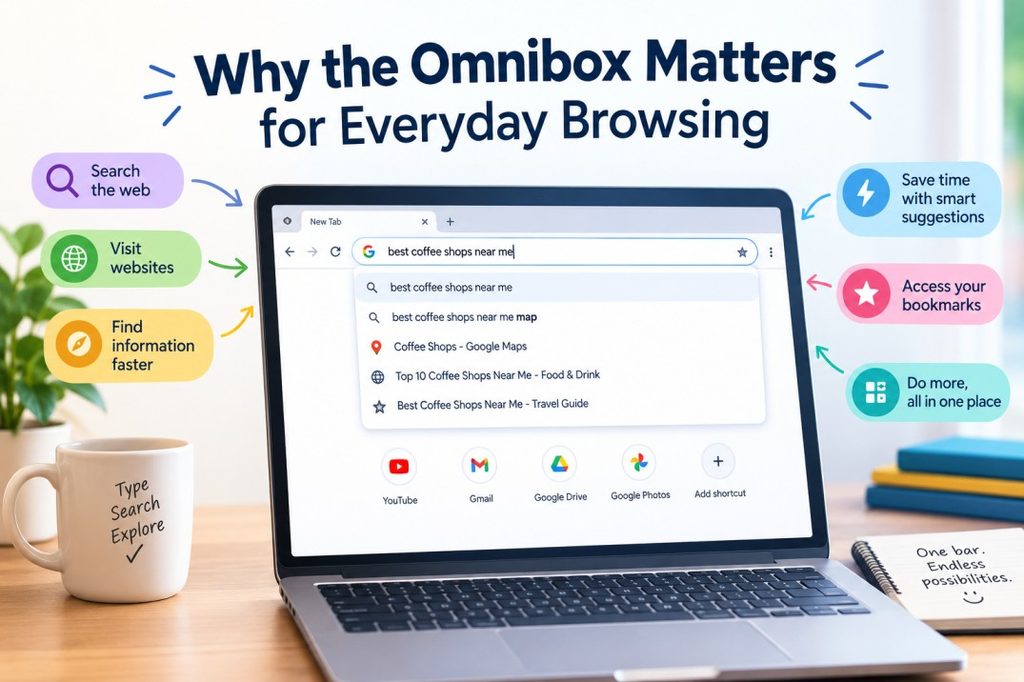
Why the Omnibox Matters for Everyday Browsing
The Omnibox has quietly become one of the most important interfaces in modern browsers because it removes the need to decide which tool should be used before entering information.
A user does not have to think:
“Am I supposed to use the address bar or search box?”
The browser handles that distinction.
A known URL can be opened directly. A general query can be sent to the configured search engine. A previously visited page can appear as a suggestion. A bookmark can be retrieved, and other supported requests can be processed in the same field.
That simplicity is the main strength of the design.
Frequently Asked Questions
What is the Chrome Omnibox?
The Chrome Omnibox is the browser’s combined address and search field. It allows users to enter URLs, search queries and other supported inputs in one place.
Is the Omnibox the same as the Chrome address bar?
Yes. In Chrome, “Omnibox” is the more specific term for the combined address and search field that appears at the top of the browser window.
Why does Chrome call it the Omnibox?
The name reflects the fact that the field supports multiple functions rather than being limited to website addresses.
Can the Omnibox search Google?
Yes. When Google is configured as the default search engine, queries entered into the Omnibox can be sent to Google Search.
Can the Chrome search engine be changed?
Yes. Chrome allows users to change the default search engine used for searches entered through the address bar.
What happens when a URL is typed into the Omnibox?
Chrome interprets the input as a navigation request, resolves the destination and attempts to retrieve the requested resource from the relevant server.
Why does Chrome sometimes search instead of opening a website?
This can happen when the input is incomplete, ambiguous or not recognised as a valid URL. Browser settings or extensions can also affect unexpected behaviour.
What is Chrome autocomplete?
Chrome autocomplete provides suggestions while text is being entered into the Omnibox. Suggestions can relate to searches, websites, browsing history and other browser information.
Are Omnibox suggestions based on browsing history?
They can be. Chrome can use browsing history and information from the configured search provider to generate address-bar suggestions, depending on settings.
Can the Omnibox access bookmarks?
Yes. Chrome can surface bookmarked pages through the address bar, making saved websites easier to access.
Can the Omnibox perform calculations?
Chrome supports certain calculations directly through the address bar, allowing simple expressions to be processed without opening a dedicated calculator page.
Can the Omnibox search a specific website?
Yes. Chrome supports search shortcuts and related functionality that can allow users to search within specific websites.
Does the Omnibox only work with Google?
No. Chrome can use different search engines as the default provider. Google is only one available option.
Is the Omnibox available on all browsers?
Other browsers provide similar combined search-and-navigation fields, but the name “Omnibox” is associated specifically with Chrome.
Are Omnibox suggestions private?
Chrome provides privacy controls related to suggestions and search activity, but the precise handling of information depends on browser settings and the services involved.
Can the Omnibox use AI?
Chrome has introduced AI-assisted capabilities for supported users. These can extend the browser address bar beyond traditional search and navigation.
The Omnibox Is More Than an Address Bar
The Chrome Omnibox started from a simple idea: combine website navigation and web search in one field. That basic concept remains at the heart of the feature, but the modern Omnibox now handles considerably more.
It can interpret URLs, process searches, surface browsing-history and bookmark suggestions, support site-search shortcuts, perform certain calculations and conversions, and provide access to newer AI-assisted experiences. At the same time, its core purpose remains unchanged: giving users a single, practical place to decide where they want to go or what they want to find.
Understanding how the Omnibox works also makes common browser behaviour easier to explain. A search query, a website address, a bookmarked page and a previous browsing destination may all appear in the same field, but Chrome is interpreting each input according to a different purpose.
That combination of search, navigation and browser tools is what makes the Omnibox one of the most useful components of Chrome.